
BIZHUB C20P - Imprimante couleur KONICA MINOLTA - Notice d'utilisation et mode d'emploi gratuit
Retrouvez gratuitement la notice de l'appareil BIZHUB C20P KONICA MINOLTA au format PDF.


| Type de produit | Imprimante couleur laser A4 |
| Technologie d'impression | Électrophotographique laser, tandem couleur |
| Résolution | 600 x 600 dpi, 4 bits par couleur |
| Vitesse d'impression | Jusqu'à 25 ppm (A4/Letter, monochrome et couleur) |
| Première page | 14,5 s (A4/Letter, recto) |
| Mémoire standard | 256 Mo (extensible à 768 Mo avec DIMM) |
| Format de papier | A4, A5, A6, B5, Letter, Legal, Exécutif, enveloppes, personnalisé (92-216 mm x 148-356 mm) |
| Capacité d'alimentation | Bac 1 (manuel) : 100 feuilles ; Bac 2 : 250 feuilles ; Bac 3 (option) : 500 feuilles |
| Capacité de sortie | 200 feuilles (bac de sortie) |
| Impression recto-verso | Automatique intégré |
| Connectivité | USB 2.0, Ethernet 10/100/1000 Base-T, Port parallèle, Host USB (PictBridge) |
| Alimentation | 120-230 V CA, 50-60 Hz ; consommation max. 1200 W (veille 16 W) |
| Dimensions (L x P x H) | 469 x 536 x 385 mm |
| Poids | Environ 37 kg (avec consommables) |
| Température de fonctionnement | 10 à 35 °C |
| Humidité de fonctionnement | 15 à 85 % |
| Niveau sonore | 52 dB (impression) ; 39 dB (veille) |
| Cartouche toner | Cyan, Magenta, Jaune, Noir ; capacité standard environ 8 000 pages (cartouche haute capacité aussi disponible) |
| Unité image (drum) | 4 unités (C, M, J, N) ; durée de vie environ 30 000 pages |
| Bouteille de toner usagé | Durée de vie : 36 000 pages (mono) / 9 000 pages (couleur) |
| Rouleau de transfert | Durée de vie : 120 000 pages |
| Unité de fusion | Durée de vie : 120 000 pages |
| Options | Bac inférieur (500 feuilles), disque dur 40 Go, adaptateur CompactFlash, DIMM 512 Mo |
| Normes environnementales | ENERGY STAR, RoHS, directive DEEE |
FOIRE AUX QUESTIONS - BIZHUB C20P KONICA MINOLTA
Questions des utilisateurs sur BIZHUB C20P KONICA MINOLTA
0 question sur cet appareil. Repondez a celles que vous connaissez ou posez la votre.
Poser une nouvelle question sur cet appareil
Téléchargez la notice de votre Imprimante couleur au format PDF gratuitement ! Retrouvez votre notice BIZHUB C20P - KONICA MINOLTA et reprennez votre appareil électronique en main. Sur cette page sont publiés tous les documents nécessaires à l'utilisation de votre appareil BIZHUB C20P de la marque KONICA MINOLTA.
MODE D'EMPLOI BIZHUB C20P KONICA MINOLTA
bizhub C20P User's Guide
A00F-9564-00A
Thank You
Thank you for purchasing a bizhub C20P. You have made an excellent choice.
Your bizhub C20P is specially designed for optimal performance in Windows, Macintosh and Linux environments.
Trademarks
KONICA MINOLTA and the KONICA MINOLTA logo are trademarks or registered trademarks of KONICA MINOLTA HOLDINGS, INC.
bizhub and PageScope are trademarks or registered trademarks of KONICA MINOLTA BUSI-NESS TECHNOLOGIES, INC.
All other trademarks and registered trademarks are the property of their respective owners.
Copyright Notice
Copyright © 2008 KONICA MINOLTA BUSINESS TECHNOLOGIES, INC., Marunouchi Center Building, 1-6-1 Marunouchi, Chiyoda-ku, Tokyo, 100-0005, Japan. All Rights Reserved. This document may not be copied, in whole or part, nor transferred to any other media or language, without written permission of KONICA MINOLTA BUSINESS TECHNOLOGIES, INC.
Notice
KONICA MINOLTA BUSINESS TECHNOLOGIES, INC. reserves the right to make changes to this guide and to the equipment described herein without notice. Considerable effort has been made to ensure that this guide is free of inaccuracies and omissions. However, KONICA MINOLTA BUSINESS TECHNOLOGIES, INC. makes no warranty of any kind including, but not limited to, any implied warranties of merchantability and fitness for a particular purpose with regard to this guide. KONICA MINOLTA BUSINESS TECHNOLOGIES, INC. assumes no responsibility for, or liability for, errors contained in this guide or for incidental, special, or consequential damages arising out of the furnishing of this guide, or the use of this guide in operating the equipment, or in connection with the performance of the equipment when so operated.
SOFTWARE LICENSE AGREEMENT
This package contains the following materials provided by Konica Minolta Business Technologies, Inc. (KMBT): software included as part of the printing system, the digitally-encoded machine-readable outline data encoded in the special format and in the encrypted form ("Font Programs"), other software which runs on a computer system for use in conjunction with the Printing Software ("Host Software"), and related explanatory written materials ("Documentation"). The term "Software" shall be used to describe Printing Software, Font Programs and/or Host Software and also include any upgrades, modified versions, additions, and copies of the Software.
The Software is being licensed to you under the terms of this Agreement.
KMBT grants to you a non-exclusive sublicense to use the Software and Documentation, provided that you agree to the following:
- You may use the Printing Software and accompanying Font Programs for imaging to the licensed output device(s), solely for your own internal business purposes.
- In addition to the license for Font Programs set forth in Section 1 ("Printing Software") above, you may use Roman Font Programs to reproduce weights, styles, and versions of letters, numerals, characters and symbols ("Typefaces") on the display or monitor for your own internal business purposes.
- You may make one backup copy of the Host Software, provided your backup copy is not installed or used on any computer. Notwithstanding the above restrictions, you may install the Host Software on any number of computers solely for use with one or more printing systems running the Printing Software.
- You may assign its rights under this Agreement to an assignee of all of Licensee's right and interest to such Software and Documentation ("Assignee") provided you transfer to Assignee all copies of such Software and Documentation Assignee agrees to be bound by all of the terms and conditions of this Agreement.
- You agree not to modify, adapt or translate the Software and Documentation.
- You agree that you will not attempt to alter, disassemble, decrypt, reverse engineer or decompile the Software.
- Title to and ownership of the Software and Documentation and any reproductions thereof shall remain with KMBT and its Licensor.
- Trademarks shall be used in accordance with accepted trademark practice, including identification of the trademark owner's name. Trademarks can only be used to identify printed output produced by the Software. Such use of any trademark does not give you any rights of ownership in that trademark.
- You may not rent, lease, sublicense, lend or transfer versions or copies of the Software that the Licensee does not use, or Software contained on any unused media, except as part of the permanent transfer of all Software and Documentation as described above.
-
In no event will KMBT or its licensor be liable to you for any consequential, incidental INDI-RECT, PUNITIVE or special damages, including any lost profits or lost saving, even if KMBT has been advised of the possibility of such damages, or for any claim by any third party. KMBT or its licensor disclaims all warranties with regard to the software, express or implied, including, without limitation implied warranties of merchantability, fitness for a particular purpose, title and non-infringement of third party rights. Some states or jurisdictions do not allow the exclusion or limitation of incidental, consequential or special damages, so the above limitations may not apply to you.
-
Notice to Government End Users: The Software is a "commercial item," as that term is defined at 48 C.F.R.2.101, consisting of "commercial computer software" and "commercial computer software documentation," as such terms are used in 48 C.F.R. 12.212. Consistent with 48 C.F.R. 12.212 and 48 C.F.R. 227.7202-1 through 227.7202-4, all U.S. Government End Users acquire the Software with only those rights set forth herein.
- You agree that you will not export the Software in any form in violation of any applicable laws and regulations regarding export control of any countries.
About Adobe Color Profile
ADOBE SYSTEMS INCORPORATED COLOR PROFILE LICENSE AGREEMENT
NOTICE TO USER: PLEASE READ THIS CONTRACT CAREFULLY. BY USING ALL OR ANY PORTION OF THE SOFTWARE YOU ACCEPT ALL THE TERMS AND CONDITIONS OF THIS SOFTWARE YOU ACCEPT ALL THE TERMS AND CONDITIONS OF THIS AGREEMENT. IF YOU DO NOT AGREE WITH THE TERMS OF THIS AGREEMENT, DO NOT USE THE SOFTWARE.
- DEFINITIONS In this Agreement, "Adobe" means Adobe Systems Incorporated, a Delaware corporation, located at 345 Park Avenue, San Jose, California 95110. "Software" means the software and related items with which this Agreement is provided.
- LICENSE Subject to the terms of this Agreement, Adobe hereby grants you the worldwide, non-exclusive, nontransferable, royalty-free license to use, reproduce and publicly display the Software. Adobe also grants you the rights to distribute the Software only (a) as embedded within digital image files and (b) on a standalone basis. No other distribution of the Software is allowed; including, without limitation, distribution of the Software when incorporated into or bundled with any application software. All individual profiles must be referenced by their ICC Profile description string. You may not modify the Software. Adobe is under no obligation to provide any support under this Agreement, including upgrades or future versions of the Software or other items. No title to the intellectual property in the Software is transferred to you under the terms of this Agreement. You do not acquire any rights to the Software except as expressly set forth in this Agreement.
-
DISTRIBUTION If you choose to distribute the Software, you do so with the understanding that you agree to defend, indemnify and hold harmless Adobe against any losses, damages or costs arising from any claims, lawsuits or other legal actions arising out of such distribution, including without limitation, your failure to comply with this Section 3. If you distribute the Software on a standalone basis, you will do so under the terms of this Agreement or your own license agreement which (a) complies with the terms and conditions of this Agreement; (b) effectively disclaims all warranties and conditions, express or implied, on behalf of Adobe; (c) effectively excludes all liability for damages on behalf of Adobe; (d) states that any provisions that differ from this Agreement are offered by you alone and not Adobe and (e) states that the Software is available from you or Adobe and informs licensees how to obtain it in a reasonable manner on or through a medium customarily used for software exchange. Any distributed Software will include the Adobe copyright notices as included in the Software provided to you by Adobe.
-
DISCLAIMER OF WARRANTY Adobe licenses the Software to you on an "AS IS" basis. Adobe makes no representation as to the adequacy of the Software for any particular purpose or to produce any particular result. Adobe shall not be liable for loss or damage arising out of this Agreement or from the distribution or use of the Software or any other materials. ADOBE AND ITS SUPPLIERS DO NOT AND CANNOT WARRANTY THE PERFORMANCE OR RESULTS YOU MAY OBTAIN BY USING THE SOFTWARE, EXCEPT FOR ANY WARRANTY, CONDITION, REPRESENTATION OR TERM TO THE EXTENT TO WHICH THE SAME CANNOT OR MAY NOT BE EXCUSED OR LIMITED BY LAW APPLICABLE TO YOU IN YOUR JURISDICTION, ADOBE AND ITS SUPPLIERS MAKE NO WARRANTYES, CONDITIONS, REPRESENTATIONS OR TERMS, EXPRESS OR IMPLIED, WHETHER BY STATUTE, COMMON LAW, CUSTOM, USAGE OR OTHERWISE AS TO ANY OTHER MATTERS, INCLUDING BUT NOT LIMITED TO NON-INFRINGEMENT OF THIRD PARTY RIGHTS, INTEGRATION, SATISFACTORY QUALITY OR FITNESS FOR ANY PARTICULAR PURPOSE. YOU MAY HAVE ADDITIONAL RIGHTS WHICH VARY FROM JURISDICTION TO JURISDICTION. The provisions of Sections 4, 5 and 6 shall survive the termination of this Agreement, howsoever caused, but this shall not imply or create any continued right to use the Software after termination of this Agreement.
- LIMITATION OF LIABILITY IN NO EVENT WILL ADOBE OR ITS SUPPLIERS BE LIABLE TO YOU FOR ANY DAMAGES, CLAIMS OR COSTS WHATSOEVER OR ANY CONSEQUENTIAL, INDIRECT, INCIDENTAL DAMAGES, OR ANY LOST PROFITS OR LOST SAVINGS, EVEN IF AN ADOBE REPRESENTATIVE HAS BEEN ADVISED OF THE POS-SSIBILITY OF SUCH LOSS, DAMAGES, CLAIMS OR COSTS OR FOR ANY CLAIM BY ANY THIRD PARTY. THE FOREGOING LIMITATIONS AND EXCLUSIONS APPLY TO THE EXTENT PERMITTED BY APPLICABLE LAW IN YOUR JURISDICTION. ADOBE'S AGGREGATE LIABILITY AND THAT OF ITS SUPPLIERS UNDER OR IN CONNECTION WITH THIS AGREEMENT SHALL BE LIMITED TO THE AMOUNT PAID FOR THE SOFTWARE. Nothing contained in this Agreement limits Adobe's liability to you in the event of death or personal injury resulting from Adobe's negligence or for the tort of deceit (fraud). Adobe is acting on behalf of its suppliers for the purpose of disclaiming, excluding and/or limiting obligations, warranties and liability as provided in this Agreement, but in no other respects and for no other purpose.
- TRADEMARKS Adobe and the Adobe logo are the registered trademarks or trademarks of Adobe in the United States and other countries. With the exception of referential use, you will not use such trademarks or any other Adobe trademark or logo without separate prior written permission granted by Adobe.
- TERM This Agreement is effective until terminated. Adobe has the right to terminate this Agreement immediately if you fail to comply with any term hereof. Upon any such termination, you must return to Adobe all full and partial copies of the Software in your possession or control.
-
GOVERNMENT REGULATIONS If any part of the Software is identified as an export controlled item under the United States Export Administration Act or any other export law, restriction or regulation (the "Export Laws"), you represent and warrant that you are not a citizen, or otherwise located within, an embargoed nation (including without limitation Iran, Iraq, Syria, Sudan, Libya, Cuba, North Korea, and Serbia) and that you are not otherwise prohibited under the Export Laws from receiving the Software. All rights to use the Software are granted on condition that such rights are forfeited if you fail to comply with the terms of this Agreement.
-
GOVERNING LAW This Agreement will be governed by and construed in accordance with the substantive laws in force in the State of California as such laws are applied to agreements entered into and to be performed entirely within California between California residents. This Agreement will not be governed by the conflict of law rules of any jurisdiction or the United Nations Convention on Contracts for the International Sale of Goods, the application of which is expressly excluded. All disputes arising out of, under or related to this Agreement will be brought exclusively in the state Santa Clara County, California, USA.
- GENERAL You may not assign your rights or obligations granted under this Agreement without the prior written consent of Adobe. None of the provisions of this Agreement shall be deemed to have been waived by any act or acquiescence on the part of Adobe, its agents, or employees, but only by an instrument in writing signed by an authorized signatory of Adobe. When conflicting language exists between this Agreement and any other agreement included in the Software, the terms of such included agreement shall apply. If either you or Adobe employs attorneys to enforce any rights arising out of or relating to this Agreement, the prevailing party shall be entitled to recover reasonable attorneys' fees. You acknowledge that you have read this Agreement, understand it, and that it is the complete and exclusive statement of your agreement with Adobe which supersedes any prior agreement, oral or written, between Adobe and you with respect to the licensing to you of the Software. No variation of the terms of this Agreement will be enforceable against Adobe unless Adobe gives its express consent, in writing, signed by an authorized signatory of Adobe.
ICC Profile for TOYO INK Standard Color on Coated paper (TOYO Offset Coated 2.1)
This ICC Profile (TOYO Offset Coated 2.1) characterizes Japanese offset press on Coated paper and is fully compatible with ICC profile format.
About "TOYO INK Standard Color on Coated paper"
This is the standard for color reproduction of sheet-fed offset press on Coated paper made by TOYO INK MFG.CO., LTD. ("TOYO INK").
This standard is made from printing test with using TOYO INK's sheet-fed offset printing inks and TOYO INK's own printing conditions.
"TOYO INK Standard Color on Coated paper" is compatible with "JAPAN COLOR".
Agreement
- The reproduction of images on a printer or a monitor using this ICC Profile do not completely match the TOYO INK Standard Color on Coated paper.
- Any and all copyrights of this ICC Profile shall remain in TOYO INK; therefore you shall not transfer, provide, rent, distribute, disclose, or grant any rights in this ICC Profile to any third party without the prior written consent of TOYO INK.
- In no event will TOYO INK its directors, officers, employees or agents be liable to you for any consequential or incidental, either direct or indirect, damages (including damages for loss of business profits, business interruption, loss of business information, and the like) arising out of the use or inability to use this ICC Profile.
-
TOYO INK shall not be responsible for answering any question related to this ICC Profile.
-
All company names and product names used in this document is the trademarks or registered trademarks of their respective holder.
This ICC Profile made by GretagMacbeth ProfileMaker and granted TOYO INK certain license to distribute by GretagMacbeth AG.
TOYO Offset Coated 2.1 © TOYO INK MFG. CO., LTD. 2004
For EU member states only
This symbol means: Do not dispose of this product together with your household waste!
Please contact the Local Authority for appropriate disposal instructions. In the case of a new device being purchased, the used one can also be given to our dealer for appropriate disposal. Recycling of this product will help to conserve natural resources and prevent potential negative consequences for the environment and human health caused by inappropriate waste handling.


This product complies with RoHS (2002/95/EC) directive.
Contents
1 Introduction 1
Getting Acquainted with Your Printer 2
Space Requirements 2
Printer Parts 4
Front View 4
Rear View 5
Front View with Options 5
2 About the Software 7
Printer Driver CD-ROM 8
PostScript Drivers 8
PCL Drivers 8
XPS Driver 8
PPD Files 9
Utilities and Documentation CD-ROM 9
Utilities 9
System Requirements 11
Selecting Driver Options/Defaults (for Windows) 12
Windows Vista/XP/Server 2003/2000 (KONICA MINOLTAbizhub C20P
PCL6, KONICA MINOLTA bizhub C20P PS) 12
Uninstalling the Printer Driver (for Windows) 14
Windows Vista/XP/Server 2003/2000(KONICA MINOLTA bizhub C20P
PCL6, KONICA MINOLTA bizhub C20P PS) 14
Displaying Printer Driver Settings (for Windows) 15
Windows Vista 15
Windows XP/Server 2003 15
Windows 2000 15
Using the Postscript and PCL Printer Driver 16
Common Buttons 16
OK 16
Cancel 16
Apply 16
Help 16
Favorite Setting 16
Paper View 16
Printer View 17
Quality View 17
Default 17
Advanced Tab(PostScript Printer Driver Only) 17
Basic Tab 17
Layout Tab 18
Cover Page Tab 18
Watermark/Overlay Tab 18
Quality Tab 19
Other Tab 20
Limitations on printer driver functions installed with Point and Print 20
3 Using the Status Monitor (Windows Only) 21
Working with the Status Monitor 22
Introduction 22
Operating Environment 22
Opening the Status Monitor 22
Using the Status Monitor 22
Recognizing Status Monitor Alerts 23
Recovering from a Status Monitor Alert 23
Closing the Status Monitor 23
4 Printer Control Panel and Configuration Menu 25
About the Control Panel 26
Control Panel Indicators and Keys 27
Message Window 28
Help Screens 29
Configuration Menu Overview 30
Main Menu 30
PROOF/PRINT MENU 32
Printing/Deleting a Stored Job 32
Entering the Password 34
PRINT MENU 35
PAPER MENU 37
QUALITY MENU 44
MEMORY DIRECT 62
CAMERA DIRECT 65
INTERFACE MENU 68
SYS DEFAULT MENU 76
MAINTENANCE MENU 87
SERVICE MENU 94
5 Camera Direct 95
Camera Direct 96
Printing Directly from a Digital Camera 96
6 Memory Direct 97
Memory Direct 98
Printing From a Connected USB Memory Device 98
7 Using Media 99
Media Specifications 100
Media Types 101
Plain Paper (Recycled Paper) 101
Thick Stock 103
Envelopes 103
Labels 104
Letterhead 105
Postcards 105
Transparencies 106
Glossy Media 107
What Is the Guaranteed Imageable (Printable) Area? 108
Imageable Area—Envelopes 108
Page Margins 108
Loading Media 109
Tray 1 (Manual Feed Tray) 109
Loading Plain Paper 109
Other Media 111
Loading Envelopes 112
Loading Label Sheets/Postcards/Thick Stock/Glossy Media and Transparency 114
Tray 2 116
Loading Plain Paper 116
Tray 3 (Optional Lower Feeder Unit) 119
Loading Plain Paper 119
Duplexing 122
Output Tray 124
8 Replacing Consumables 127
Replacing Consumables 128
About Toner Cartridges 128
Replacing a Toner Cartridge 131
Replacing a Imaging Unit 135
Replacing the Waste Toner Bottle 141
Replacing the Transfer Roller 144
Replacing the Transfer Roller 144
Replacing the Ozone Filter 147
Replacing the Transfer Belt Unit 148
Replacing the Backup Battery 154
Replacing the Fuser Unit 157
9 Maintaining the Printer 161
Maintaining the Printer 162
Cleaning the Printer 164
Exterior 164
Media Rollers 165
Cleaning the Media Feed Rollers (Manual Feed Tray) 165
Cleaning the Media Feed Rollers (Tray 2/3) 167
Cleaning the Media Transfer Rollers for Tray 3 168
Cleaning the Laser Lens 169
10 Troubleshooting 171
Introduction 172
Printing a Configuration Page 172
Preventing Media Misfeeds 173
Understanding the Media Path 174
Clearing Media Misfeeds 175
Media Misfeed Messages and Clearing Procedures 176
Clearing a Media Misfeed in Tray 2 177
Clearing a Media Misfeed in Tray 3 181
Clearing a Media Misfeed from the Duplex 183
Clearing a Media Misfeed from the Fuser Unit 184
Clearing a Media Misfeed from Tray 1 (Manual Feed Tray) and Transfer
Roller 188
Solving Problems with Media Misfeeds 190
Solving Other Problems 193
Solving Problems with Printing Quality 199
Status, Error, and Service Messages 205
Standard Status Messages 205
Error Messages (Warning: A) 206
Error Messages (Operator Call: 210
Service Messages: 215
11 Installing Accessories 217
Introduction 218
Antistatic Protection 219
Dual In-Line Memory Module (DIMM) 220
Installing a DIMM 220
Hard Disk Kit 223
Installing the Hard Disk kit 223
CompactFlash 227
Installing the CF adapter and CompactFlash card 227
Lower Feeder Unit 231
Kit Contents 231
Installing a Lower Feeder Unit 232
A Appendix 235
Technical Specifications 236
Printer 236
Consumable Life Expectancy Chart 239
Our Concern for Environmental Protection 240
What is an ENERGY STAR product? 240
Introduction
1
Getting Acquainted with Your Printer
Space Requirements
To ensure easy operation, consumable replacement and maintenance, adhere to the recommended space requirements detailed below.
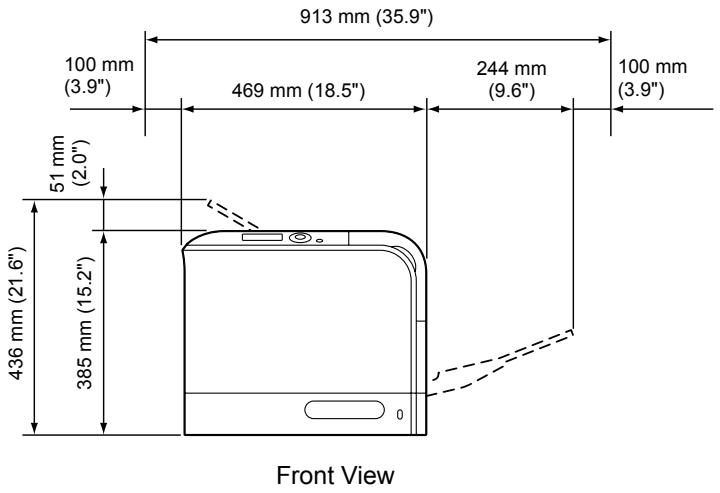

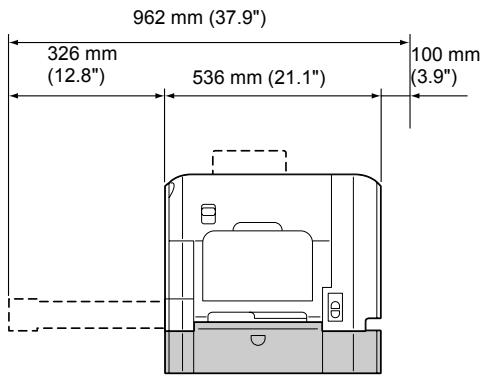
Side View with Options

The option appears shaded in the above illustrations.
Printer Parts
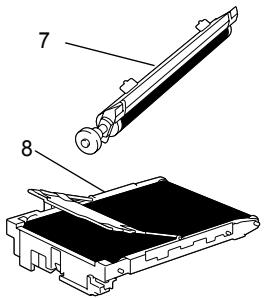
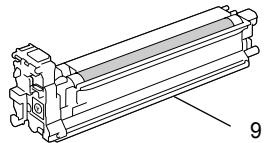
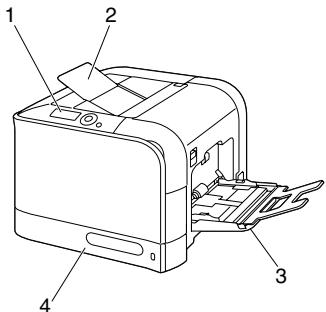
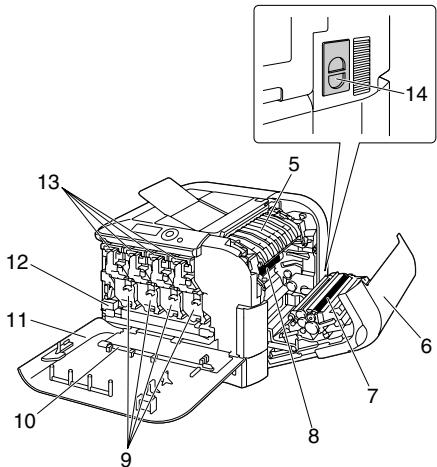
The following drawings illustrate the parts of your printer referred to throughout this guide, so please take some time to become familiar with them.
Front View
1-Control panel
2—Output tray
3—Tray 1 (Manual feed tray)
4—Tray 2
5—Fuser unit
6—Right side cover
7—Transfer roller
8—Transfer belt unit
9-Imaging unit(s)
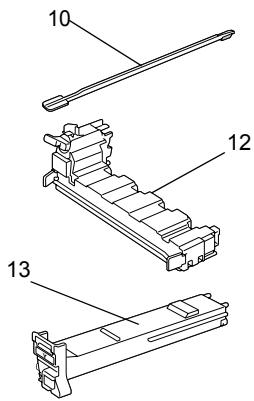
10—Laser lens cleaning tool
11—Front cover
12—Waste toner bottle
13—Toner cartridge(s)
14—Ozone filter
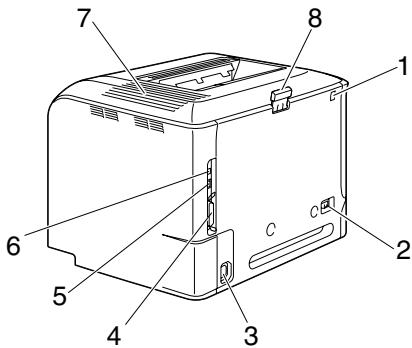
Rear View
1—KONICA MINOLTA Digital Camera Direct Print Port
2—Power switch
3—Power connection
4-Parallel port
5—10Base-T/100Base-TX/ 1000Base-T Ethernet Interface port
6—USB port
7—Ventilation grilles
8-Paper stopper
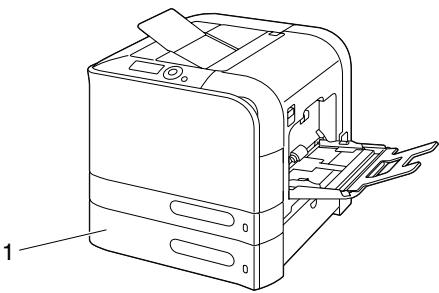
Front View with Options
1—Lower feeder unit (Tray 3)
About the Software
2
PostScript Drivers
| Operating System | Use/Benefit |
| Windows Vista/XP/Server 2003/2000 | These drivers give you access to all of the printer features, including finish- ing and advanced layout. See also “Displaying Printer Driver Settings (for Windows)” on page 15. |
| Windows Vista/XP/Server 2003 for 64bit |

A specific PPD file has been prepared for applications (such as PageMaker and Corel Draw) that require that a PPD file be specified when printing.
When specifying a PPD file while printing on Windows Vista, XP, Server 2003 and 2000, use the specific PPD file provided on the Printer Driver CD-ROM.
PCL Drivers
| Operating System | Use/Benefit |
| Windows Vista/XP/Server 2003/2000 | These drivers give you access to all of the printer features, including finish- ing and advanced layout. See also “Displaying Printer Driver Settings (for Windows)” on page 15. |
| Windows Vista/XP/Server 2003 for 64bit |
XPS Driver
| Operating System | Use/Benefit |
| Windows VistaWindows Vista for 64bit | These mini drivers for Windows Vista are based on the Windows core. For details on the installation method and functions, refer to the Reference Guide on the Utilities and Documenta-tion CD-ROM. |

The XPS driver cannot be installed by using the auto-play installation feature of the Printer Driver CD-ROM.
PPD Files
| Operating System | Use/Benefit |
| Macintosh OS X | These files are required in order to use the printer driver for each operat-ing system. For details of the Macintosh and Linux printer drivers, refer to the Reference Guide on the Utilities and Documenta-tion CD-ROM. |
| Linux |

For details on the installation of the Windows printer drivers, refer to the Installation Guide on the Utilities and Documentation CD-ROM.
Utilities and Documentation CD-ROM
Utilities
| Utility | Use/Benefit |
| Download Manager (Windows Vista/XP/Server 2003/2000, Macintosh OS 10.2.x or later) | This utility, which can be used only if the optional hard disk kit is installed, enables fonts and overlay data to be downloaded to the hard disk.For details, refer to the Download Manager online help for all of the functions. |
| Status Monitor (Windows only) | The current status of the printer in addition to the status of consumables and error information can be viewed.For details, refer to See “Using the Status Monitor (Windows Only)” on page 21. |
| PageScope Net Care | Printer management functions such as status monitoring and network settings can be accessed.For details, refer to the PageScope Net Care Quick Guide on the Utilities and Documentation CD-ROM. |
| PageScope Web Connection | With a Web browser, the status of printers can be checked, and the various settings can be changed.For details, refer to the Reference Guide on the Utilities and Documentation CD-ROM. |
| PageScope Network Setup | Using the TCP/IP and IPX protocols, basic network printer settings can be specified.For details, refer to the PageScope Network Setup User Manual on the Utilities and Documentation CD-ROM. |
| PageScope Plug and Print | This utility automatically detects a new printer connected to the network and creates a print object on the Windows print server.For details, refer to the PageScope Plug and Print Quick Guide on the Utilities and Documentation CD-ROM. |
| PageScope NDPS Gateway | This network utility enables printers and KONICA MINOLTA multifunctional products to be used in an NDPS environment.For details, refer to the PageScope NDPS Gateway User Manual on the Utilities and Documentation CD-ROM. |
| PageScope Direct Print | This application provides functions for sending PDF and TIFF files directly to a printer to be printed.For details, refer to the PageScope Direct Print User's Guide on the Utilities and Documentation CD-ROM. |
System Requirements
Personal computer
Pentium 2:400 MHz (Pentium 3:500 MHz or higher is recommended)
Power Mac G3 or later (G4 or later is recommended)
- Macintosh equipped with an Intel processor
Operating System
- Microsoft Windows Vista Home Basic/Home Premium/Ultimate/Business/Enterprise, Windows Vista Home Basic /Home Premium /Ultimate/Business /Enterprise x64 Edition, Windows XP Home Edition/Professional (Service Pack 1 or later; Service Pack 2 or later is recommended), Windows XP Professional x64 Edition, Windows Server 2003, Windows Server 2003 x64 Edition, Windows 2000 (Service Pack 4 or later)
- Mac OS X (10.2 or later; We recommend installing the newest patch), Mac OS X Server (10.2 or later)
Red Hat Linux 9.0, SuSE Linux 8.2
Free hard disk space
- Approximately 20 MB of free hard disk space for printer driver and Status Monitor
Approximately 128 MB of free hard disk space for image processing
RAM
128 MB or more
CD/DVD-ROM drive
I/O interface
10Base-T/100Base-TX/1000Base-T Ethernet interface port
USB Revision 2.0 compliant port
Parallel (IEEE 1284) port

For details of the Macintosh and Linux printer drivers, refer to the Reference Guide on the Utilities and Documentation CD-ROM.
Selecting Driver Options/Defaults (for Windows)
Before you start working with your printer, you are advised to verify/change the default driver settings. Also, in case you have options installed, you should "declare" the options in the driver.
Windows Vista/XP/Server 2003/2000 (KONICA MINOLTAbizhub C20P PCL6, KONICA MINOLTAbizhub C20P PS)
1 Choose the driver's properties as follows:
- (Windows Vista)
From the Start menu, click Control Panel, then Hardware and Sound, and then click Printers to open the Printers directory. Right-click the KONICA MINOLTA bizhub C20P PCL6 or KONICA MINOLTA bizhub C20P PS printer icon, and then click Properties. - (Windows XP/Server 2003) From the Start menu, choose Printers and Faxes to display the Printers and Faxes directory. Right-click the KONICA MINOLTA bizhub C20P PCL6 or KONICA MINOLTA bizhub C20P PS printer icon and choose Properties.
- (Windows 2000) From the Start menu, choose Settings and then Printers to display the Printers directory. Right-click the KONICA MINOLTA bizhub C20P PCL6 or KONICA MINOLTA bizhub C20P PS printer icon and choose Properties.
2 If you have installed options, proceed with the next step. Otherwise, skip to step 9.
3 Select the Configure tab.
4 Check that the installed options are correctly listed. If not, proceed with the next step. Otherwise, continue with step 8.
5 Click the Refresh to automatically configure installed options.

The Refresh is available only if bi-directional communication is available with the printer; otherwise it is grayed out.
6 From the Device Options list, select an option, one at a time, and then select Enable or Disable from the Settings menu.

If Printer Memory is selected, select 256 MB, 512 MB or 768 MB according to the installed memory. The factory default setting is 256 MB.

If Memory Card is selected, select Disable, Enable (1 GB Under), or Enable (1 GB Over), according to the installed CompactFlash card.
7 Click Apply.

Depending on the version of the operating system, Apply may not appear. If this is the case, continue with the next step.
8 Select the General tab.
9 Click Printing Preferences.
Printing Preference dialog box appears.
10 Select the default settings for your printer, such as the default media format you use, in the appropriate tabs.
11 Click Apply.
12 Click OK to exit from the Print preference dialog box.
13 Click OK to exit from the Properties dialog box.
Uninstalling the Printer Driver (for Windows)
This section describes how to uninstall the KONICA MINOLTA bizhub C20P printer driver if necessary.
Windows Vista/XP/Server 2003/2000(KONICA MINOLTAbizhub C20P PCL6, KONICA MINOLTAbizhub C20P PS)
1 Close all applications.
2 Choose the Uninstall Program as follows:
- (Windows Vista/XP/Server 2003)
From the Start menu, choose All programs, KONICA MINOLTA, bizhub C20P, and then Uninstall Printer Driver. - (Windows 2000)
From the Start menu, choose Programs, KONICA MINOLTA, bizhub C20P, and then Uninstall Printer Driver.
3 When the Uninstall dialog box appears, select the name of the driver to be deleted, and then click the Uninstall button.
4 Click Uninstall.
5 Click OK, and restart your computer.
6 The KONICA MINOLTA bizhub C20P printer driver will be uninstalled from your computer.
Displaying Printer Driver Settings (for Windows)
Windows Vista
1 From the Start menu, click Control Panel, then Hardware and Sound, and then click Printers to open the Printers directory.
2 Right-click the KONICA MINOLTA bizhub C20P PCL6, or KONICA MINOLTA bizhub C20P PS printer icon, and then click Printing Preferences.
Windows XP/Server 2003
1 From the Start menu, choose Printers and Faxes to display the Printers and Faxes directory.
2 Right-click the KONICA MINOLTA bizhub C20P PCL6 or KONICA MINOLTA bizhub C20P PS printer icon and choose Printing Preferences.
Windows 2000
1 From the Start menu, point to Settings, and then click Printers to display the Printers directory.
2 Right-click the KONICA MINOLTA bizhub C20P PCL6 or KONICA MINOLTA bizhub C20P PS printer icon and choose Printer Properties.
Using the Postscript and PCL Printer Driver
Common Buttons
The buttons described below appear on each tab.
OK
Click to exit the Properties dialog box, saving any changes made.
Cancel
Click to exit the Properties dialog box without saving any changes made.
Apply
Click to save all changes without exiting the Properties dialog box.
Help
Click to view the help.
Favorite Setting
This allows the current settings to be saved. To save the current settings, specify the desired settings, and then click Add. Specify the settings described below, and the click OK.
Name: Type in the name of the settings to be saved.
Comment: Add a simple comment to the settings to be saved.
- Icon:Select an icon from the icon list to easily identify the settings. The selected icon appears in the drop-down list.
- Sharing: Specify whether or not the settings to be saved can be used by other users logged onto the computer.
Afterward, the saved settings can be selected from the drop-down list. To change the registered setting, click Edit.
Select Defaults from the drop-down list to reset the functions in all tabs to their default values.
Paper View
Click the button to display a sample of the page layout in the figure area.
Printer View
Click the button to display an image of the printer (with all installed options) in the figure area.
Quality View
Click this button to display a sample of the settings selected in the Quality tab.

This button appears only when the Quality tab is selected.
Default
Click this button to reset the settings to their defaults.
Advanced Tab (PostScript Printer Driver Only)
The Advanced Tab allows you to
- Select whether to enable or disable the settings for advanced printing functions (such as booklet printing)
■ Specify the PostScript output method
■ Specify whether or not the error messages of a print job are printed
■ Print a mirror image
■ Specify whether or not the application can directly output PostScript data
Basic Tab
The Basic Tab allows you to
Specify the orientation of the media
- Specify the size of the original document
Select the output media size
Zoom (expand/reduce) documents
Specify the paper source
Specify the type of media
Specify the number of copies
Turn on/off job collation
Save a print job on the printer and print it later (Job Retention)
Save a confidential job on the printer and protect it with a password
Print a single copy for proofing
- Specify user authentication and account track settings
■ Print on the back side of paper that has already been printed on

Use paper that has been printed on with this printer. In addition, the page printed with this setting is not guaranteed.

Do not use the following types of paper.
- Paper that has been printed on with an inkjet printer
- Paper that has been printed on with a monochrome/color laser printer/copier
- Paper that has been printed on with any other printer or fax machine
Layout Tab
The Layout Tab allows you to
■ Print several pages of a document on the same page (N-up printing)
- Specify booklet printing
Rotate the print image 180 degrees
Specify duplex (double-sided) printing
- Specify whether or not blank pages are printed (PCL printer driver only)
Adjust the binding margin
Adjust the printing position (PCL printer driver only)
- Specify the position on the paper where the document is to be printed
Cover Page Tab
The Cover Page Tab allows you to
■ Print front and back cover pages and separator pages
- Specify the tray that contains the paper for the front and back cover pages and separator pages
Watermark/Overlay Tab

Be sure to use overlays with print jobs with a paper size and orientation that matches the overlay form.
In addition, if settings have been specified for "N-up" or "Booklet" in the printer driver, the overlay form cannot be adjusted to match the specified settings.
The settings in the "Overlay" function of the Watermark/Overlay tab allows you to
Select the form to use
Add or delete overlay files
- Launch Download Manager to download a form (PostScript printer driver only)

Download Manager Application should be installed earlier.
Create a form (PCL printer driver only)
- Specify that the document and form are printed overlapping (PCL printer driver only)
Display the form information (PCL printer driver only)
■ Print the form on All Pages, First Page, Even Pages and Odd Pages
- Place the form in back of the document or in front on the printed document (PCL printer driver only)
The settings in the "Watermark" function of the Watermark/Overlay tab allows you to
Select the watermark to be used
Create,edit or delete watermarks
Lighten the density of the watermark
Print a frame around watermarks
■ Print transparent (shaded) watermarks
■ Print the watermark on only the first page
■ Print the watermark repeatedly throughout the all pages
Quality Tab
The Quality Tab allows you to
Switch between color and grayscale printing
Control the darkness of an image (Brightness)
■ Specify the printer color settings (Quick Color)
- Specify the resolution for the printout
Perform color separation
Select whether or not economy printing is used
Set the edge strength to Low, Middle or High
■ Specify the amount of details in graphic patterns (PCL printer driver only)
- Specify the format of fonts that are to be downloaded
■ Print using the printer's fonts
Control the tones of an image (Contrast) (PCL printer driver only)
- Specify the image compression method (PCL printer driver only)
Other Tab
The Other Tab allows you to
Select that Microsoft Excel sheets are not to be divided when printing
- Select that the white background of Microsoft PowerPoint data does not hide overlay files (PCL printer driver only)
- Send a notification by e-mail when printing is finished
- Shows the version information for the printer driver
Prevent loss when printing fine lines
Limitations on printer driver functions installed with Point and Print
If Point and Print is performed with the following server and client combinations, there are limitations on some printer driver functions.
Server and client combinations
Server: Windows Server 2003/XP/2000/Vista
Client: Windows Server 2003/XP/2000/Vista
Functions with limitations applied
Booklet, Skip Blank Pages, Front Cover Page, Back Cover Page, Separator Page, Create Overlay, Print Overlay, Watermark
*JOBNAME, USERNAME, and HOSTNAME output of PJL
Using the Status Monitor (Windows Only)
3
Working with the Status Monitor
Introduction
The Status Monitor shows information about the current status of the printer.
The Status Monitor can be installed from the Utilities and Documentation CD-ROM.
For details on the installation, refer to the Reference Guide on the Utilities and Documentation CD-ROM.
Operating Environment
The Status Monitor can be used on computers running Windows Vista/XP/Server 2003/2000 connected to the printer using an Ethernet connection.
Opening the Status Monitor
Use one of the following steps to open the Status Monitor:
Windows Vista/XP/Server 2003—From the Start menu, choose All Programs, KONICA MINOLTA, and then Status Monitor. Double-click the Status Monitor icon displayed in the taskbar.
Windows 2000—From the Start menu, choose Programs, KONICA MINOLTA, and then Status Monitor. Double-click the Status Monitor icon displayed in the task bar.
Using the Status Monitor
Status Tab
- Select Printer—Selects the printer whose status is displayed. In addition, the messages that appear in the message window of the selected printer are displayed.
- Graphic—Shows a graphic representation of the printer and indicates where the problem is. When the background of the printer graphic is red or yellow, there is an error and the job has been interrupted.
■ Advanced Options—Click Advanced Options to display the Advanced Options dialog box. From the Advanced Options dialog box, select whether the Status Monitor automatically starts when the operating system is started.
■ Printer Alerts—Displays text messages that alert you of conditions such as low toner.
Recovery Instructions—Provides you with explanations of what you need to do in order to correct problems and recover from error conditions.
Consumables Tab
Displays the usage status (approximate percentage remaining) of each consumables.
Refresh—Rechecks the supplies and displays their status.

Click Help to display windows containing explanations of the Status Monitor functions. Refer to this help for detailed information.
Recognizing Status Monitor Alerts
When the Status Monitor detects a printing problem, the icon on the Windows task bar changes from green (normal) to yellow (warning), magenta or red (error), depending on the severity of the printer problem.
Recovering from a Status Monitor Alert
When the Status Monitor notifies you of a printing problem, double-click its icon on the Windows task bar to open the Status Monitor. The Status Monitor identifies what type of error has occurred.
Closing the Status Monitor
Click Close to close the Status Monitor window. To exit Status Monitor, right-click the Status Monitor icon in the taskbar, and then click Exit.
Printer Control Panel and Configuration Menu
4
About the Control Panel
The control panel, located on the top of the printer, allows you to direct the printer's operation. In addition, it displays the current status of the printer, including any condition that needs your attention.
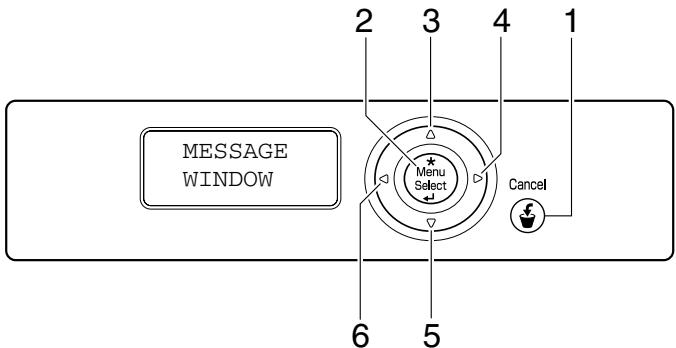
Control Panel Indicators and Keys
| No. | Key | Function |
| 1 | Cancel | ■ Cancel the currently displayed menu or menu choice ■ Allows you to cancel one or all print jobs that are currently being printed or processed: 1. Press the Cancel key. 2. Press the △ or ▽ keys to select either CUR-RENT JOB or ALL JOBS. 3. Press the Menu/Select key. The print job(s) is (are) cancelled. |
| 2 | * Menu Select | ■ Enters the menu system ■ Moves down in the menu structure ■ Applies the selected setting ■ MENU appears in the message window |
| 3 | △ | ■ Moves the cursor up ■ Returns to the status screen from the help screen ■ Within a menu choice that is changeable character by character, scrolls upward through the available characters ■ ▲, △ appears in the message window |
| 4 | △ | ■ Moves the cursor to the right ■ Displays the next help screen ■ △ appears in the message window |
| 5 | △ | ■ Moves the cursor down ■ Displays the help screen when an error occurs ■ Within a menu choice that is changeable character by character, scrolls downward through the available characters ■ △, △ appears in the message window |
| 6 | ▲ | ■ Moves the cursor to the left ■ Displays the previous help screen ■ ↑ appears in the message window |
Message Window
The current status of the printer, the amount of toner remaining, and any error messages can be viewed from the message window.
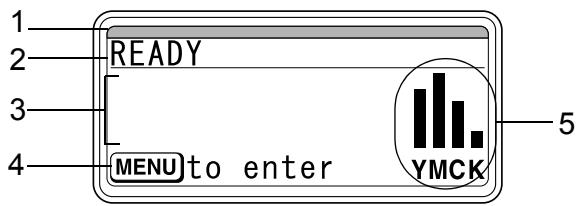
| No. | Details |
| 1 | The printer status is indicated by the color of the indicator and light-ing/flashing of the message window. ■ READY: Indicator lit up in blue and window lit up ■ PROCESSING or PRINTING: Indicator flashing and window lit up ■ ENERGY SAVE: Indicator lit up in blue and window goes off ■ ERROR: Indicator lit up in red and window lit up |
| 2 | The current status of the printer is displayed. ■ If the operator or service representative must be called, the symbol▲ and the error status are displayed. ■ If a warning occurs, the symbol▲ appears. ■ When a digital camera is connected to the KONICA MINOLTA Digital Camera Direct Print Port with a USB cable, the symbol▲ appears on the right side of the message window. ■ When a USB memory device is plugged into the KONICA MINOLTA Digital Camera Direct Print Port, the symbol▲ appears on the right side of the message window. ■ While a print job is being received, the symbol▲ appears on the right side of the message window. While a camera direct or memory direct print job is being received, the symbol▲ appears. |
| 3 | ■ Error messages are displayed. ■ While a print job is being received, the user name and the print progress are displayed. ■ While updating the firmware, the type of firmware being updated and the update progress are displayed. |
| 4 | Key information is displayed. |
| 5 | The approximate amount of toner remaining is displayed. |
Help Screens
The help screens appear when the key is pressed after an error occurred, such as a media misfeed, so that the error can be corrected.
Configuration Menu Overview
The configuration menu accessible from the control panel is structured as shown below.
Main Menu
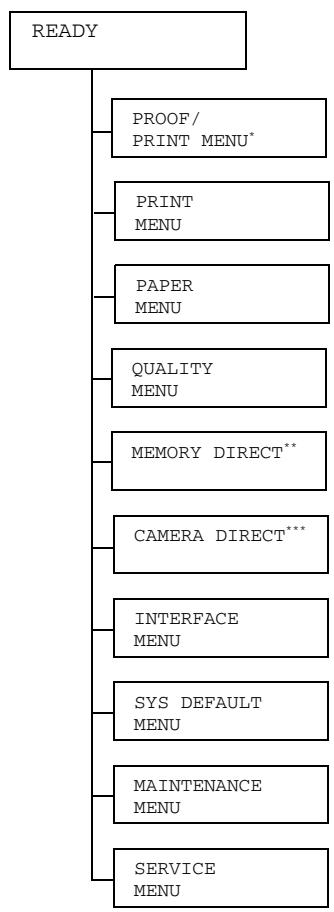

- This menu item appears only if an optional hard disk kit is installed.
** This menu item appears when an optional hard disk kit or a CompactFlash card is installed, and INTERFACEMENU/MEMORY DIRECT is set to ENABLE.
*** This menu item appears when INTERFACE MENU/CAMERA DIRECT is set to ENABLE.
PROOF/PRINT MENU

This menu item appears only if an optional hard disk kit is installed.
With this menu item, print jobs that were set to be saved on the hard disk by using Job Retention on the Basic tab of the printer driver can be printed or deleted.

All factory default values are shown in bold.
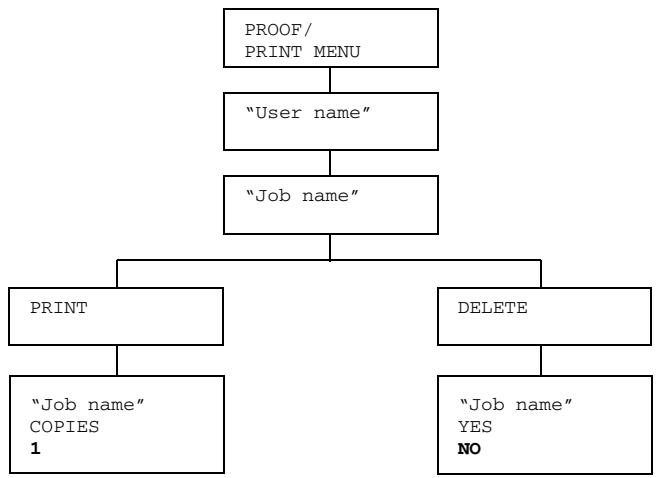
Printing/Deleting a Stored Job
1 Follow the procedure described below to select a job.
| Press Key | Until Display Reads |
| * Menu Select ← | PROOF/PRINT MENU |
| * Menu Select ← | “User name” If no print jobs have been stored on the hard disk, NO STORED JOB appears. |
| △, ▽ Press until the desired user name appears. | Desired user name |
| * Menu Select ←↓ | “Job name” |
| △, ▽ Press until the desired job name appears. | Desired job name |
| * Menu Select ←↓ | PRINT DELETE If the selected print job was set as a secured job from the printer driver, a screen for entering the password appears. For details on typing the password, refer to “Entering the Password” on page 34. |
2 Select PRINT or DELETE, and then press the Menu/Select key.

If PRINT was selected, continue with step 3.
If DELETE was selected, continue with step 5.
3 Press the and keys to specify the number of copies to be printed. (Settings: 1 to 999; Default: 1)
4 Press the Menu/Select key.
Printing begins.
5 Select YES or NO.
6 Press the Menu/Select key.
If YES was selected, the print job is deleted.
If NO was selected, the PRINT/DELETE selection screen appears again.
Entering the Password
If the print job selected in the PROOF/PRINT MENU is a secured job, a screen for entering the password appears. Follow the procedure described below to type in the four-digit password specified from the printer driver.
1 Press the to increase or the to decrease the first digit of the password.
2 Press the key to move the cursor to the next digit.
3 Press the to increase or the to decrease the second digit of the password.
4 Continue these steps until all four digits of the password are specified.
5 Press the Menu/Select key.
The PRINT/DELETE selection screen appears.

If an incorrect password is entered, INVALID ENTRY appears and the screen for entering the password appears again.
PRINT MENU
With this menu, printer information, such as the configuration page and the demo page, can be printed.
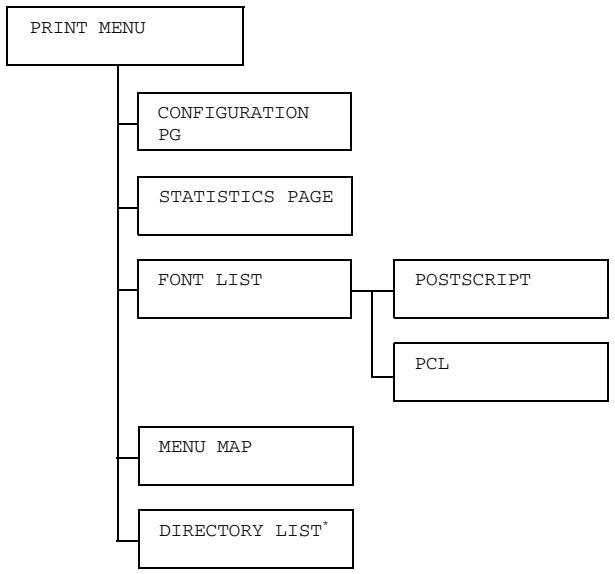

- This menu item appears only if an optional hard disk kit or a CompactFlash card is installed.

All factory default values are shown in bold.
| CONFIGURA-TION PG | Settings | PRINT/CANCEL | |
| Prints the configuration page. | |||
| STATISTICSPAGE | Settings | PRINT/CANCEL | |
| Prints the statistics page such as the number of pages printed. | |||
| FONT LIST | POSTSCRIPT | Settings | PRINT/CANCEL |
| Prints the PostScript font list. | |||
| PCL | Settings | PRINT/CANCEL | |
| Prints the PCL font list. | |||
| MENU MAP | Settings | PRINT/CANCEL |
| Prints the menu map. | ||
| DIRECTORY LIST | Settings | PRINT/CANCEL |
| Prints the directory list of the hard disk or a CompactFlash card . | ||
PAPER MENU
With this menu, the paper used for printing can be managed.
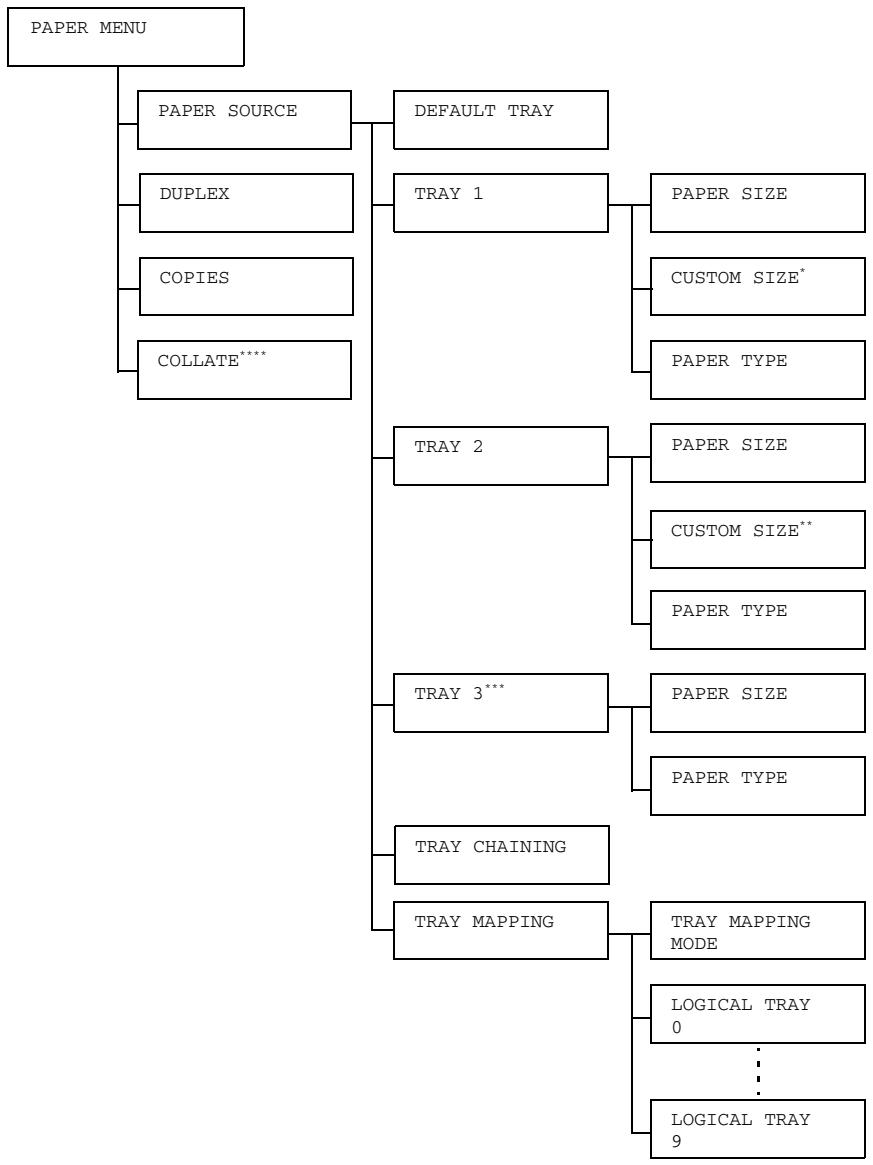
- This menu item appears only when you select CUSTOM from the TRAY 1/PAPER SIZE menu.
This menu item appears only when you select CUSTOM from the TRAY 2/PAPER SIZE menu.
This menu item appear only if the optional lower feeder unit is installed.
*** This menu item appears only if an optional hard disk kit or a CompactFlash card of 1 GB or more is installed.

All factory default values are shown in bold.
| PAPER SOURCE | DEFAULT TRAY | Settings | TRAY1/TRAY2/TRAY3 | |
| Select the setting for the default tray. TRAY 3 appears only if the optional lower feeder unit is installed. | ||||
| TRAY 1 | PAPER SIZE | Settings | ANY/LETTER/LEGAL/ EXECUTIVE/A4/A5/A6/ B5(JIS)/B6(JIS)/GOVT LETTER/STATEMENT/ FOLIO/SP FOLIO/UK QUARTO/FOOLSCAP/GOVT LEGAL/16K/PROTO 4×6/ KAI 16/KAI 32/ENV C6/ ENV DL/ENV MONARCH/ ENV CHOU#3/ENV CHOU#4/B5(ISO)/ENV #10/JPOST/JPOST-D/ CUSTOM | |
| Select the setting for the size of paper loaded into Tray 1. The default setting for North America is LETTER. The default setting for all other regions is A4. Depending on the setting selected for SYS DEFAULT MENU/PAPER/UNIT OF MEASURE, PHOTO 4×6 may change to PHOTO 10×15. | ||||
| CUSTOM SIZE | Specify the paper size when custom-sized paper is loaded into Tray 1. The setting units can be switched between millimeters and inches with the SYS DEFAULT MENU/PAPER/UNIT OF MEASURE setting. Setting range for WIDTH ■ For MILLIMETERS: 92 to 216 mm (default) - North America: 216 mm - All other regions: 210 mm ■ For INCHES: 3.63 to 8.50 inches (default) - North America: 8.50 inches - All other regions: 8.26 inches Setting range for LENGTH ■ For MILLIMETERS: 148 to 356 mm (default) - North America: 279 mm - All other regions: 297 mm ■ For INCHES: 5.83 to 14.00 inches (default) - North America: 11.00 inches - All other regions: 11.69 inches This menu item appears only if PAPER SIZE is set to CUSTOM. |
| PAPER TYPE | Settings | ANY/PLAIN PAPER/ RECYCLED/THICK 1/ THICK 2/LABEL/ TRANSPARENCY/ ENVELOPE/POSTCARD/ LETTERHEAD/GLOSSY 1/ GLOSSY 2 | ||
| Select the setting for the type of paper loaded into Tray 1. | ||||
| TRAY 2 | PAPER SIZE | Settings | ANY/LETTER/EXECUTIVE/ A4/A5/A6/ B5(JIS)/B6(JIS)/GOVT LETTER/STATEMENT/UK QUARTO/16K/PROTO 4×6/ KAI 16/KAI 32/CUSTOM | |
| Select the setting for the size of paper loaded into Tray 2. The default setting for North America is LETTER. The default setting for all other regions is A4. Depending on the setting selected for SYS DEFAULT MENU/ PAPER/UNIT OF MEASURE, PHOTO 4×6 may change to PHOTO 10×15. | ||||
| CUSTOM SIZE | Specify the paper size when custom-sized paper is loaded into Tray 2. The setting units can be switched between millimeters and inches with the SYS DEFAULT MENU/PAPER/UNIT OF MEASURE setting. Setting range for WIDTH ■ For MILLIMETERS: 92 to 216 mm (default) - North America: 216 mm - All other regions: 210 mm ■ For INCHES: 3.63 to 8.50 inches (default) - North America: 8.50 inches - All other regions: 8.26 inches Setting range for LENGTH ■ For MILLIMETERS: 148 to 297 mm (default) - North America: 279 mm - All other regions: 297 mm ■ For INCHES: 5.83 to 11.69 inches (default) - North America: 11.00 inches - All other regions: 11.69 inches This menu item appears only if PAPER SIZE is set to CUSTOM. | ||
| PAPERTYPE | Settings | ANY/PLAIN PAPER/ RECYCLED | |
| Select the setting for the type of paper loaded into Tray 2. | |||
| TRAY 3 | PAPER SIZE | The size of paper loaded in Tray 3 is indicated. This menu item only shows the current setting. This setting cannot be changed. | ||
| PAPER TYPE | Settings | ANY/PLAIN PAPER/ RECYCLED | ||
| Select the setting for the type of paper loaded into Tray 3. | ||||
| TRAY CHAINING | Settings | ON/OFF | ||
| If ON is selected and the specified tray runs out of paper during printing, a tray loaded with paper of the same size is automatically selected so printing can continue. If OFF is selected and the specified tray runs out of paper, printing stops. | ||||
| TRAY MAPPING | TRAY MAPPING MODE | Settings | ON/OFF | |
| Select whether or not the Tray Mapping function is used. | ||||
| LOGICAL TRAY 0-9 | Settings | PHYSICAL TRAY1/ PHYSICAL TRAY2/ PHYSICAL TRAY3 | ||
| Select the tray that is used for printing when a print job is received from another manufacturer's printer driver. The default setting for LOGICAL TRAY 1 is PHYSICAL TRAY1. The default setting for all other trays is PHYS-ICAL TRAY2. PHYSICAL TRAY3 appears only if an optional lower feeder unit is installed. | ||||
| DUPLEX | Settings | OFF/LONG EDGE/SHORT EDGE |
| If LONG EDGE is selected, the pages will be printed on both sides of the paper for long-edge binding. If SHORT EDGE is selected, the pages will be printed on both sides of the paper for short-edge binding. The setting specified in the printer driver will override this menu setting. | ||
| COPIES | Settings | 1-9999 |
| Specify the number of copies to be printed. The setting specified in the printer driver will override this menu setting. | ||
| COLLATE | Settings | ON/OFF |
| If ON is selected, all pages of the document are printed before the next copy is printed. If OFF is selected, all copies of the document are not printed separately. The setting specified in the printer driver will override this menu setting. This menu item appears only if an optional hard disk kit or a CompactFlash card of 1GB or more is installed. | ||
QUALITY MENU
With this menu, settings for the print quality can be specified.
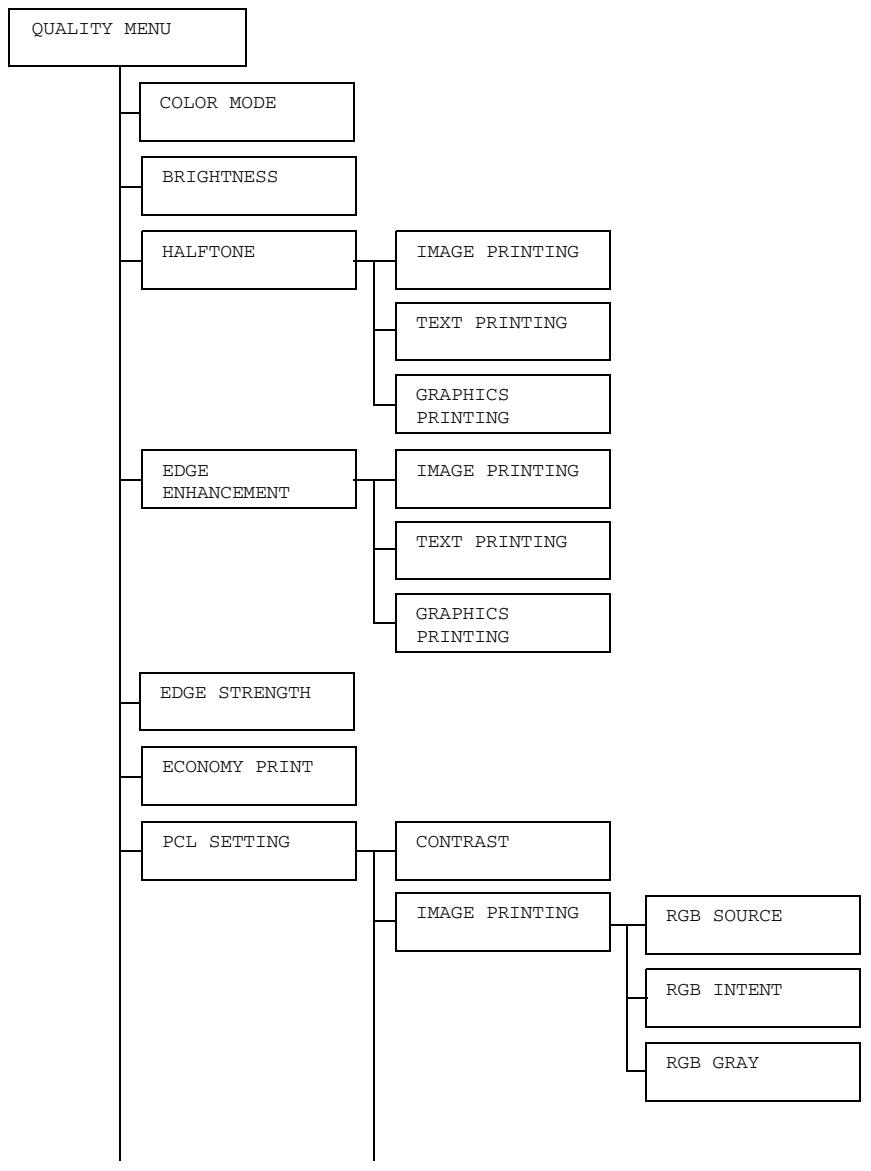
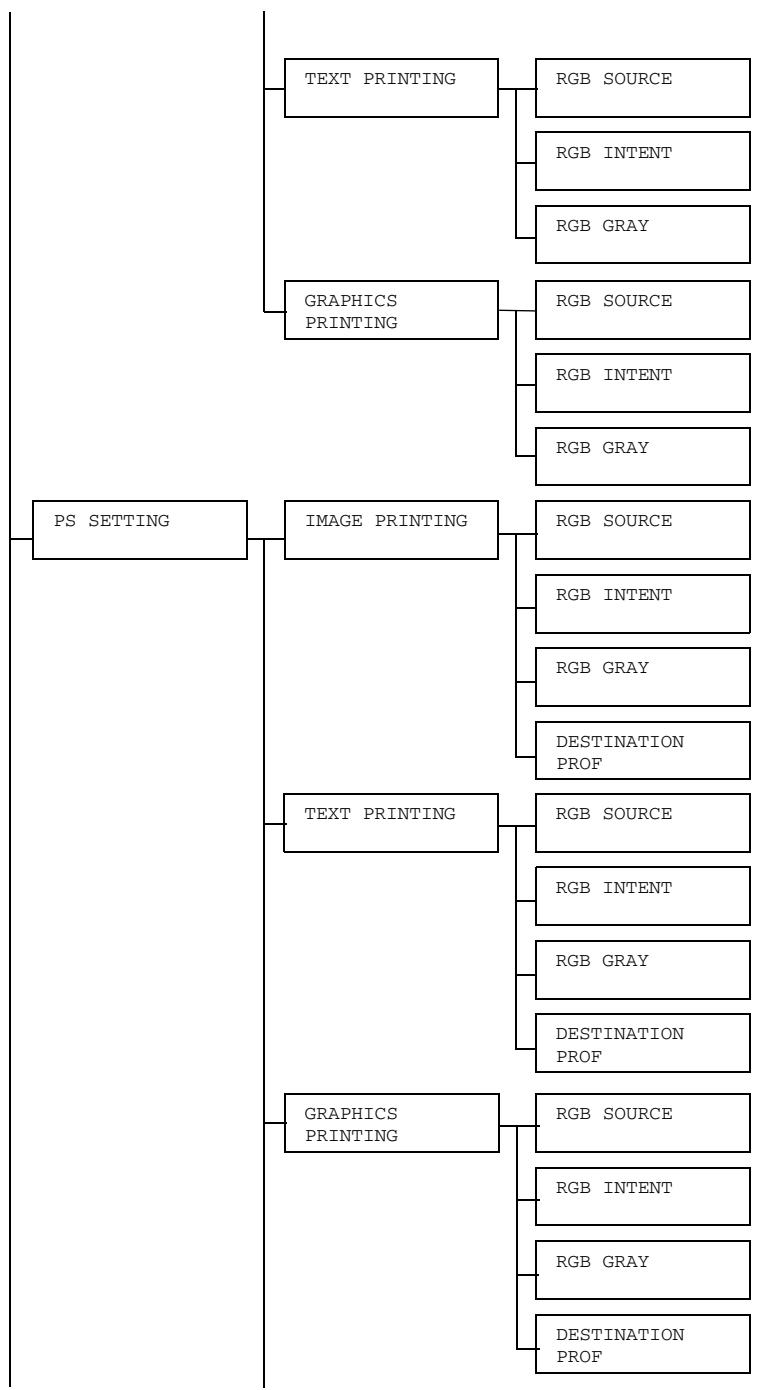
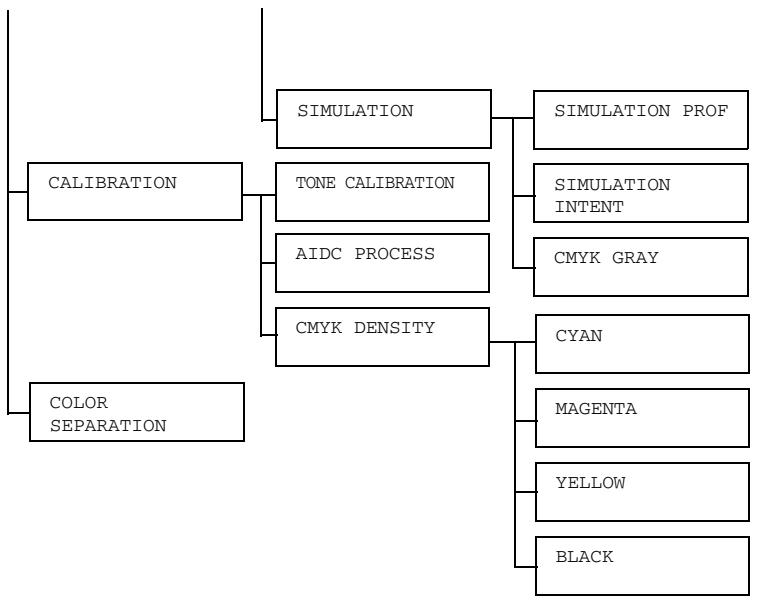

All factory default values are shown in bold.
| COLOR MODE | Settings | COLOR/GRAYSCALE | |
| If COLOR is selected, the pages are printed in full color. If GRAYSCALE is selected, the pages are printed in black and white. | |||
| BRIGHT- NESS | Settings | -15%/-10%/-5%/0%/+5%/+10%/+15% | |
| The brightness of the printed image can be adjusted. | |||
| HALFTONE | IMAGE PRINTING | Settings | LINE ART/DETAIL/ SMOOTH |
| Select how halftones in images are reproduced. If LINE ART is selected, halftones are reproduced with high precision. If DETAIL is selected, halftones are reproduced with detail. If SMOOTH is selected, halftones are reproduced with smoothness. | |||
| TEXT PRINTING | Settings | LINE ART/DETAIL/ SMOOTH | |
| Select how halftones in text are reproduced. If LINE ART is selected, halftones are reproduced with high precision. If DETAIL is selected, halftones are reproduced with detail. If SMOOTH is selected, halftones are reproduced with smoothness. | |||
| GRAPHICS PRINTING | Settings | LINE ART/DETAIL/ SMOOTH | |
| Select how halftones in graphics are reproduced. If LINE ART is selected, halftones are reproduced with high precision. If DETAIL is selected, halftones are reproduced with detail. If SMOOTH is selected, halftones are reproduced with smoothness. | |||
| EDGE ENHANCE-MENT | IMAGE PRINTING | Settings | ON/OFF |
| Select whether image edges are emphasized. If ON is selected, the edges are empha- sized. If OFF is selected, the edges are not emphasized. If ECONOMY PRINT is set to ON, the edges cannot be emphasized. | |||
| TEXTPRINTING | Settings | ON/OFF | |
| Select whether text edges are emphasized.If ON is selected, the edges are empha-sized.If OFF is selected, the edges are not emphasized. | |||
| GRAPHICSPRINTING | Settings | ON/OFF | |
| Select whether graphic edges are emphasized.If ON is selected, the edges are empha-sized.If OFF is selected, the edges are not emphasized.If ECONOMY PRINT is set to ON,the edges cannot be emphasized. | |||
| EDGE STRENGTH | Settings | OFF/LOW/MIDDLE/HIGH | |
| Select the desired amount that edges are emphasized.If OFF is selected, the edges are not emphasized.If LOW is selected, the edges are slightly emphasized.If MIDDLE is selected, the edges are emphasized by an average amount.If HIGH is selected, the edges are highly emphasized.If OFF is selected, the edges are not emphasized, even if an EDGE ENHANCEMENT menu item is set to ON. | |||
| ECONOMY PRINT | Settings | ON/OFF | ||
| Select whether to print graphics with a reduced density by reducing the amount of toner that is used. If ON is selected, the amount of toner used is reduced when printing. If OFF is selected, the amount of toner used is not reduced when printing. If ON is selected, the edges are not emphasized, even if IMAGE PRINTING and GRAPHICS PRINTING of the EDGE ENHANCEMENT menu item are set to ON. | ||||
| PCL SETTING | CONTRAST | Settings | -15%/-10%/-5%/0%/+5%/+10%/+15% | |
| The contrast of the image can be adjusted. | ||||
| IMAGE PRINTING | RGB SOURCE | Settings | DEVICE COLOR/sRGB | |
| Specify the color space for RGB image data. If DEVICE COLOR is selected, no color space is specified. If RGB source profiles are downloaded with the Download Manager, they are available from the list of settings. | ||||
| RGB INTENT | Settings | VIVID/PHOTOGRAPHIC | ||
| Specify the characteristic applied when converting RGB image data to CMYK data. If VIVID is selected, a vivid output is produced. If PHOTOGRAPHIC is selected, a brighter output is produced. | ||||
| RGB GRAY | Settings | COMPOSITE BLACK/BLACK AND GRAY/ BLACK ONLY | ||
| Specify how black and grays are reproduced in RGB image data. If COMPOSITE BLACK is selected, black is reproduced using the CMYK colors. If BLACK AND GRAY is selected, black and gray are reproduced using black only. If BLACK ONLY is selected, black is reproduced using only black. | ||||
| TEXT PRINTING | RGB SOURCE | Settings | DEVICE COLOR/ sRGB | |
| Specify the color space for RGB text data. If DEVICE COLOR is selected, no color space is specified. If RGB source profiles are downloaded with the Download Manager, they are available from the list of settings. | ||||
| RGB INTENT | Settings | VIVID/PHOTOGRAPHIC | ||
| Specify the characteristic applied when converting RGB text data to CMYK data. If VIVID is selected, a vivid output is produced. If PHOTOGRAPHIC is selected, a brighter output is produced. | ||||
| RGB GRAY | Settings | COMPOSITE BLACK/BLACK AND GRAY/ BLACK ONLY | ||
| Specify how black and grays are reproduced in RGB text data. If COMPOSITE BLACK is selected, black is reproduced using the CMYK colors. If BLACK AND GRAY is selected, black and gray are reproduced using black only. If BLACK ONLY is selected, black is reproduced using only black. | ||||
| GRAPHICS PRINTING | RGB SOURCE | Settings | DEVICE COLOR/sRGB | |
| Specify the color space for RGB GRAPHICS data. If DEVICE COLOR is selected, no color space is specified. If RGB source profiles are downloaded with the Download Manager, they are available from the list of settings. | ||||
| Specify the characteristic applied when converting RGB GRAPHICS data to CMYK data. If VIVID is selected, a vivid output is produced. If PHOTOGRAPHIC is selected, a brighter output is produced. | ||||
| RGB GRAY | Settings | COMPOSITE BLACK/BLACK AND GRAY/ BLACK ONLY | ||
| Specify how black and grays are reproduced in RGB GRAPHICS data. If COMPOSITE BLACK is selected, black is reproduced using the CMYK colors. If BLACK AND GRAY is selected, black and gray are reproduced using black only. If BLACK ONLY is selected, black is reproduced using only black. | ||||
| PS SETTINGS | IMAGEPRINTING | RGBSOURCE | Settings | DEVICE COLOR/sRGB/AppleRGB/AdobeRGB1998/ColorMatchRGB/BlueAdjustRGB |
| Specify the color space for RGB image data.If DEVICE COLOR is selected, no color space is specified.If RGB source profiles are downloaded with the Download Manager, they are available from the list of settings. | ||||
| RGBINTENT | Settings | VIVID/PHOTOGRAPHIC/RELATIVECOLOR/ABSOLUTECOLOR | ||
| Specify the characteristic applied when converting RGB image data to CMYK data.If VIVID is selected, a vivid output is produced.If PHOTOGRAPHIC is selected, a brighter output is produced.If RELATIVE COLOR is selected, relative color is applied to the RGB source profile.If ABSOLUTE COLOR is selected, absolute color is applied to the RGB source profile. | ||||
| RGB GRAY | Settings | COMPOSITE BLACK/BLACK AND GRAY/ BLACK ONLY | ||
| Specify how black and grays are reproduced in RGB image data. If COMPOSITE BLACK is selected, black is reproduced using the CMYK colors. If BLACK AND GRAY is selected, black and gray are reproduced using black only. If BLACK ONLY is selected, black is reproduced using only black. | ||||
| DESTI- NATION PROF | Settings | AUTO | ||
| Specify the destination profile. If AUTO is selected, a destination profile that the printer automatically adapts is selected based on a combination of the specified color matching, halftones and other profiles. If destination profiles are downloaded with the Download Manager, they are available from the list of settings. | ||||
| TEXTPRINTING | RGBSOURCE | Settings | DEVICE COLOR/sRGB/AppleRGB/AdobeRGB1998/ColorMatchRGB/BlueAdjustRGB | |
| Specify the color space for RGB text data.If DEVICE COLOR is selected, no color space is specified.If RGB source profiles are downloaded with the Download Manager, they are available from the list of settings. | ||||
| RGBINTENT | Settings | VIVID/PHOTOGRAPHIC/RELATIVECOLOR/ABSOLUTECOLOR | ||
| Specify the characteristic applied when converting RGB text data to CMYK data.If VIVID is selected, a vivid output is produced.If PHOTOGRAPHIC is selected, a brighter output is produced.If RELATIVE COLOR is selected, relative color is applied to the RGB source profile.If ABSOLUTE COLOR is selected, absolute color is applied to the RGB source profile. | ||||
| RGB GRAY | Settings | COMPOSITE BLACK/BLACK AND GRAY/ BLACK ONLY | ||
| Specify how black and grays are reproduced in RGB text data. If COMPOSITE BLACK is selected, black is reproduced using the CMYK colors. If BLACK AND GRAY is selected, black and gray are reproduced using black only. If BLACK ONLY is selected, black is reproduced using only black. | ||||
| DESTI- NATION PROF | Settings | AUTO | ||
| Specify the destination profile. If AUTO is selected, a destination profile that the printer automatically adapts is selected based on a combination of the specified color matching, halftones and other profiles. If destination profiles are downloaded with the Download Manager, they are available from the list of settings. | ||||
| GRAPHICS PRINTING | RGB SOURCE | Settings | DEVICE COLOR/sRGB/AppleRGB/AdobeRGB1998/ColorMatchRGB/BlueAdjustRGB | |
| Specify the color space for RGB image data.If DEVICE COLOR is selected, no color space is specified.If RGB source profiles are downloaded with the Download Manager, they are available from the list of settings. | ||||
| RGB INTENT | Settings | VIVID/PHOTOGRAPHIC/RELATIVECOLOR/ABSOLUTECOLOR | ||
| Specify the characteristic applied when converting RGB image data to CMYK data.If VIVID is selected, a vivid output is produced.If PHOTOGRAPHIC is selected, a brighter output is produced.If RELATIVE COLOR is selected, relative color is applied to the RGB source profile.If ABSOLUTE COLOR is selected, absolute color is applied to the RGB source profile. | ||||
| RGB GRAY | Settings | COMPOSITE BLACK/BLACK AND GRAY/ BLACK ONLY | ||
| Specify how black and grays are reproduced in RGB image data. If COMPOSITE BLACK is selected, black is reproduced using the CMYK colors. If BLACK AND GRAY is selected, black and gray are reproduced using black only. If BLACK ONLY is selected, black is reproduced using only black. | ||||
| DESTI- NATION PROF | Settings | AUTO | ||
| Specify the destination profile. If AUTO is selected, a destination profile that the printer automatically adapts is selected based on a combination of the specified color matching, halftones and other profiles. If destination profiles are downloaded with the Download Manager, they are available from the list of settings. | ||||
| SIMULATION | SIMU-LATION PROF | Settings | NONE/SWOP/Euroscale/CommercialPre-ss/TOYO/DIC | |
| Specify the simulation profile.If NONE is selected, nosimulation profile is specified.If simulation profiles aredownloaded with the DownloadManager, they are availablefrom the list of settings. | ||||
| SIMU-LATION INTENT | Settings | RELATIVECOLOR/ABSOLUTECOLOR | ||
| Specify the characteristic of thesimulation profile.If RELATIVE COLOR isselected, relative color isapplied to the simulationprofile.If ABSOLUTE COLOR isselected, absolute color isapplied to the simulationprofile. | ||||
| CMYK GRAY | Settings | COMPOSITE BLACK/BLACK AND GRAY/ BLACK ONLY | ||
| Specify how black and grays are reproduced using the four CMYK colors. If COMPOSITE BLACK is selected, black is reproduced using the CMYK colors. If BLACK AND GRAY is selected, black and gray are reproduced using black only. If BLACK ONLY is selected, black is reproduced using only black. | ||||
| CALIBRA- TION | TONE CALIBRATION | Settings | ON/OFF | |
| If ON is selected, image adjustments are applied. If OFF is selected, image adjustments are not applied. | ||||
| AIDC PROCESS | Settings | EXECUTE/CANCEL | ||
| If EXECUTE is selected, image adjustments are performed immediately. If CANCEL is selected, image adjust- ments are not performed. | ||||
| CMYK DENSITY | CYAN/MAGENTA/YELLOW/BLACK | HIGH-LIGHT | Settings | -3/-2/ -1/0/ +1/+2/+3 | |
| The density of the highlight color in images can be adjusted. | |||||
| MIDDLE | Settings | -3/-2/ -1/0/ +1/+2/+3 | |||
| The density of the middle color in images can be adjusted. | |||||
| SHADOW | Settings | -3/-2/ -1/0/ +1/+2/+3 | |||
| The density of the shadow color in images can be adjusted. | |||||
| COLOR SEPARATION | Settings | ON/OFF | |||
| If ON is selected, color separation are performed. The contents of a color page is separated into the color pages for yellow, magenta, cyan and black, and each is printed with black gradations as individual pages. The printing order is yellow, magenta, cyan, then black. If OFF is selected, color separation is not performed. A normal color separation is performed. | |||||
MEMORY DIRECT
This menu item appears when an optional hard disk kit or a CompactFlash card is installed, and INTERFACE MENU/MEMORY DIRECT is set to ENABLE.
In addition, this menu item does not appear if public user access has not been permitted through authentication settings. For details on the authentication settings, refer to the Reference Guide on the Utilities and Documentation CD-ROM.
With this menu, settings for "memory direct" function can be specified.

For details on memory direct, refer to "Memory Direct" on page 98.
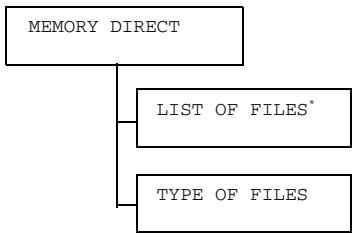

- This menu item appears when a USB memory device is plugged into the KONICA MINOLTA Digital Camera Direct Print Port.

All factory default values are shown in bold.
| LIST OF FILES | Select the file that you wish to output, and then press the Menu/Select key. If the file to be printed is in a folder, select the folder, and then press the Menu/Select key. | |
| Settings | ||
| Select this setting to output a file. | ||
| Settings | CANCEL | |
| Select this setting to stop outputting and to return to the file list. | ||
| Letter/A4 | Settings | LETTER/LEGAL/EXECUTIVE/A4/A5/A6/B5 (JIS)/B6 (JIS)/GOVT LETTER/STATEMENT/FOLIO/SP FOLIO/UK QUARTO/FOOLSCAP/ GOVT LEGAL/16K/PHOTO 4×6/KAI 16/KAI 32/ENV C6/ENV DL/ENV MONARCH/ENV CHOU#3/ ENV CHOU#4/B5 (ISO)/ENV #10/JPOST/JPOST-D/CUSTOM | |
| Change the size of the paper. The default setting for North America is LETTER. The default setting for all other regions is A4.Depending on the setting selected for SYS DEFAULT MENU/PAPER/UNIT OF MEASURE, PHOTO 4×6 may change to PHOTO 10×15.This menu item does not appear if the selected file is PDF and XPS file. | |||
| DUPLEX:OFF | Settings | LONG EDGE/SHORT EDGE/OFF | |
| Select whether to perform duplex printing.If LONG EDGE is selected, the page will be printed on both sides of the paper for long edge binding.If SHORT EDGE is selected, the page will be printed on both sides of the paper for short edge binding.If OFF is selected, duplex printing is not performed. | |||
| COPIES:1 | Settings | 1-9999 | |
| Specify the number of copies to be printed (between 1 and 9999). | |||
| COLLATE | Settings | ON/OFF | |
| Select whether to collate the copies. If ON is selected, collated printing is performed. If OFF is selected, collated printing is not performed. This menu item appears only if the optional hard disk kit or a CompactFlash card of 1GB or more is installed. | |||
| TYPE OF FILES | Settings | PDF, XPS, JPEG, TIFF/PDF, XPS | |
| Select the type of files to be displayed. | |||
CAMERA DIRECT
This menu item appears when INTERFACE MENU/CAMERA DIRECT is set to ENABLE.
In addition, this menu item does not appear if public user access has not been permitted through authentication settings. For details on the authentication settings, refer to the Reference Guide on the Utilities and Documentation CD-ROM.
With this menu, settings for "camera direct" function can be specified.

These settings are overridden by any settings configured within the digital camera.
For details on camera direct, refer to "Camera Direct" on page 96.
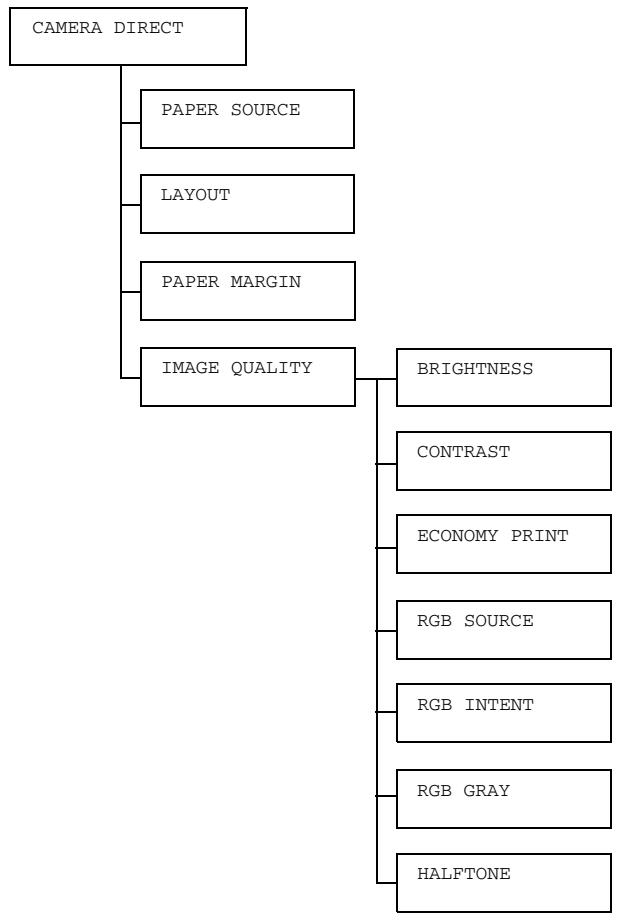
| PAPER SOURCE | Settings | TRAY1/TRAY2/TRAY3 | |
| Select the tray that is used for camera direct printing. TRAY3 appears only if the optional lower feeder unit is installed. | |||
| LAYOUT | Settings | 1-UP/2-UP/3-UP/4-UP/6-UP/8-UP | |
| Specify the number of images printed on a single sheet of media. When set to 1-UP, only one image will be printed on a single sheet of media. | |||
| PAPER MARGIN | Settings | STANDARD/MINIMUM | |
| Select the size of the media margins (area that is not printed in). If STANDARD is selected, the standard media margin size is specified. If MINIMUM is selected, the media margins are reduced. | |||
| IMAGE QUAL- ITY | BRIGHT- NESS | Settings | -15%/-10%/-5%/0%/+5%/+10%/+15% |
| The brightness of the printed image can be adjusted. | |||
| CONTRAST | Settings | -15%/-10%/-5%/0%/+5%/+10%/+15% | |
| The contrast of the image can be adjusted. | |||
| ECONOMY PRINT | Settings | ON/OFF | |
| Select whether to print graphics with a reduced density by reducing the amount of toner that is used. If ON is selected, the amount of toner used is reduced when printing. If OFF is selected, the amount of toner used is not reduced when printing. | |||
| RGB SOURCE | Settings | DEVICE COLOR/sRGB | |
| Specify the color space for RGB image data. If DEVICE COLOR is selected, no color space is specified. | |||
| RGB INTENT | Settings | VIVID/PHOTOGRAPHIC | |
| Specify the characteristic applied when converting RGB image data to CMYK data. If VIVID is selected, a vivid output is produced. If PHOTOGRAPHIC is selected, a brighter output is produced. | |||
| RGB GRAY | Settings | COMPOSITE BLACK/BLACK AND GRAY/BLACK ONLY | |
| Specify how black and grays are reproduced in RGB image data. If COMPOSITE BLACK is selected, black is reproduced using the CMYK colors. If BLACK AND GRAY is selected, black and gray are reproduced using black only. If BLACK ONLY is selected, black is reproduced using only black. | |||
| HALFTONE | Settings | LINE ART/DETAIL/SMOOTH | |
| Select how halftones are reproduced. If LINE ART is selected, halftones are reproduced with high precision. If DETAIL is selected, halftones are reproduced with detail. If SMOOTH is selected, halftones are reproduced with smoothness. | |||
INTERFACE MENU
With this menu, interface settings can be specified.

Restart the printer after changing settings in the ETHERNET menu.
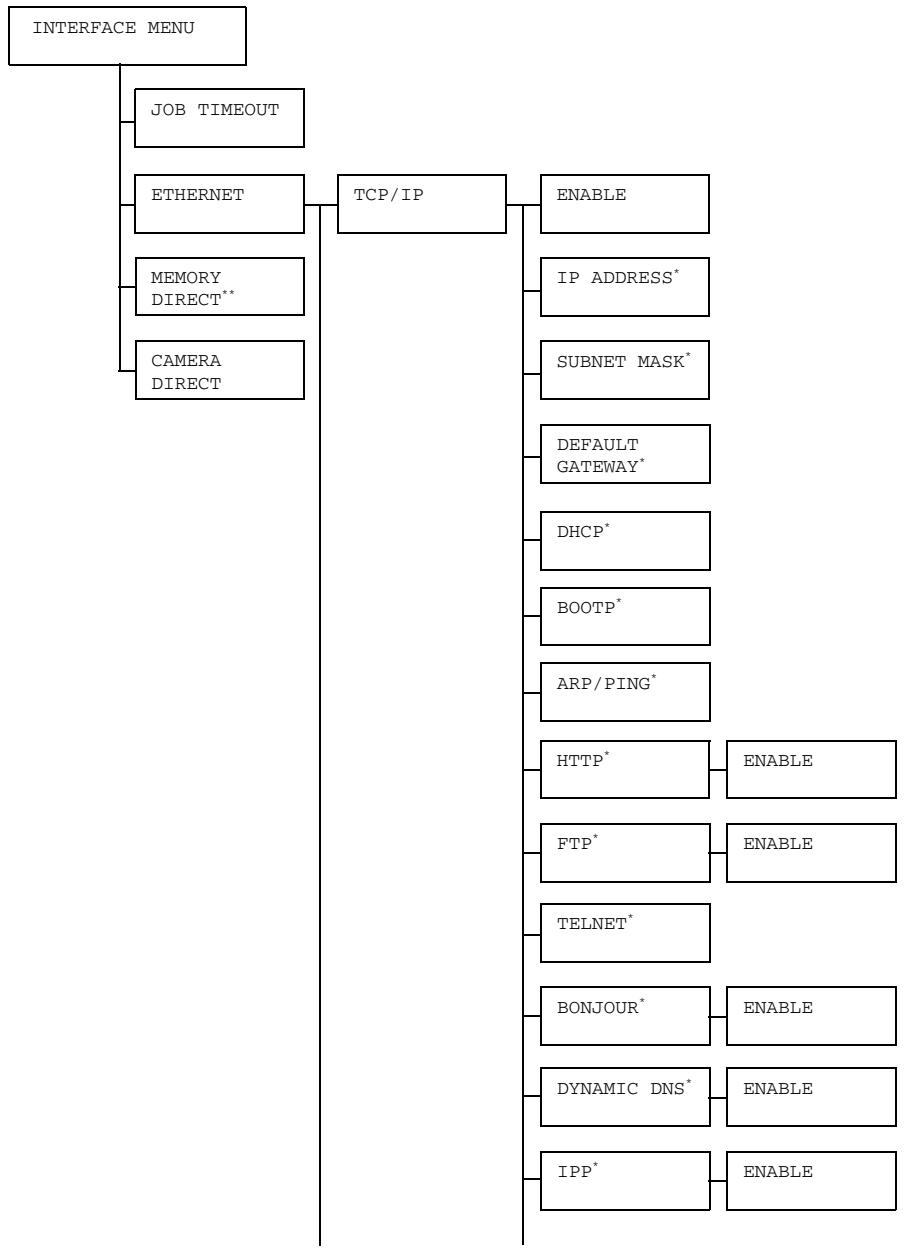
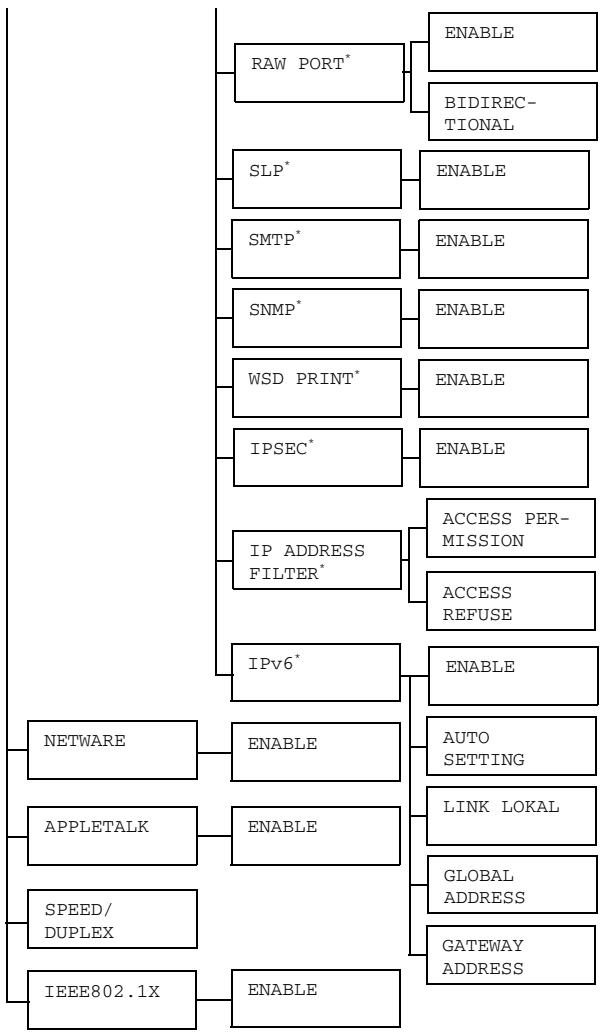

*This menu item appears when INTERFACE MENU/ETHERNET/TCP/IP/ENABLE is set to YES.
** This menu item appears only if an optional hard disk kit or a CompactFlash card is installed.
| JOB TIME- OUT | Settings | 5 seconds-15 seconds-300 seconds | ||
| Specify the timeout interval for a print job being received. | ||||
| ETHER- NET | TCP/IP | ENABLE | Settings | YES/NO |
| If YES is selected, TCP/IP is enabled. If NO is selected, TCP/IP is disabled. | ||||
| IP ADDRESS | Setting | 000.000.000.000 | ||
| Set the IP address for this printer on the network. Use the △, ▽, <, and > keys to specify the value. If the IP address is manually specified, DHCP/BOOTP is automatically set to OFF. | ||||
| SUBNET MASK | Setting | 000.000.000.000 | ||
| Specify the subnet mask for the network. Use the △, ▽, <, and > keys to specify the value. | ||||
| DEFAULT GATEWAY | Setting | 000.000.000.000 | ||
| Specify the IP address of the router if one is on the network. Use the △, ▽, <, and > keys to specify the value. | ||||
| DHCP | Settings | ON/OFF | ||
| Select whether or not the IP address is automatically acquired. If ON is selected, the IP address is automatically acquired. If OFF is selected, the IP address is not automatically acquired. | ||||
| BOOTP | Settings | ON/OFF | |||
| Select whether or not the IP address is automatically acquired. | |||||
| If ON is selected, the IP address is automatically acquired. | |||||
| If OFF is selected, the IP address is not automatically acquired. | |||||
| ARP/PING | Settings | ON/OFF | |||
| Select whether or not the IP address is automatically acquired. | |||||
| If ON is selected, the IP address is automatically acquired. | |||||
| If OFF is selected, the IP address is not automatically acquired. | |||||
| HTTP | ENABLE | Settings | YES/NO | ||
| If YES is selected, HTTP is enabled. | |||||
| If NO is selected, HTTP is disabled. | |||||
| FTP | ENABLE | Settings | YES/NO | ||
| If YES is selected, FTP is enabled. | |||||
| If NO is selected, FTP is disabled. | |||||
| TELNET | Settings | ENABLE/DISABLE | |||
| Select whether to enable or disable Telnet transmissions. | |||||
| When ENABLE is selected, Telnet transmissions are enabled. | |||||
| When DISABLE is selected, Telnet transmissions are disabled. | |||||
| BONJOUR | ENABLE | Settings | YES/NO | ||
| If YES is selected, Bonjour is enabled. | |||||
| If NO is selected, Bonjour is disabled. | |||||
| DYNAMIC DNS | ENABLE | Settings | YES /NO | ||
| If YES is selected, Dynamic DNS is enabled. If NO is selected, Dynamic DNS is disabled. | |||||
| IPP | ENABLE | Settings | YES /NO | ||
| If YES is selected, IPP is enabled. If NO is selected, IPP is disabled. | |||||
| RAW PORT | ENABLE | Settings | YES /NO | ||
| If YES is selected, Raw Port is enabled. If NO is selected, Raw Port is disabled. | |||||
| BIDI-REC-TIONAL | Settings | ON/OFF | |||
| If ON is selected, Raw port transmissions are enabled. If OFF is selected, Raw port transmissions are disabled. | |||||
| SLP | ENABLE | Settings | YES /NO | ||
| If YES is selected, SLP is enabled. If NO is selected, SLP is disabled. | |||||
| SMTP | ENABLE | Settings | YES /NO | ||
| If YES is selected, SMTP is enabled. If NO is selected, SMTP is disabled. | |||||
| SNMP | ENABLE | Settings | YES /NO | ||
| If YES is selected, SNMP is enabled. If NO is selected, SNMP is disabled. | |||||
| WSD PRINT | ENABLE | Settings | YES /NO | ||
| If YES is selected, WSD print is enabled.If NO is selected, WSD print is disabled. | |||||
| IPSEC | ENABLE | Settings | YES /NO | ||
| If YES is selected, IPsec is enabled.If NO is selected, IPsec is disabled. | |||||
| IP ADDRESS FILTER | ACCESS PER- MIS- SION | Settings | ENABLE/ DISABLED | ||
| Select whether to enable or disable access granting.If ENABLE is selected, access granting is enabled.If DISABLE is selected, access granting is disabled. | |||||
| ACCESS REFUSE | Settings | ENABLE/ DISABLED | |||
| Select whether to enable or disable access blocking.If ENABLE is selected, access blocking is enabled.If DISABLE is selected, access blocking is disabled. | |||||
| IPv6 | ENABLE | Settings | YES /NO | ||
| If YES is selected, IPv6 is enabled.If NO is selected, IPv6 is dis- abled. | |||||
| AUTOSET-TING | Settings | YES/NO | |||
| If YES is selected, auto configuration of IPv6 is enabled. If NO is selected, auto configuration of IPv6 is disabled. | |||||
| LINKLOCAL | Displays the Link-Local address. | ||||
| GLOBALADDRESS | Displays the global address. | ||||
| GATE-WAYADDRESS | Displays the gateway address. | ||||
| NETWARE | ENABLE | Settings | YES/NO | ||
| If YES is selected, NetWare is enabled. If NO is selected, NetWare is disabled. | |||||
| APPLETALK | ENABLE | Settings | YES/NO | ||
| If YES is selected, AppleTalk is enabled. If NO is selected, AppleTalk is disabled. | |||||
| SPEED/ DUPLEX | Settings | AUTO/10BASE FULL/10BASE HALF/100BASE FULL/100BASE HALF/1000BASE FULL | |||
| Specify the transmission speed for the network and the transmission method for bi-directional transmission. | |||||
| IEEE802.1X | ENABLE | Settings | YES/NO | ||
| If YES is selected, IEEE 802.1X is enabled. If NO is selected, IEEE 802.1X is disabled. | |||||
| MEMORY DIRECT | Settings | ENABLE/DISABLE | |||
| Select whether to enable or disable memory direct printing. If ENABLE is selected, memory direct printing is enabled. If DISABLE is selected, memory direct printing is disabled. | |||||
| CAMERA DIRECT | Settings | ENABLE/DISABLE |
| Select whether to enable or disable camera direct printing. If ENABLE is selected, camera direct printing is enabled. If DISABLE is selected, camera direct printing is disabled. | ||
SYS DEFAULT MENU
With this menu, settings can be specified to adjust the operation of the printer, such as the display language of the message window and the time until the machine enters Energy Saver mode.
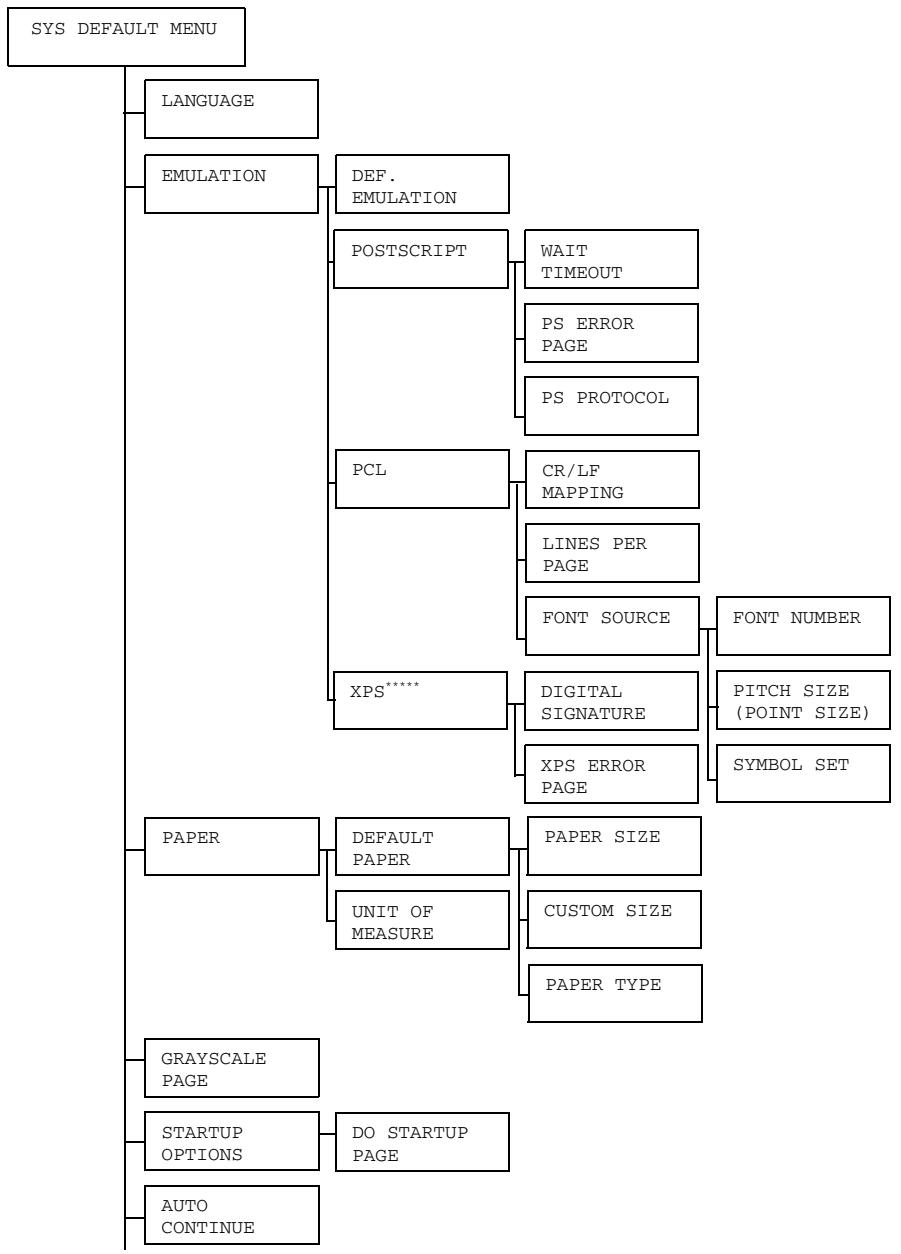
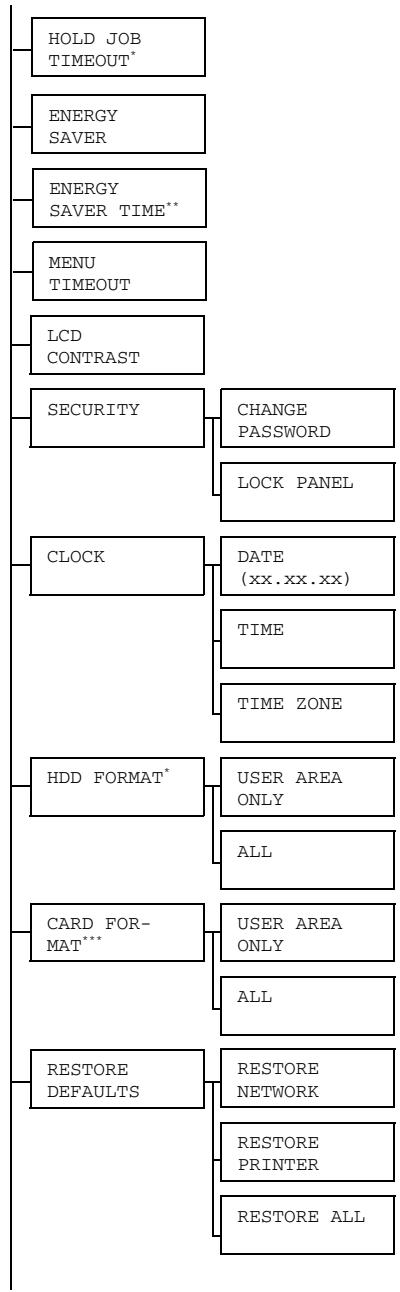
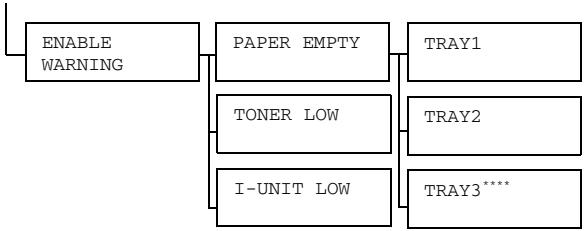

- These menu items appear only if an optional hard disk kit is installed.
** This menu item appears when you select ON from the ENERGY SAVER menu.
*** This menu item appears only if an optional CompactFlash card is installed.
**** This menu item appears only if the optional lower feeder unit is installed.
**** This menu item appears only if an optional hard disk kit or a CompactFlash card is installed.
| LAN-GUAGE | Settings | ENGLISH/FRENCH/GERMAN/SPANISH/ITALIAN/PORTUGUESE/CZECH/JAPANESE/KOREAN/SIMPLIFIED CHINESE/TRADITIONAL CHINESE/DUTCH/RUSSIAN/POLISH | ||
| The display language of the message window can be changed to the selected language.The language selections appear in the message window in the corresponding language. For example, GERMAN appears as DEUTSCH. | ||||
| EMULA-TION | DEF. EMULA-TION | Settings | AUTO/POSTSCRIPT/PCL | |
| Specify the printer emulation language.If AUTO is selected, the printer automatically selects the printer emulation language from the data stream. | ||||
| POST-SCRIPT | WAIT TIME OUT | Settings | 0-300 | |
| Specify the time until an error is determined to be a PostScript error.If 0 is selected, no timeout is performed. | ||||
| PS ERROR PAGE | Settings | ON/OFF | ||
| Select whether or not an error page is printed when a Postscript error occurs. | ||||
| PS PROTO-COL | Settings | AUTO/NORMAL/BINARY | ||
| Specify the protocol for data transmissions with a PostScript data stream.If AUTO is selected, the printer automatically selects an applicable protocol from the data stream. | ||||
| PCL | CR/LF MAP-PING | Settings | CR=CR LF=LF/CR=CRLF LF=LF/CR=CR LF=LFCR/CR=CRLF LF=LFCR | ||
| Select the definitions of the CR/LF codes in the PCL language. | |||||
| LINES PER PAGE | Settings | 5-60-128 | |||
| Specify the number of lines per page in the PCL language. | |||||
| FONT SOURCE | FONT NUMBER | Settings | 0-102 | ||
| Specify the default font in the PCL language. The font numbers that appear correspond to the PCL font list. For details on printing the font list, refer to “PRINT MENU” on page 35. | |||||
| PITCH SIZE (POINT SIZE) | Settings | 0.44-10.00-99.99 (4.00-12.00-999.75) | |||
| Specify the font size in the PCL language. If the selected FONT NUMBER is for a bitmap font, PITCH SIZE appears. If the selected FONT NUMBER is for an outline font, POINT SIZE appears. | |||||
| SYMBOL SET | Specify the symbol set used with the PCL language. The default setting is PC8. | ||||
| XPS | DIGITALSIGNA-TURE | Settings | ENABLE/DISABLE | |
| Select whether to enable or disable XPS digital signatures. If ENABLE is selected, XPS digital signatures are enabled. If DISABLE is selected, XPS digital signatures are disabled. | ||||
| XPSERRORPAGE | Settings | ON/OFF | ||
| Select whether or not an error report is printed after an XPS error has occurred. If ON is selected, the error report is printed. If OFF is selected, the error report is not printed. | ||||
| PAPER | DEFAULTPAPER | PAPERSIZE | Settings | LETTER/LEGAL/EXECUTIVE/A4/A5/A6/B5(JIS)/B6(JIS)/GOVT LETTER/STATEMENT/FOLIO/SP FOLIO/UK QUARTO/FOOLSCAP/GOVT LEGAL/16K/PHOTO 4x6/KAI 16/KAI 32/ENV C6/ENV DL/ENV MONARCH/ENV CHOU#3/ENVCHOU#4/B5(ISO)/ENV #10/JPOST/JPOST-D/CUSTOM |
| Select the size of media that is normally used. The default setting for North America is LETTER. The default setting for all other regions is A4.Depending on the setting selected for SYS DEFAULT MENU/PAPER/UNIT OF MEASURE, PHOTO 4x6 may change to PHOTO 10x15. | ||||
| CUSTOM SIZE | Specify the media size when PAPER SIZE is set to CUSTOM. The setting units can be switched between millimeters and inches with the SYS DEFAULT MENU/PAPER/UNIT OF MEASURE setting. Setting range for WIDTH ■ For MILLIMETERS: 92 to 216 mm (default) - North America: 216 mm - All other regions: 210 mm ■ For INCHES: 3.63 to 8.50 inches (default) - North America: 8.50 inches - All other regions: 8.26 inches Setting range for LENGTH ■ For MILLIMETERS: 148 to 356 mm (default) - North America: 279 mm - All other regions: 297 mm ■ For INCHES: 5.83 to 14.00 inches (default) - North America: 11.00 inches - All other regions: 11.69 inches |
| PAPER TYPE | Settings | PLAIN PAPER/RECYCLED/THICK 1/THICK 2/LABEL/TRANSPARENCY/ENVELOPE/POSTCARD/LETTERHEAD/GLOSSY 1/GLOSSY 2 | ||
| Select the type of media that is normally used. | ||||
| UNIT OF MEASURE | Settings | INCHES/MILLIMETERS | ||
| The units for specifying the size of custom media can be switched between inches and millimeters. The default setting for North America is INCHES. The default setting for all other regions is MILLIMETERS. | ||||
| GRAY SCALE PAGE | Settings | AUTO/GRAYSCALE PRINT/COLOR PRINT | ||
| Specify the operation to be performed for black-and-white pages in a job specified for color printing. If AUTO is selected, printing is automatically performed according to the first page of the job. If GRAYSCALE PRINT is selected, black-and-white printing is automatically performed depending on each page. If COLOR PRINT is selected, color printing is performed, even for a black-and-white page. | ||||
| STARTUP OPTIONS | DO START-UP PAGE | Settings | ON/OFF | |
| Select whether or not a startup page is printed when the printer is turned on. | ||||
| AUTOCON-TINUE | Settings | ON/OFF | ||
| Select whether or not printing continues if the size or type of media in the selected tray is different from the size or type of media for the print job.If AUTO CONTINUE is set to ON, printing automatically continues after about 10 seconds under the following conditions. At this time, printing will be performed even if the media size is different.No media: PAPER EMPTY (Page 211)/TRAY EMPTY (Page 213)Different media size/type: PAPER ERROR (Page 211)/TRAY x PAPER ERR (Page 213) | ||||
| HOLDJOBTIMEOUT | Settings | DISABLE/1 hour/4 hours/1 day/1 week | ||
| Specify the length of time until print jobs saved on the hard disk are deleted. If DISABLE is selected, print jobs are not deleted at a specific time. | ||||
| ENERGYSAVER | Settings | ON/OFF | ||
| If ON is selected, the machine enters Energy Saver mode according to the length of time specified for ENERGY SAVERTIME.If OFF is selected, the machine will not enter Energy Saver mode. | ||||
| ENERGYSAVERTIME | Settings | 5 minutes/6 minutes/7 minutes/8 minutes/9 minutes/10 minutes/11 minutes/12 minutes/13 minutes/14 minutes/15 minutes/30 minutes/1 hour/3 hours | ||
| Specify the length of time until the machine enters Energy Saver mode.This menu item appears only when ENERGY Saver is set to ON. | ||||
| MENUTIMEOUT | Settings | OFF/1 minute/2 minutes | ||
| Specify the length of time until the status screen is displayed when no operation is performed while a menu or help screen is displayed in the message window. If OFF is selected, no timeout occurs. | ||||
| LCDCON-TRAST | Settings | -3/-2/-1/0/+1/+2/+3 | |
| Adjust the contrast of the message window.The darkest level setting is -3 and the brightest level setting is +3. | |||
| SECU-RITY | CHANGEPASS-WORD | Specify the password for locking the control panel.If the password is set to 0000 (default), the control panel is not locked. In order to lock the control panel, be sure to specify a password other than 0000. | |
| LOCK PANEL | Settings | OFF/MINIMUM/ON | |
| Specify how the control panel is locked.If OFF is selected, the control panel is not locked.If MINIMUM is selected, the INTERFACE MENU and SYS DEFAULT MENU are protected with a password.If ON is selected, all menus are protected with a password.In order to lock the control panel, be sure to specify a password other than 0000. | |||
| CLOCK | DATE(xx.xx.xx) | Specify the date for the printer's internal clock.The date for Asia and China is set in the order year, month, then day (YY.MM.DD).The date for the Americas is set in the order month, day, then year (MM.DD.YY).The date for Europe is set in the order day, month, then year (DD.MM.YY). | |
| TIME | Specify the time for the printer's internal clock. | ||
| TIMEZONE | Settings | -12:00-00:00--+13:00 | |
| Specify the time zone. | |||
| HDDFORMAT | USERAREAONLY | Initialize the user area of the hard disk. When this menu item is selected, the printer is automatically restarted. | |
| ALL | Initialize the hard disk. When this menu item is selected, the printer is automatically restarted. | ||
| CARD FORMAT | USER AREA ONLY | Initialize the user area of the compactflash card. When this menu item is selected, the printer is automatically restarted. | ||
| ALL | Initialize the compactflash card. When this menu item is selected, the printer is automatically restarted. | |||
| RESTORE DEFAULTS | RESTORE NETWORK | Reset the network settings to their defaults. When this menu item is selected, the printer is automatically restarted. | ||
| RESTORE PRINTER | Reset the printer settings to their defaults. When this menu item is selected, the printer is automatically restarted. | |||
| RESTORE ALL | Reset all settings to their defaults. When this menu item is selected, the printer is automatically restarted. | |||
| ENABLE WARNING | PAPER EMPTY | TRAY1 | Settings | ON/OFF |
| Select whether or not a warning appears when Tray 1 runs out of media. | ||||
| TRAY2 | Settings | ON/OFF | ||
| Select whether or not a warning appears when Tray 2 runs out of media. | ||||
| TRAY3 | Settings | ON/OFF | ||
| Select whether or not a warning appears when Tray 3 runs out of media. | ||||
| TONER LOW | Settings | ON/OFF | ||
| Select whether or not a warning appears when the toner is about to run out. | ||||
| I-UNIT LOW | Settings | ON/OFF | ||
| Select whether or not a warning appears when the imaging unit is about to reach the end of its life. | ||||
MAINTENANCE MENU
With this menu, maintenance on this printer can be performed.
In order to use this menu, the administrator password must be entered.
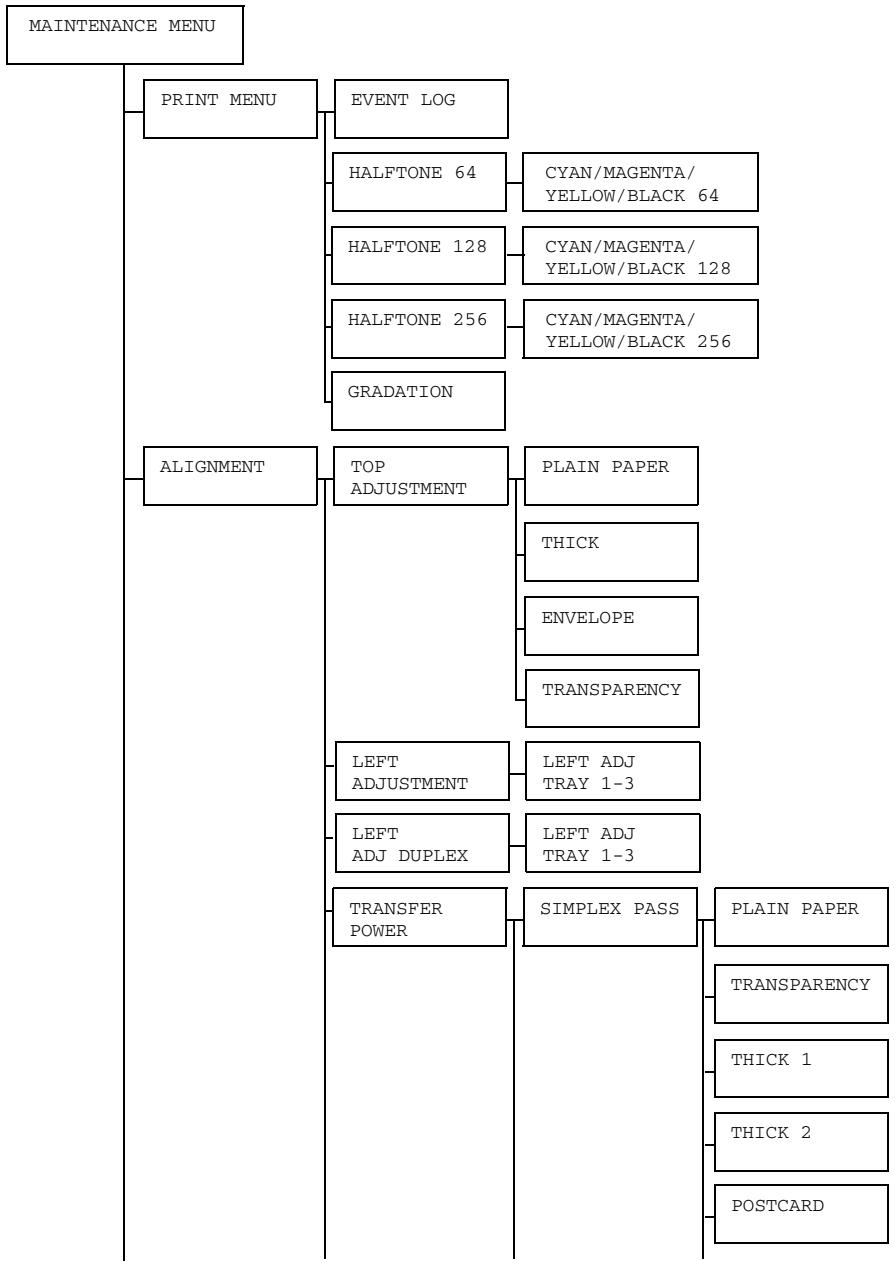
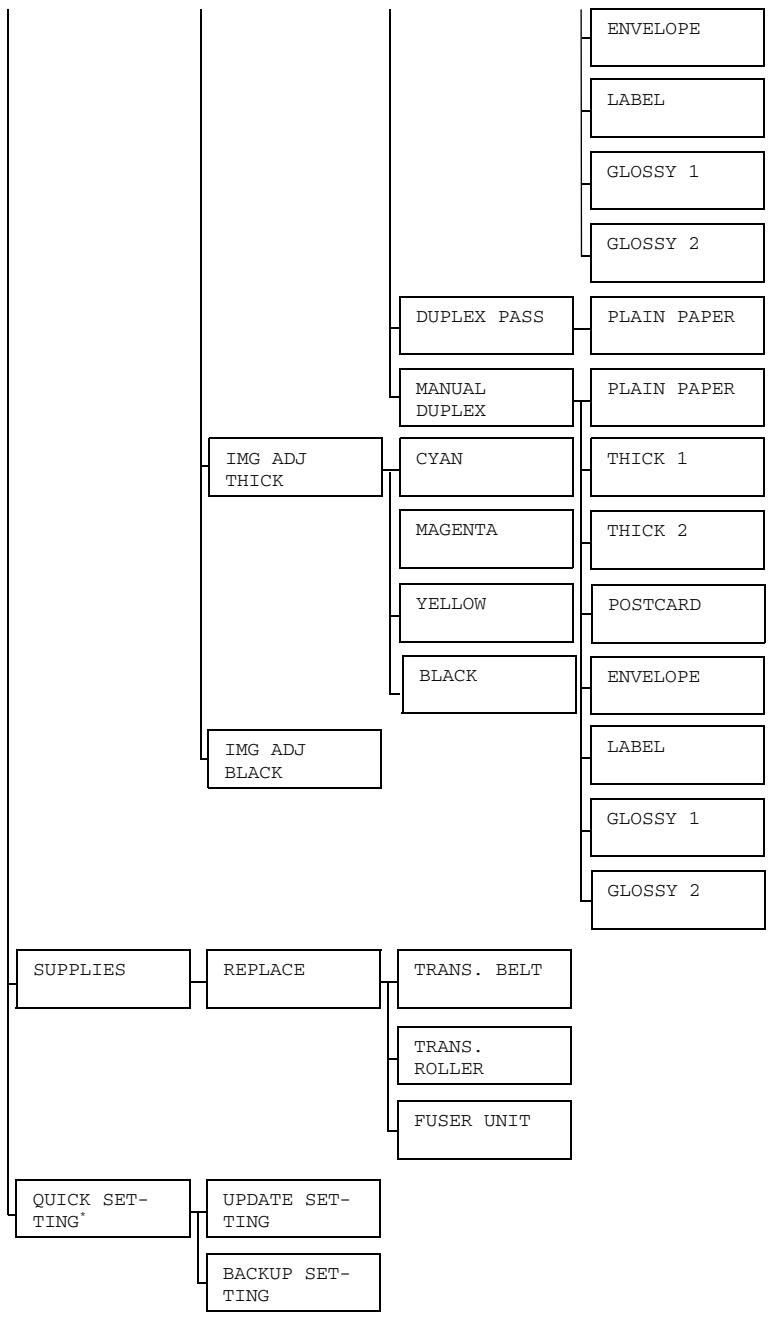
| PRINT MENU | EVENT LOG | Settings | PRINT/CANCEL | |
| Prints the event log. | ||||
| HALF-TONE 64 | CYAN/MAGENTA/YELLOW/BLACK 64 | Settings | PRINT/CANCEL | |
| Print cyan/magenta/yellow/black half-tones at 64 gradations. | ||||
| HALF-TONE 128 | CYAN/MAGENTA/YELLOW/BLACK 128 | Settings | PRINT/CANCEL | |
| Print cyan/magenta/yellow/black half-tones at 128 gradations. | ||||
| HALF-TONE 256 | CYAN/MAGENTA/YELLOW/BLACK 256 | Settings | PRINT/CANCEL | |
| Print cyan/magenta/yellow/black half-tones at 256 gradations. | ||||
| GRADA- TION | Settings | PRINT/CANCEL | ||
| Prints the gradation. | ||||
| ALIGN- MENT | TOP ADJUST MENT | PLAIN PAPER | Settings | -15-15 |
| When printing on plain paper, specify the size of the top margin. | ||||
| THICK | Settings | -15-15 | ||
| When printing on thick paper, specify the size of the top margin. | ||||
| ENVE- LOPE | Settings | -15-15 | ||
| When printing on envelope, specify the size of the top margin. | ||||
| TRANS- PARENCY | Settings | -15-15 | ||
| When printing on transparency, specify the size of the top margin. | ||||
| LEFTADJUSTMENT | LEFTADJTRAY1 | Settings | -15-15 | ||
| When printing on media in Tray 1, specify the size of the left margin. | |||||
| LEFTADJTRAY2 | Settings | -15-15 | |||
| When printing on media in Tray 2, specify the size of the left margin. | |||||
| LEFTADJTRAY3 | Settings | -15-15 | |||
| When printing on media in Tray 3, specify the size of the left margin. | |||||
| LEFTADJDUPLEX | LEFTADJTRAY1 | Settings | -15-15 | ||
| When duplex printing on media in Tray 1, specify the size of the left margin. | |||||
| LEFTADJTRAY2 | Settings | -15-15 | |||
| When duplex printing on media in Tray 2,specify the size of the left margin. | |||||
| LEFTADJTRAY3 | Settings | -15-15 | |||
| When duplex printing on media in Tray 3,specify the size of the left margin. | |||||
| TRANS-FERPOWER | SIM-PLEXPASS | PLAIN PAPER | Settings | -8-7 | |
| When printing on plain paper using simplex pass, correct the secondary image transfer current. | |||||
| TRANSPARENCY | Settings | -8-7 | |||
| When printing on transparency using simplex pass, correct the secondary image transfer current. | |||||
| THICK1 | Settings | -8-7 | |||
| When printing on thick 1 using simplex pass, correct the secondary image transfer current. | |||||
| THICK2 | Settings | -8-7 | |||
| When printing on thick 2 using simplex pass, correct the secondary image transfer current. | |||||
| POST-CARD | Settings | -8-7 | |||
| When printing on postcard using simplex pass, correct the secondary image transfer current. | |||||
| ENVELOPE | Settings | -8-7 | |||
| When printing on envelope using simplex pass, correct the secondary image transfer current. | |||||
| LABEL | Settings | -8-7 | |||
| When printing on LABEL using simplex pass, correct the secondary image transfer current. | |||||
| GLOSSYY1 | Settings | -8-7 | |||
| When printing on GLOSSY 1 using simplex pass, correct the secondary image transfer current. | |||||
| GLOSSYY2 | Settings | -8-7 | |||
| When printing on GLOSSY 2 using simplex pass, correct the secondary image transfer current. | |||||
| DUPLEXPASS | PLAIN PAPER | Settings | -8-7 | ||
| When printing on plain paper using duplex pass, correct the secondary image transfer current. | |||||
| MANUAL DUPLEX | PLAIN PAPER | Settings | -8-7 | ||
| When printing on plain paper using manual duplex pass, correct the secondary image transfer current. | |||||
| THICK 1 | Settings | -8-7 | |||
| When printing on THICK 1 using manual duplex pass, correct the secondary image transfer current. | |||||
| THICK 2 | Settings | -8-7 | |||
| When printing on THICK 2 using manual duplex pass, correct the secondary image transfer current. | |||||
| POST-CARD | Settings | -8-7 | |||
| When printing on POST-CARD using manual duplex pass, correct the secondary image transfer current. | |||||
| ENVE-LOPE | Settings | -8-7 | |||
| When printing on ENVELOPE using manual duplex pass, correct the secondary image transfer current. | |||||
| LABEL | Settings | -8-7 | |||
| When printing on LABEL using manual duplex pass, correct the secondary image transfer current. | |||||
| GLOSSY 1 | Settings | -8-7 | |||
| When printing on GLOSSY 1 using manual duplex pass, correct the secondary image transfer current. | |||||
| GLOSSY2 | Settings | -8-7 | |||
| When printing on GLOSSY 2 using manual duplex pass, correct the secondary image transfer current. | |||||
| IMGADJTHICK | CYAN | Settings | -5-0-5 | ||
| When printing on thick paper, adjust the cyan in the image. | |||||
| MAGENTA | Settings | -5-0-5 | |||
| When printing on thick paper, adjust the magenta in the image. | |||||
| YELLOW | Settings | -5-0-5 | |||
| When printing on thick paper, adjust the yellow in the image. | |||||
| BLACK | Settings | -5-0-5 | |||
| When printing on thick paper, adjust the black in the image. | |||||
| IMGADJBLACK | Settings | -2-0-2 | |||
| When printing in grayscale, adjust the black in the image. | |||||
| SUP-PLIES | RE-PLACE | TRANS.BELT | Settings | YES/NO | |
| Reset the service life counter for the transfer belt unit. | |||||
| TRANS.ROLLER | Settings | YES/NO | |||
| Reset the service life counter for the transfer roller. | |||||
| FUSERUNIT | Settings | YES/NO | |||
| Reset the service life counter for the fuser unit. | |||||
| QUICK SET- TING | UPDATE SETTING | Setup | EXECUTE / CANCEL |
| Select whether or not to update the printer settings from the definitions file on the USB memory device. If EXECUTE is selected, the printer settings are updated. If CANCEL is selected, the settings are not updated. | |||
| BACKUP SET- TING | Backup | EXECUTE / CANCEL | |
| Select whether or not to save the printer settings information on a USB memory device. If EXECUTE is selected, the printer settings are saved on a USB memory device. If CANCEL is selected, the settings are not saved. | |||
SERVICE MENU
With this menu, the service representative can adjust the printer and perform maintenance operations. This menu cannot be used by the user.
Camera Direct
5
Camera Direct
If a digital camera with PictBridge (1.0 or later) is connected to the printer through the Camera Direct Print port, images stored on the digital camera can be printed directly from the printer.

For details on using the digital camera, refer to your digital cameras manual.

The following features are not supported with Camera Direct.
- DPOF AUTOPRINT image print
- Cropping print
- Borderless
- Print quality (printer setup)
- Paper type (printer setup)
- DPOF cable disconnect recovery
Printing Directly from a Digital Camera
1 From the printer's Camera Direct Menu, specify settings for Paper Source, Layout, Paper Margin and Image Quality.

The Media Type setting that is used is the default printer setting that is selected.
The Media Type setting cannot be selected from the digital camera.

If these settings can be specified from the digital camera, they do not need to be specified from the control panel. These settings are overridden by settings configured within the digital camera.
For details on control panel settings, refer to "CAMERA DIRECT" on page 65.
2 Connect the USB cable to the digital camera and to the KONICA MINOLTA Digital Camera Direct Print Port.

A USB cable is not included with the printer and must be purchased separately, if not supplied with your digital camera.
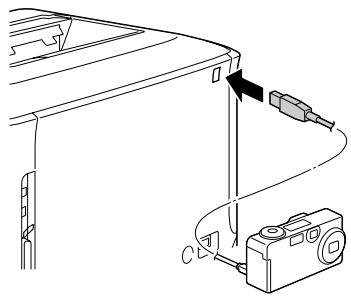
3 From the digital camera, specify the image that you wish to print and the desired number of copies.
4 Start printing from the digital camera.
Memory Direct
6
Memory Direct
PDF, XPS, JPEG and TIFF files saved on USB memory devices can be printed by plugging the USB memory device into the printer.

Memory direct can be used only if the optional hard disk kit or a CompactFlash card is installed.
In order to perform collated printing with memory direct, the optional hard disk kit or a CompactFlash card of 1 GB or more must be installed.

For details on specifying settings with the control panel, refer to "MEMORY DIRECT" on page 62.
Printing From a Connected USB Memory Device
1 Plug the USB memory device into the KONICA MINOLTA Digital Camera Direct Print Port. The USB icon appears in the upper-right corner of the message window, and the Memory Direct menu appears.

2 Select LIST OF FILES, and then press the Menu/Select key.

When all files (PDF, XPS, JPEG and TIFF) are displayed, select Type OF FILES, and then press the Menu/Select key.
3 From the file list, select the file that you wish to print, and then press the Menu/Select key. If the file to be printed is in a folder, select the folder, and then press the Menu/Select key.

A maximum of 99 folders and files can be displayed.

Up to 8 folder levels can be displayed.
4 Select PRINT, and then press the Menu/Select key.
When printing is finished, the status screen appears again.

Settings can be specified for the paper size, duplex printing, number of copies and collating.

Do not unplug the USB memory device from the KONICA MINOLTA Digital Camera Direct Print Port during memory direct printing.
Using Media
7
What types and sizes of media can I load?
| Media | Media Size | Tray* | Duplex (double-sided) | |
| Inch | Millimeter | |||
| Letter | 8.5 x 11.0 | 215.9 x 279.4 | 1/2/3 | Yes |
| Legal | 8.5 x 14.0 | 215.9 x 355.6 | 1/3 | Yes |
| Statement | 5.5 x 8.5 | 139.7 x 215.9 | 1/2 | No |
| Executive | 7.25 x 10.5 | 184.2 x 266.7 | 1/2/3 | Yes |
| A4 | 8.2 x 11.7 | 210.0 x 297.0 | 1/2/3 | Yes |
| A5 | 5.9 x 8.3 | 148.0 x 210.0 | 1/2 | No |
| A6 | 4.1 x 5.8 | 105.0 x 148.0 | 1/2 | No |
| B5 (JIS) | 7.2 x 10.1 | 182.0 x 257.0 | 1/2/3 | Yes |
| B6 | 5.0 x 7.2 | 128.0 x 182.0 | 1/2 | No |
| Folio | 8.25 x 13.0 | 210.0 x 330.0 | 1 | Yes |
| SP Folio | 8.5 x 12.69 | 215.9 x 322.3 | 1 | Yes |
| Foolscap | 8.0 x 13.0 | 203.2 x 330.2 | 1 | Yes |
| UK Quarto | 8.0 x 10.0 | 203.2 x 254.0 | 1/2 | No |
| Government Letter | 8.0 x 10.5 | 203.2 x 266.7 | 1/2 | Yes |
| Government Legal | 8.5 x 13.0 | 215.9 x 330.2 | 1/3 | Yes |
| Photo Size 4" x 6"/10 x 15 | 4.0 x 6.0 | 101.6 x 152.4 | 1/2 | No |
| 16 K | 7.7 x 10.6 | 195.0 x 270.0 | 1/2 | Yes |
| Kai 16 | 7.3 x 10.2 | 185.0 x 260.0 | 1/2 | Yes |
| Kai 32 | 5.1 x 7.3 | 130.0 x 185.0 | 1/2 | No |
| Japanese Postcard | 3.9 x 5.8 | 100.0 x 148.0 | 1 | No |
| Japanese Postcard-D | 5.8 x 7.9 | 148.0 x 200.0 | 1 | No |
| B5 (ISO) | 6.9 x 9.8 | 176.0 x 250.0 | 1 | No |
| Envelope #10 | 4.125 x 9.5 | 104.8 x 241.3 | 1 | No |
| Envelope DL | 8.7 x 4.3 | 220.0 x 110.0 | 1 | No |
| Envelope C6 | 6.4 x 4.5 | 162.0 x 114.0 | 1 | No |
| Envelope Monarch | 7.5 x 3.875 | 190.5 x 98.4 | 1 | No |
| Envelope Chou #3 | 4.7 x 9.2 | 120.0 x 235.0 | 1 | No |
| Envelope Chou #4 | 3.5 x 8.1 | 90.0 x 205.0 | 1 | No |
| Custom Size | 3.6-8.5 x 5.8-14.0 | 92.0-216.0 x 148.0-356.0 | 1 | Yes** |
| Custom Size | 3.6-8.5 x 5.8-11.7 | 92.0-216.0 x 148.0-297.0 | 2 | Yes*** |
| Notes: * Tray 1= Manual feed tray Tray 3 = Lower feeder unit (optional) ** The minimum possible size for duplex (double-sided) printing is B5(JIS). The maximum possible size for duplex (double-sided) printing is Legal. *** The minimum possible size for duplex (double-sided) printing is B5(JIS). The maximum possible size for duplex (double-sided) printing is A4. | ||||
Media Types
Before purchasing a large quantity of special media, do a trial print with the same media and check the print quality.
Keep media on a flat, level surface in its original wrapper until it is time to load it. For a list of approved media, refer to printer.konicaminolta.com.
Plain Paper (Recycled Paper)
| Capacity | Tray 1 (Manual Feed Tray) | Up to 100 sheets, depending on the paper weight. |
| Tray 2 | Up to 250 sheets, depending on the paper weight. | |
| Tray 3 | Up to 500 sheets, depending on the paper weight. | |
| Orientation | Tray 1 (Manual Feed Tray) | Face down |
| Tray 2/3 | Face up | |
| Driver Media Type | Plain Paper (Recycled) | |
| Weight | 60–90 g/m2(16–24 lb bond) | |
| Duplexing | See page 100 for supported sizes. | |
Use media that is
Suitable for plain paper laser printers, such as standard or recycled office paper.
Note
Do not use the media types listed below. These could cause poor print quality, media misfeeds, or damage to the printer.
DO NOT use media that is
Coated with a processed surface (such as carbon paper, and colored paper that has been treated)
Carbon backed
Unapproved iron-on transfer media (such as heat-sensitive paper, heat-pressure paper, and heat-press transfer paper)
Cold-water-transfer paper
Pressure sensitive
■ Designed specifically for inkjet printers (such as superfine paper, glossy paper, glossy film, and postcards)
Paper that has already been printed on
- Paper that has been printed on with an inkjet printer
- Paper that has been printed on with a monochrome/color laser printer/ copier
- Paper that has been printed on with a heat-transfer printer
- Paper that has been printed on with any other printer or fax machine
Dusty
Wet (or damp)

Keep media between 35% and 85% relative humidity. Toner does not adhere well to moist or wet paper.
Layered
Adhesive
■ Folded, creased, curled, embossed, warped, or wrinkled
Perforated, three-hole punched, or torn
Too slick, too coarse, or too textured
Different in texture (roughness) on the front and back
Too thin or too thick
Stuck together with static electricity
Composed of foil or gilt; too luminous
Heat sensitive or cannot withstand the fusing temperature (180°C [356°F])
Irregularly shaped (not rectangular or not cut at right angles)
■ Attached with glue, tape, paper clips, staples, ribbons, hooks, or buttons
Acidic
Any other media that is not approved
Thick Stock
Paper thicker than 90~g / m^2 (24 lb bond) is referred to as thick stock. Test all thick stock to ensure acceptable performance and to ensure that the image does not shift.
| Capacity | Tray 1 (Manual Feed Tray) | Up to 20 thick stock sheets, depending on their thickness. |
| Tray 2/3 | Not supported | |
| Orientation | Face down | |
| Driver Media Type | Thick 1 (91-150 g/m2) Thick 2 (151-210 g/m2) | |
| Weight | 91–210 g/m2(25–55.9 lb bond) | |
| Duplexing | Not supported | |
DO NOT use thick stock that is
- Mixed with any other media in Tray 1 (as this will cause printer misfeeding)
Envelopes
Print on the front (address) side only. Some parts of the envelope consist of three layers of paper—the front, back, and flap. Anything printed in these layered regions may be lost or faded.
| Capacity | Tray 1 (Manual Feed Tray) | Up to 10 envelopes, depending on their thickness |
| Tray 2/3 | Not supported | |
| Orientation | Face down | |
| Driver Media Type | Envelope | |
| Weight | 91-163 g/m² (25-43 lb bond) | |
| Duplexing | Not supported | |
Use envelopes that are
Common office envelopes approved for laser printing with diagonal joints, sharp folds and edges, and ordinary gumed flaps

Because the envelopes pass through heated rollers, the gumed area on the flaps may seal. Using envelopes with emulsion-based glue avoids this problem.
Approved for laser printing
Dry
DO NOT use envelopes that have
Sticky flaps
Tape seals, metal clasps, paper clips, fasteners, or peel-off strips for sealing
Transparent windows
Too rough of a surface
Material that will melt, vaporize, offset, discolor, or emit dangerous fumes
■ Been presealed
Labels
A sheet of labels consists of a face sheet (the printing surface), adhesive, and a carrier sheet:
The face sheet must follow the plain paper specification.
The face sheet surface must cover the entire carrier sheet, and no adhesive should come through on the surface.
You can print continuously with label sheets. However, this could affect the media feed, depending on the media quality and printing environment. If problems occur, stop the continuous printing and print one sheet at a time.
Try printing your data on a sheet of plain paper first to check placement. Check your application documentation for more information on printing labels.
| Capacity | Tray 1 (Manual Feed Tray) | Up to 20 label sheets, depending on their thickness |
| Tray 2/3 | Not supported | |
| Orientation | Face down | |
| Driver Media Type | Label | |
| Weight | 60-163 g/m² (16-43 lb bond) | |
| Duplexing | Not supported | |
Use label sheets that are
Recommended for laser printers
Letter or A4 size (adhesive label stock)
DO NOT use label sheets that
Have labels that easily peel off or have parts of the label already removed
Have backing sheets that have peeled away or have exposed adhesive

Labels may stick to the fuser, causing them to peel off and media misfeeds to occur.
Are precut or perforated
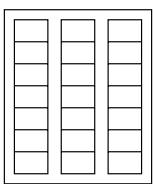
Do not use
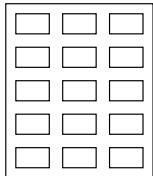
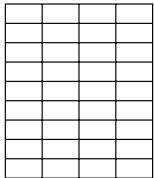
Shiny backed paper

OK to use
Full-page labels (uncut)
Letterhead
Try printing your data on a sheet of plain paper first to check placement.
| Capacity | Tray 1 (Manual Feed Tray) | Up to 20 sheets, depending on their size and thickness |
| Tray 2/3 | Not supported | |
| Orientation | Face down | |
| Driver Media Type | Letterhead | |
| Weight | 60-90g/m² (16-24 lb bond) | |
| Duplexing | See page 100 for supported sizes. | |
Postcards
Try printing your data on a sheet of plain paper first to check placement.
| Capacity | Tray 1 (Manual Feed Tray) | Up to 20 postcards, depending on their thickness |
| Tray 2/3 | Not supported | |
| Orientation | Face down | |
| Driver Media Type | Postcard | |
| Weight | 60-163g/m² (16-43 lb bond) | |
| Duplexing | Not supported | |
Use postcards that are
Approved for laser printers
DO NOT use postcards that are
Coated
Designed for inkjet printers
Precut or perforated
Preprinted or multicolored

If the postcard is warped, press on the warped area before putting it in Tray 1.
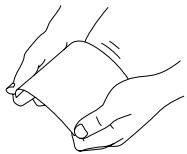
Transparencies

Do not fan transparencies before loading them. Resulting static electricity may cause printing errors.

If you touch the face of the transparencies with your bare hands, print quality may be affected.

Keep the printer path clean. Transparency are especially sensitive to a dirty media path. If there are shadows on either the top or the bottom of the sheets, see chapter 9, "Maintaining the Printer".

Remove transparencies as soon as possible from the output tray to avoid static buildup.
You can print continuously with transparencies. However, this could affect the media feed, depending on the media quality, static buildup, and printing environment.
Try printing your data on a sheet of plain paper first to check placement.

If you have problems feeding 20 sheets, try loading only 1-10 sheets at a time. Loading a large number of transparencies at one time may cause static buildup, thus causing feeding problems.
| Capacity | Tray 1 (Manual Feed Tray) | Up to 20 transparencies, depending on their thickness |
| Tray 2/3 | Not supported | |
| Orientation | Face down | |
| Driver Media Type | Transparency | |
| Duplexing | Not supported | |
Use transparencies that are
Approved for laser printing
DO NOT use transparencies that
Have static electricity that will cause them to stick together
Are specified for inkjet printers only
Glossy Media
Test all glossy media to ensure acceptable performance and to ensure that the image does not shift.
| Capacity | Tray 1 (Manual Feed Tray) | Up to 20 glossy media sheets, depending on their thickness. |
| Tray 2/3 | Not supported | |
| Orientation | Face down | |
| Driver Media Type | Glossy 1 (100-128 g/m2) | |
| Glossy 2 (129-158 g/m2) | ||
| Weight | 100-158 g/m2(26.5-42 lb bond) | |
| Duplexing | Not supported | |
DO NOT use glossy media stock that is
Mixed with any other media in Tray 1 (as this will cause printer misfeeding)
What Is the Guaranteed Imageable (Printable) Area?
The printable area on all media sizes is up to 4.2 mm (0.165") from the edges of the media.
Each media size has a specific imageable area, the maximum area on which the printer can print clearly and without distortion.
This area is subject to both hardware limits (the physical media size and the margins required by the printer) and software constraints (the amount of
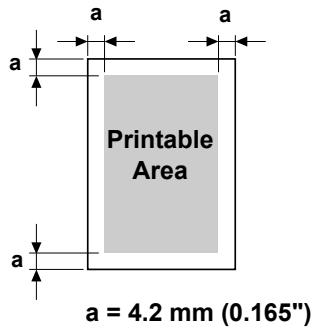
memory available for the full-page frame buffer). The guaranteed imageable (printable) area for all media sizes is the page size minus 4.2 mm ( 0.165" ) from all edges of the media.
Imageable Area—Envelopes
Envelopes have a nonguaranteed imageable area that varies with envelope type.

The envelope print orientation is determined by your application.
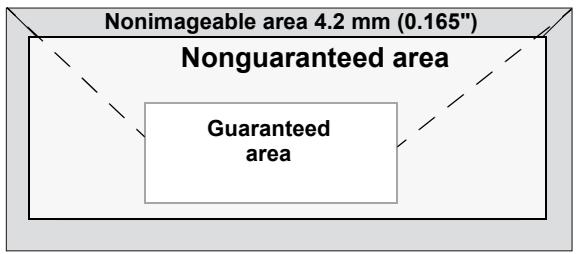
Page Margins
Margins are set through your application. Some applications allow you to set custom page sizes and margins while others have only standard page sizes and margins from which to choose. If you choose a standard format, you may lose part of your image (due to imageable area constraints). If you can custom-size your page in your application, use those sizes given for the imageable area for optimum results.
Loading Media
How do I load media?
Take off the top and bottom sheets of a ream of paper. Holding a stack of approximately 100 sheets at a time, fan the stack to prevent static buildup before inserting it in a tray.
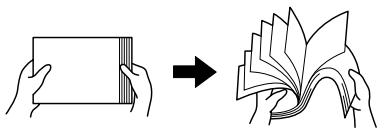

Do not fan transparencies.
Note
Although this printer was designed for printing on a wide range of media types, it is not intended to print exclusively on a single media type except plain paper. Continuous printing on media other than plain paper (such as envelopes, labels, thick stock, or transparencies) may adversely affect print quality or reduce engine life.
When refilling media, first remove any media remaining in the tray. Stack it with the new media, even the edges, then reload it.
Tray 1 (Manual Feed Tray)
For details on the types and sizes of media that can be printed from Tray 1, refer to "Media Specifications" on page 100.
Loading Plain Paper
1 Open Tray 1.
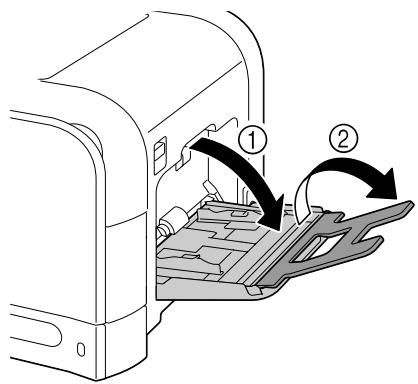
2 Slide the media guides to provide more space between them.
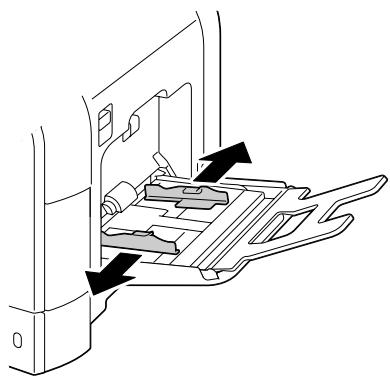
3 Press down on the center of the paper-lifting plate until the left and right locking tabs (white) lock into place.
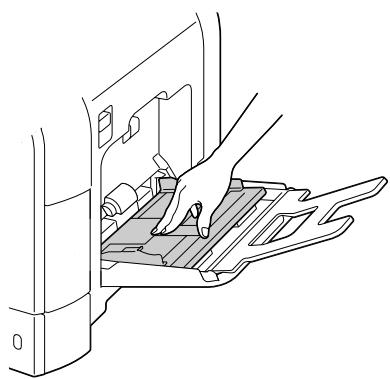
4 Load the paper face down in the tray.
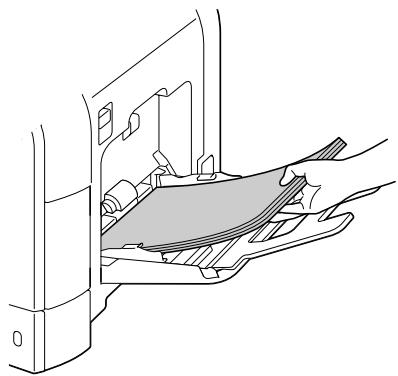

Do not load so much paper that the top of the stack is higher than the maximum limit guide. Up to 100 sheets (80g / m^2 [22 lb]) of plain paper can be loaded into the tray at one time.
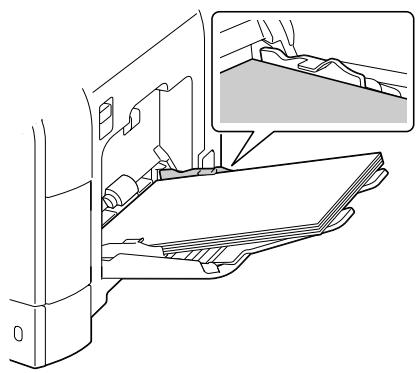
5 Slide the media guides against the edges of the paper.
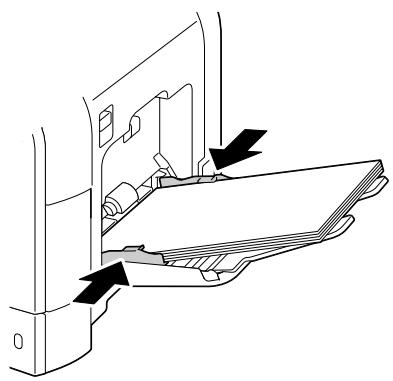
6 Select PAPER MENU/PAPER SOURCE/TRAY 1/PAPER SIZE and PAPER TYPE in the configuration menu, and then select the setting for the size and type of paper that are loaded. See also “PAPER MENU” on page 37.
Other Media
When loading media other than plain paper, set the media mode (Envelope, Label, Thick 1, Thick 2, Glossy 1, Glossy 2, or Transparency) in the driver for optimum print quality.
Loading Envelopes
1 Open Tray 1.
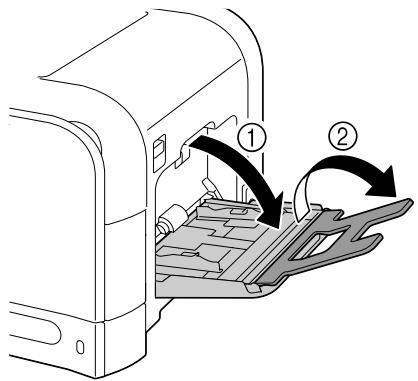
2 Slide the media guides to provide more space between them.
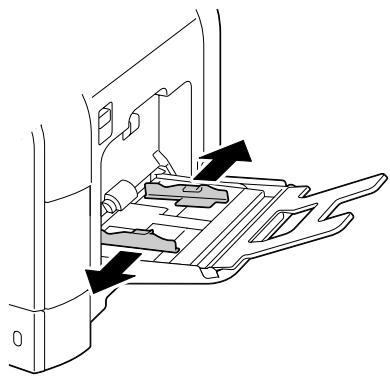
3 Press down on the center of the paper-lifting plate until the left and right locking tabs (white) lock into place.
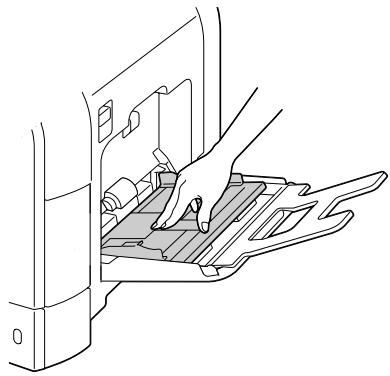
4 Load the envelopes flap side up in the tray.

Before loading envelopes, press them down to make sure that all air is removed, and make sure that the folds of the flaps are firmly pressed; otherwise the envelopes may become wrinkled or a media misfeed may occur.
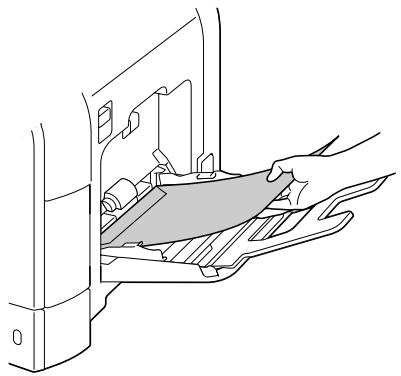

Up to 10 envelopes can be loaded into the tray at one time.

For envelopes with the flap along the long edge (Envelope C6, Envelope Monarch, and Envelope DL), load the envelopes with the flap side up.
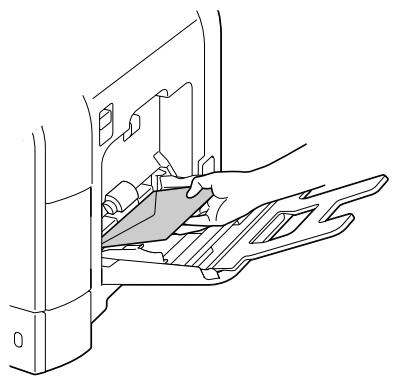
5 Slide the media guides against the edges of the envelopes.
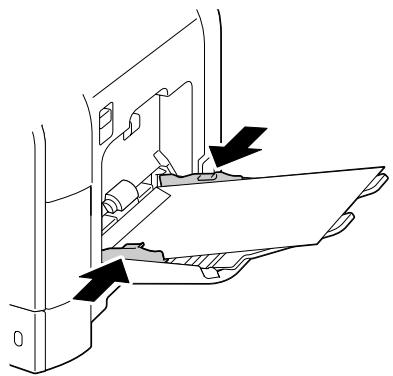
6 Select PAPER MENU/PAPER SOURCE/TRAY 1/PAPER SIZE and PAPER TYPE in the configuration menu, and then select the setting for the size and type of media that is loaded. See also “PAPER MENU” on page 37.
Loading Label Sheets/Postcards/Thick Stock/Glossy Media and Transparency
1 Open Tray 1.
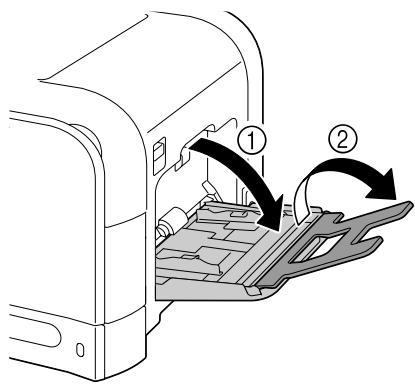
2 Slide the media guides to provide more space between them.
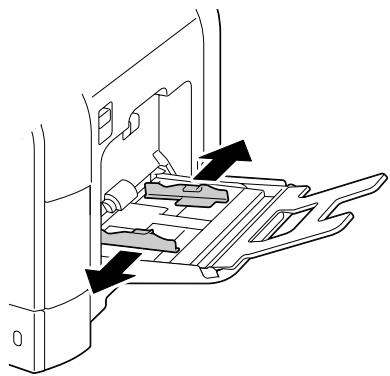
3 Press down on the center of the paper-lifting plate until the left and right locking tabs (white) lock into place.
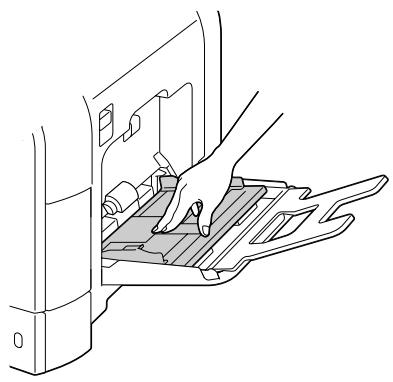
4 Load the media face down in the tray.

Up to 20 sheets can be loaded into the tray at one time.
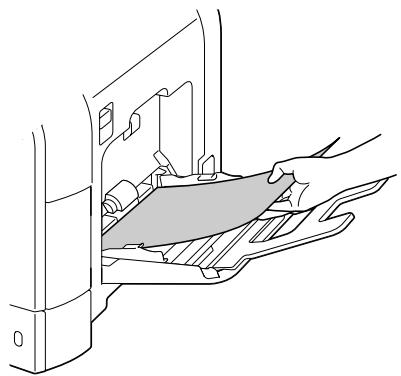
5 Slide the media guides against the edges of the media.
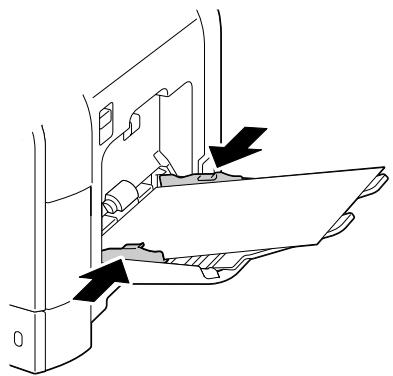
6 Select PAPER MENU/PAPER SOURCE/TRAY 1/PAPER SIZE and PAPER TYPE in the configuration menu, and then select the setting for the size and type of media that is loaded. See also "PAPER MENU" on page 37.
Tray 2
Loading Plain Paper
1 Pull out Tray 2.
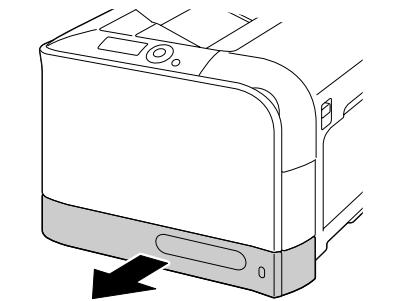
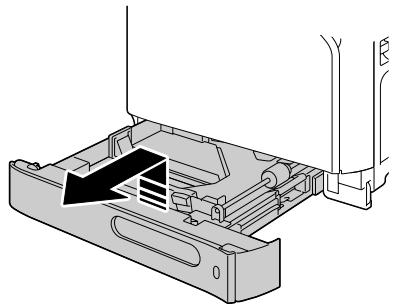
2 Press down the media pressure plate to lock it into place.
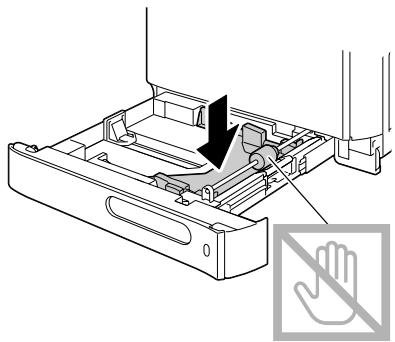
3 Slide the media guides to provide more space between them.
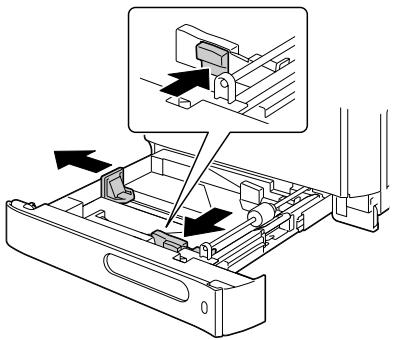
4 Load the paper face up in the tray.
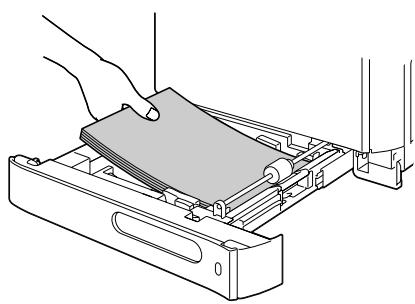

Do not load above the mark. Up to 250 sheets (80g / m^2 [22 lb]) of plain paper can be loaded into the tray at one time.
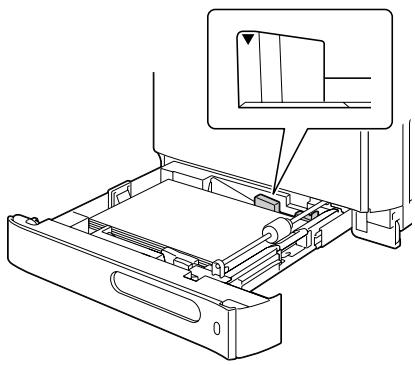
5 Slide the media guides against the edges of the paper.
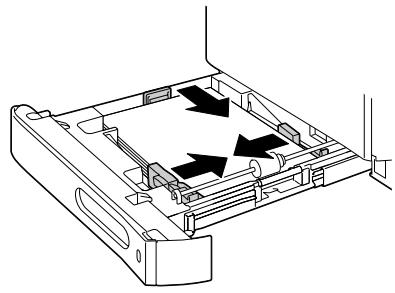
6 Close Tray 2.
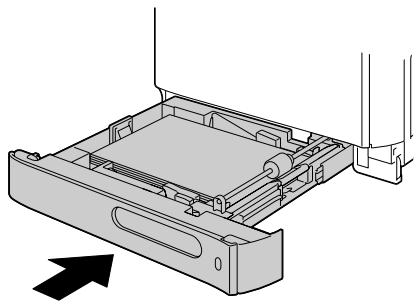
7 Select PAPER MENU/PAPER SOURCE/TRAY 2/PAPER SIZE and PAPER TYPE in the configuration menu, and then select the setting for the size and type of paper that are loaded. See also "PAPER MENU" on page 37.
Tray 3 (Optional Lower Feeder Unit)
Loading Plain Paper
1 Pull out Tray 3.
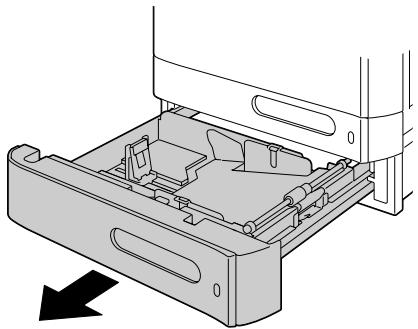
2 Press down the media pressure plate to lock it into place.
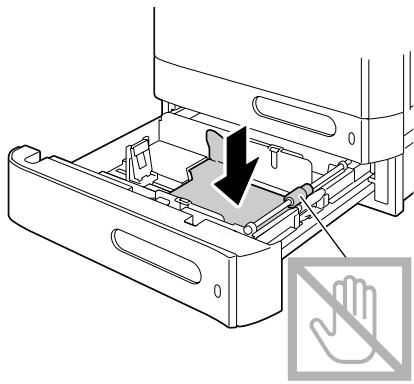
3 Slide the media guides to provide more space between them.
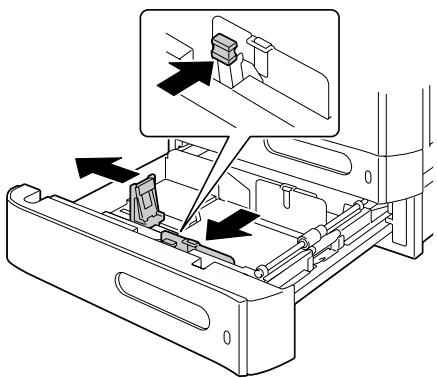
4 Load the paper face up in the tray.
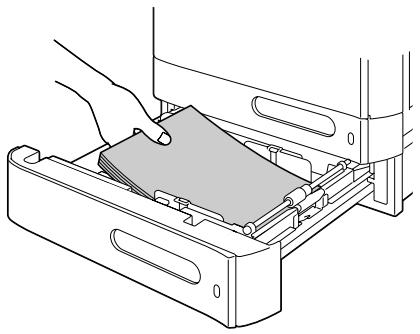

Do not load above the mark. Up to 500 sheets (80g / m^2 [22 lb]) of plain paper can be loaded into the tray at one time.
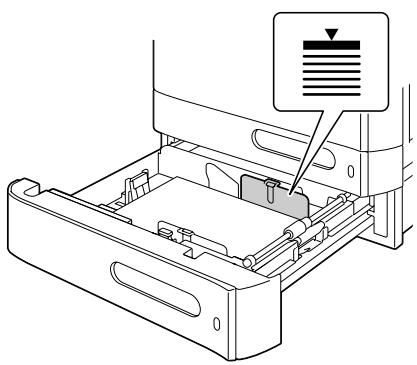
5 Slide the media guides against the edges of the paper.
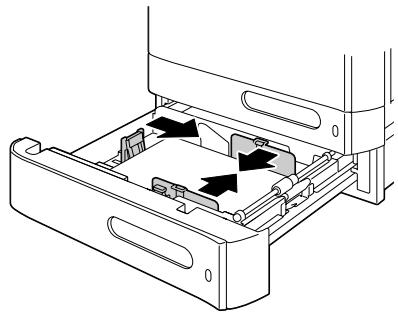
6 Close Tray 3.
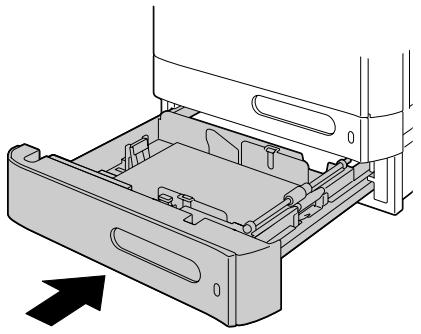
7 Select PAPER MENU/PAPER SOURCE/TRAY 3/PAPER TYPE in the configuration menu, and then select the setting for the type of paper that is loaded. See also "PAPER MENU" on page 37.
Duplexing
Select paper with high opacity for duplex (double-sided) printing.
Opacity refers to how effectively paper blocks out what is written on the opposite side of the page. If the paper has low opacity (high translucency), then the printed data from one side of the page will show through to the other side. Check your application for margin information. For best results, print a small quantity to make sure the opacity is acceptable.
Note
Only plain paper, 60 - 90g / m^2 (16-24 lb bond) can be autoduplexed. See "Media Specifications" on page 100.
Duplexing envelopes, labels, postcards, thick stock, glossy media or transparencies is not supported.
How do I autoduplex?
Check your application to determine how to set your margins for duplex (double-sided) printing.
The following Binding Position settings are available.
| 1 2 3 | If “Short Edge” is selected, the pages will be laid out to flip at the top. |
| 1 2 3 | If “Long Edge” is selected, the pages will be laid out to flip at the side. |
In addition, if "N-up" has been set to "Booklet", autoduplex printing is performed.
The following Order settings are available when "Booklet" is selected.
| 1 3 1 | If “Left Binding” is selected, the pages can be folded as a left-bound booklet. |
| 3 1 1 | If “Right Binding” is selected, the pages can be folded as a right-bound booklet. |
1 Load plain paper into the tray.
2 From the printer driver, specify duplex (double-sided) printing (Layout tab in Windows).
3 Click OK.

With autoduplexing, the back side is printed first, and then the front side is printed.
Output Tray
All printed media is output to the face-down output tray on top of the printer. This tray has a capacity of approximately 200 sheets (A4/Letter) of 80g / m^2 (22 lb) paper.

If the media is stacked too high in the output tray, your printer may experience media misfeeds, excessive media curl, or static buildup.

Remove transparencies as soon as possible from the output tray to avoid static buildup

If the paper curls and falls out of the output tray when printing thick paper, fold down the tray extension and pull out the paper stopper before printing.
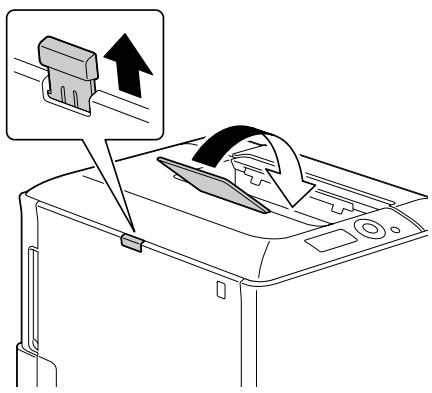
Media Storage
How do I store media?
- Keep media on a flat, level surface in its original wrapper until it is time to load it.
Media that has been stored for a long time out of its packaging may dry up too much and cause misfeeding.
If media has been removed from its wrapper, place it in its original packaging and store in a cool, dark place on a level surface.
Avoid moisture, excessive humidity, direct sunlight, excessive heat (above 35^ [95°F]), and dust.
- Avoid leaning media against other objects or placing it in an upright position.
Before using stored media, do a trial print to check print quality.
Replacing Consumables
8
Note
Failure to follow instructions as outlined in this manual could result in voiding your warranty.
Note
If an error message (TOLER OUT, TRANS.BELT END OF LIFE, etc.) appears, print out the configuration page, and then check the status of the other consumables. For details on the error messages, refer to "Error Messages (Warning:)" on page 206. For details on printing the configuration page, refer to "Printing a Configuration Page" on page 172.
About Toner Cartridges
Your printer uses four toner cartridges: black, yellow, magenta, and cyan. Handle the toner cartridges carefully to avoid spilling toner inside the printer or on yourself.

Install only new toner cartridges in your printer. If a used toner cartridge is installed, the indicator message will not clear and the supplies status in the Status Monitor will not be updated.

The toner is nontoxic. If you get toner on your skin, wash it off with cool water and a mild soap. If you get toner on your clothes, lightly dust them off as best as you can. If some toner remains on your clothes, use cool, not hot water, to rinse the toner off.

CAUTION
If you get toner in your eyes, wash it out immediately with cool water and consult a doctor.
Note
Do not use refilled toner cartridges or unapproved toner cartridges. Any damage to the printer or quality problems caused by a refilled toner cartridge or an unapproved toner cartridge will void your warranty. No technical support is provided to recover from these problems.
When replacing a toner cartridge, refer to the following table. For optimum print quality and performance, use only approved KONICA MINOLTA toner cartridges for your specific printer type, as listed in the table below. You can find your printer type and the toner cartridge part numbers on the consumables reorder label inside the front cover your printer.
| Printer Type | Printer Parts Number | Toner Cartridge Type | Toner Cartridge Parts Number |
| AM | A00F 014 | High-Capacity Toner Cartridge -Black (K) | A0DK 133 |
| High-Capacity Toner Cartridge -Yellow (Y) | A0DK 233 | ||
| High-Capacity Toner Cartridge -Magenta (M) | A0DK 333 | ||
| High-Capacity Toner Cartridge -Cyan (C) | A0DK 433 | ||
| EU | A00F 024 | High-Capacity Toner Cartridge -Black (K) | A0DK 153 |
| High-Capacity Toner Cartridge -Yellow (Y) | A0DK 253 | ||
| High-Capacity Toner Cartridge -Magenta (M) | A0DK 353 | ||
| High-Capacity Toner Cartridge -Cyan (C) | A0DK 453 |

For optimum print quality and performance, use only the corresponded TYPE genuine KONICA MINOLTA toner cartridges.
Keep toner cartridges:
In their packaging until you're ready to install them.
In a cool, dry location away from sunlight (due to heat).
The maximum storage temperature is 35^ ( 95^ ) and the maximum storage humidity is 85% (noncondensing). If the toner cartridge is moved from a cold place to a warm, humid place, condensation may occur, degrading print quality. Allow the toner to adapt to the environment for about one hour before use.
Level during handling and storage.
Do not hold, stand or store cartridges on their ends or turn them upside down; the toner inside the cartridges may become caked or unequally distributed.
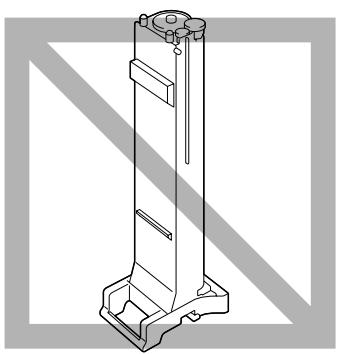
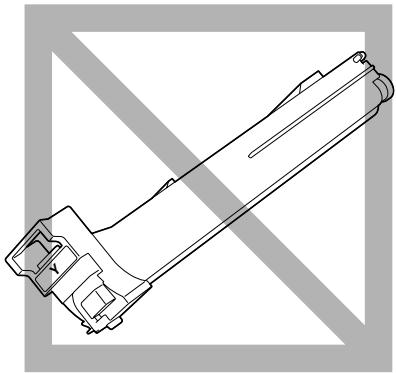
Away from salty air and corrosive gases such as aerosols.
Replacing a Toner Cartridge
Note
Be careful not to spill toner while replacing a toner cartridge. If toner spills, immediately wipe it off with a soft, dry cloth.
If TONER LOW on the SYS DEFAULT MENU/ENABLE WARNING is set to ON, the message TONER LOW X (where "X". represents the color of the toner) appears when toner cartridge becomes near empty. Follow the steps below to replace the toner cartridge.

If TONER LOW on the SYS DEFAULT MENU/ENABLE WARNING is set to OFF, you are advised to replace the indicated toner cartridge when the message TONER OUT X appear.
1 Open the printer's front cover.
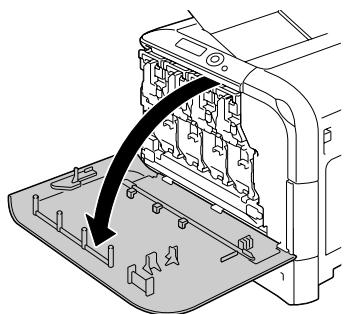
2 Pull the front lever of the color toner cartridge indicated to the right.
The replacement procedure for the toner cartridge is the same for all colors (yellow: Y, magenta: M, cyan: C, and black: K).
The following instructions show the procedure to replace the toner cartridge (Y).
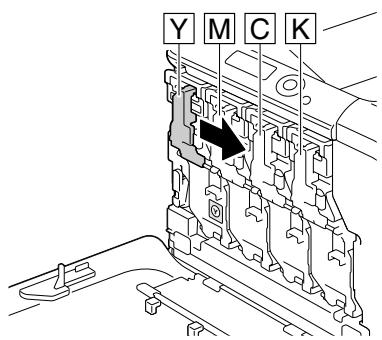
3 Lower the lever to release the lock.
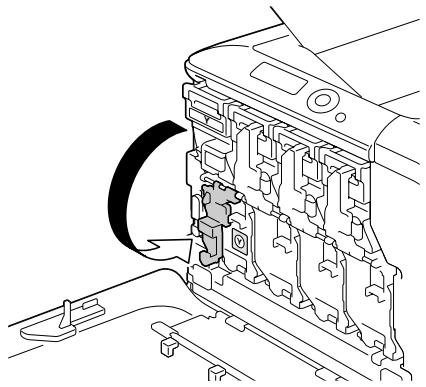
4 Grab the handle of the toner cartridge to be replaced, and then pull out the cartridge.
The following instructions show the procedure to replace the toner cartridge(Y).
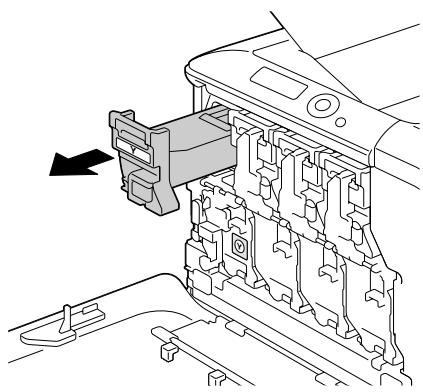
Note
Dispose of the used toner cartridge according to your local regulations. Do not burn the toner cartridge.
For details, refer to "About Toner Cartridges" on page 128.
5 Check the color of the new toner cartridge to be installed.
6 Remove the toner cartridge from the bag.
7 Shake the cartridge to distribute the toner.
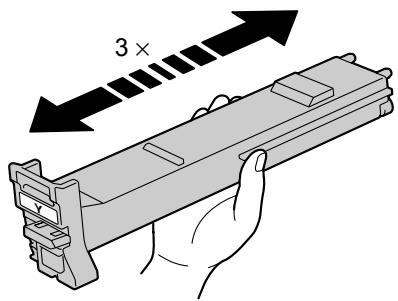
8 Make sure that the toner cartridge is the same color as the printer compartment, and then insert the toner cartridge into the printer.
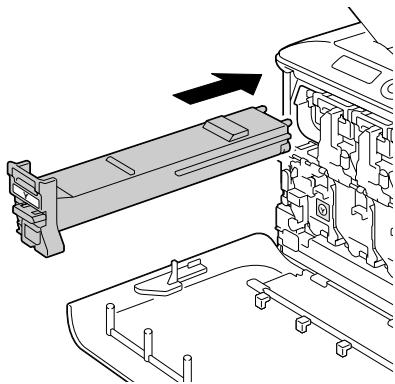
9 Make sure that the toner cartridge is securely installed, and then peel off the protective film.
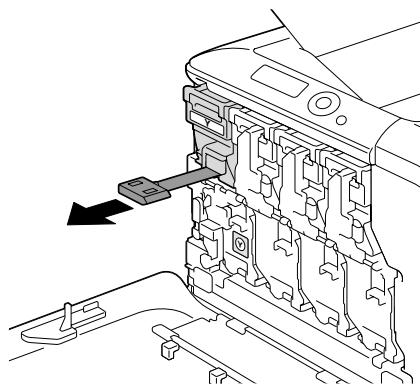
10 Raise the front lever to its original position.
11 Pull the lever to the left to lock it in place.

The front lever should be securely returned to its original position; otherwise, the front cover of the printer cannot be closed.
12 Close the front cover.
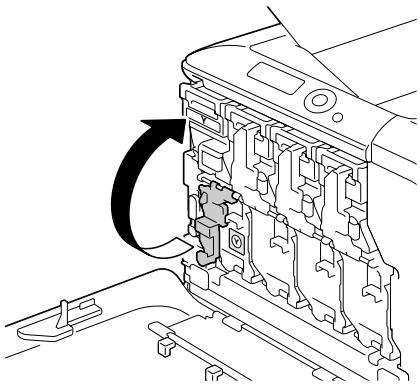
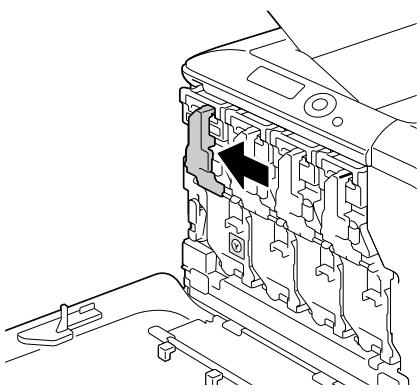
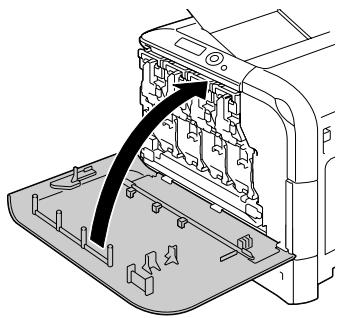
Replacing a Imaging Unit
When replacing a imaging unit, refer to the following table. For optimum print quality and performance, use only approved KONICA MINOLTA imaging units for your specific printer type, as listed in the table below. You can find your printer type and the imaging unit part numbers on the consumables reorder label inside the front cover your printer.
| Printer Type | Printer Parts Number | Imaging Unit Type | Imaging Unit Parts Number |
| AM | A00F 014 | Imaging Unit - Black (K) | A031 00G |
| Imaging Unit - Yellow (Y) | A031 05G | ||
| Imaging Unit - Magenta (M) | A031 0AG | ||
| Imaging Unit - Cyan (C) | A031 0GG | ||
| EU | A00F 024 | Imaging Unit - Black (K) | A031 00J |
| Imaging Unit - Yellow (Y) | A031 05J | ||
| Imaging Unit - Magenta (M) | A031 0AJ | ||
| Imaging Unit - Cyan (C) | A031 0GJ |
Note
Do not touch the OPC drum surface. This could lower image quality.
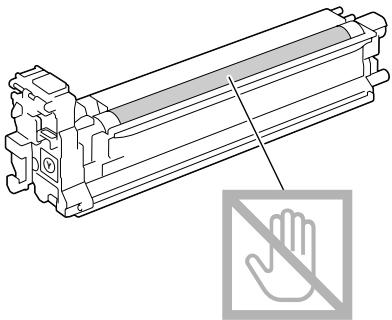
If I-UNIT LOW on the SYS DEFAULT MENU/ENABLE WARNING is set to ON, the message I-UNIT LOW X (where "X". represents the color of the toner) appears when a imaging unit becomes near empty. Follow the steps below to replace the imaging unit.

You are advised to replace the indicated imaging unit when the message I-UNIT LIFE X appears.
1 Check the message window to see which color imaging unit needs replacing.
2 Open the printer's front cover.
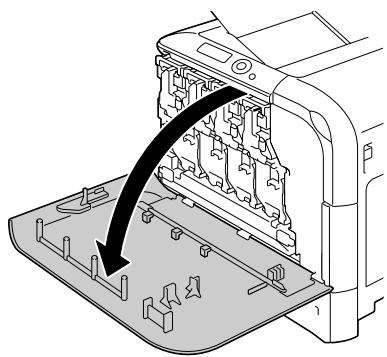
3 Pull the front lever of the color toner cartridge indicated to the right.
The replacement procedure for the imaging unit is the same for all colors (yellow: Y, magenta: M, cyan: C, and black: K).
The following instructions show the procedure to replace the toner cartridge (K).
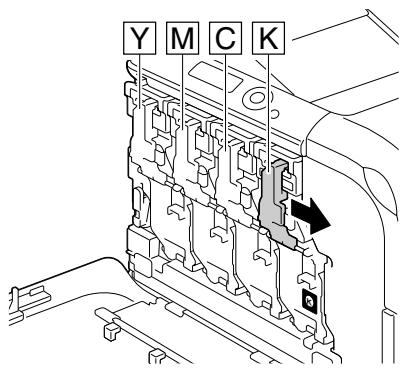
4 Lower the lever to release the lock.
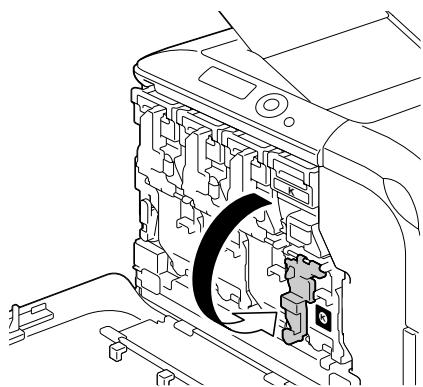
5 Press down the area marked "Push" on the imaging unit to be replaced, and then slide the unit all the way out of the printer.
The following instructions show the procedure to replace the imaging unit (K).
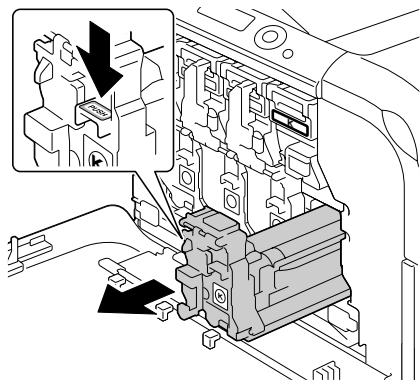
Note
- Dispos of the used imaging unit according to your local regulations.
- Do not burn the imaging unit.
6 Check the color of the new imaging unit to be installed.

In order to prevent toner from spilling, leave the imaging unit in the bag until step 5 is being performed.
7 Remove the imaging unit from the bag.
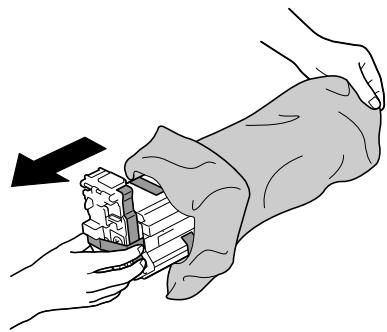
Hold the imaging unit with both hands, and then shake it twice as shown in the illustration.

Do not grab the bottom of the bag; otherwise, the imaging unit may be damaged, resulting in decreased print quality.
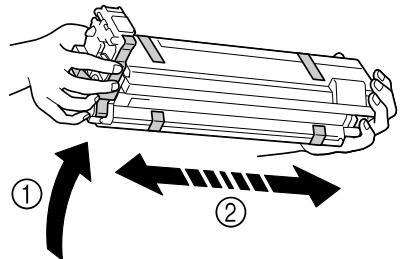
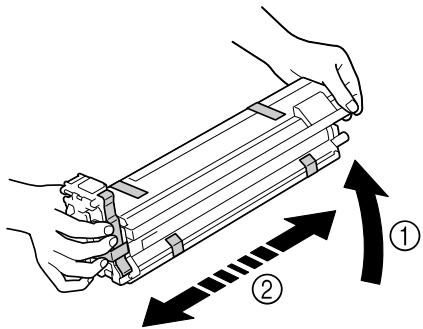
9 Remove all packing tape from the imaging unit.
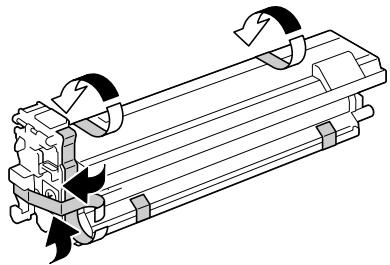
10 Remove the protective cover from the imaging unit. The protective cover slides after having turned.
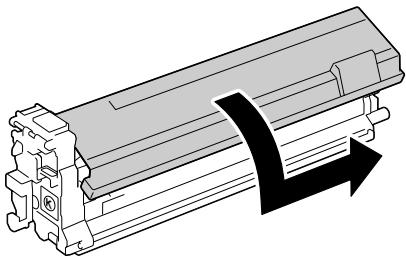
11 Make sure that the new imaging unit to be installed is the same color as the printer compartment, and then install the imaging unit in the printer.
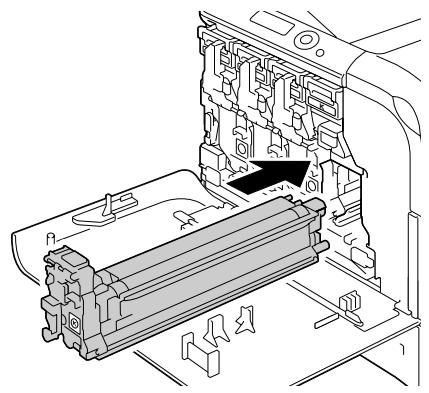
12 Raise the front lever to its original position.
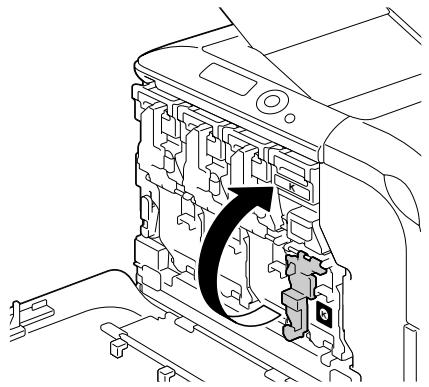
13 Pull the lever to the left to lock it in place.

The front lever should be securely returned to its original position; otherwise, the front cover of the printer cannot be closed.
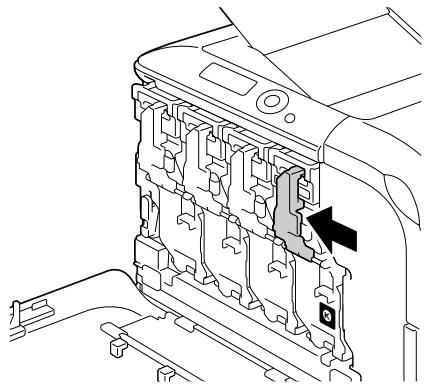
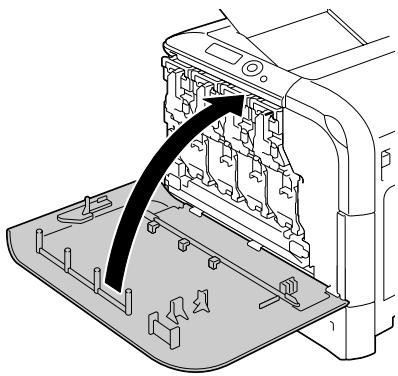
Replacing the Waste Toner Bottle
When the waste toner bottle becomes full, the message WASTE TONER FULL/REPLACE BOTTLE appears in the message window. The printer stops and will not start again until the waste toner bottle is replaced.
1 Open the printer's front cover.
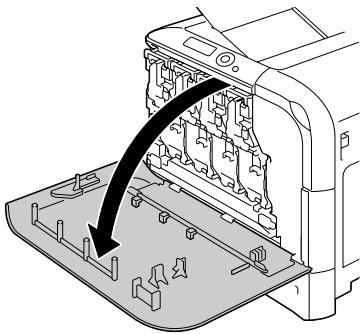
2 Turn the dial on the waste toner bottle counterclockwise until it is in the unlock position.
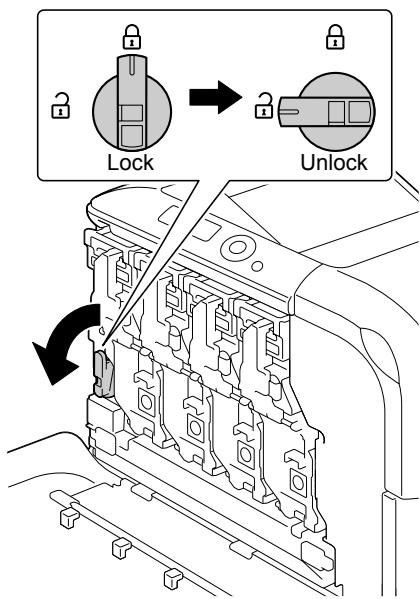
3 Open the left and right handles of the waste toner bottle.
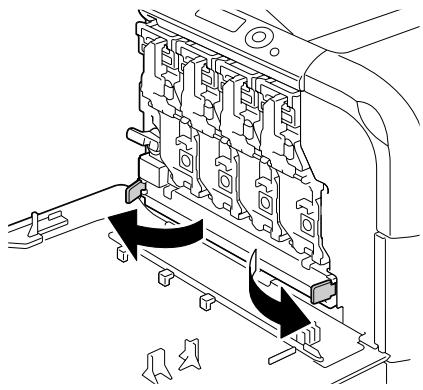
4 Grab the left and right handles of the waste toner bottle, and then slowly pull out the bottle.

Be careful since some waste toner may spill if the lock is closed when the waste toner bottle is removed.
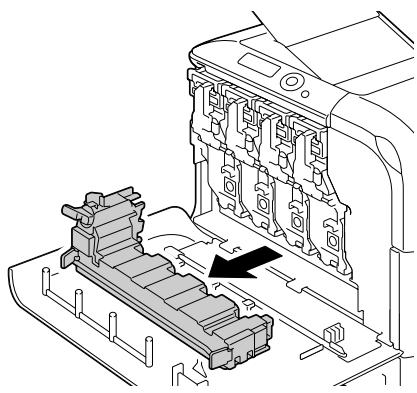
5 Remove the new waste toner bottle from its packaging. Insert the used waste toner bottle into the plastic bag included in the box, and then box it up.
Note
Dispose of the used waste toner bottle according to your local regulations. Do not burn the waste toner bottle.

Before installing the waste toner bottle, be sure that the dial on the waste toner bottle is unlocked.
6 Slide the waste toner bottle all the way into the printer.
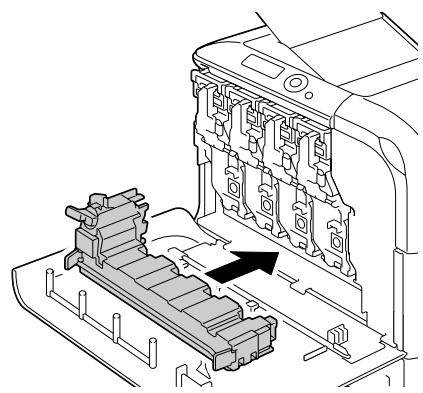
7 Turn the dial clockwise until the waste toner bottle is in the locked position.
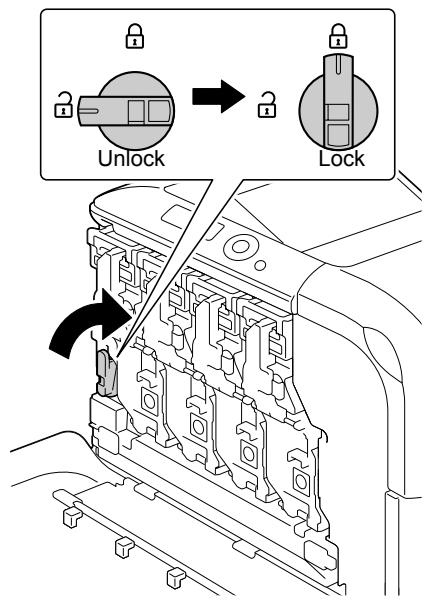
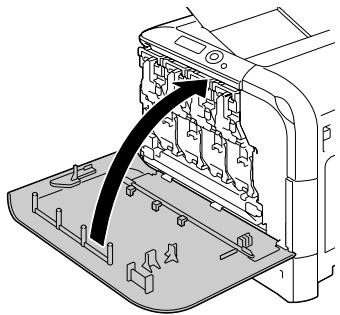

If the waste toner bottle is not fully inserted or if the dial is not locked, the front cover cannot be closed.
Replacing the Transfer Roller
When the time to replace the transfer roller is reached, the message TRANS. ROLLER/END OF LIFE appears. Printing can continue even after this message appears; however, since the print quality is reduced, the transfer roller should be replaced immediately.
When replacing the transfer roller, also replace the ozone filter. A new ozone filter is included with the new transfer roller.
Replacing the Transfer Roller
1 Pull the lever, and then open the right side cover.

Before opening the right side cover, fold up Tray 1.
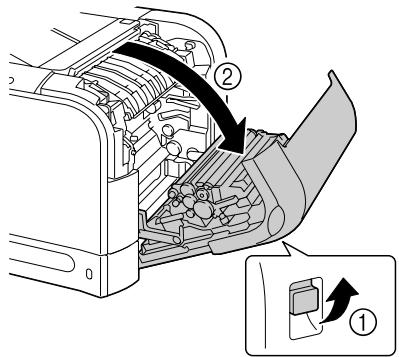
2 Move the lever toward you.
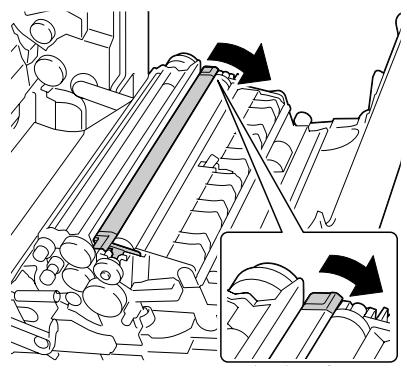
3 Remove the transfer roller.
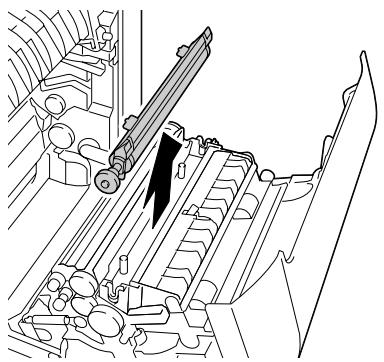
4 Prepare a new transfer roller.
5 Insert the shaft of the transfer roller into the bearings.
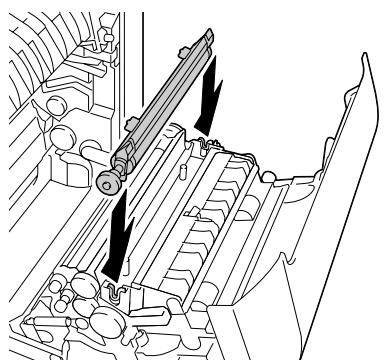
6 Move the levers away from you until it snaps into place.
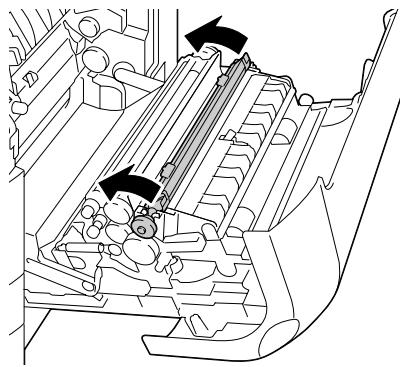
7 Close the right side cover.
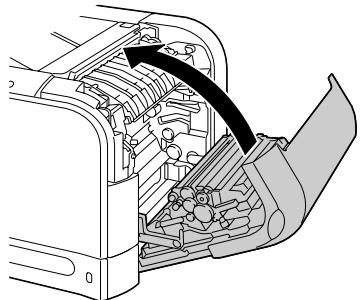
8 Reset the counter in the MAINTENANCE MENU/SUPPLIES/ REPLACE/TRANS. ROLLER menu.
9 Replace the ozone filter, using the following procedure.
Replacing the Ozone Filter
1 Remove the ozone filter from the printer.
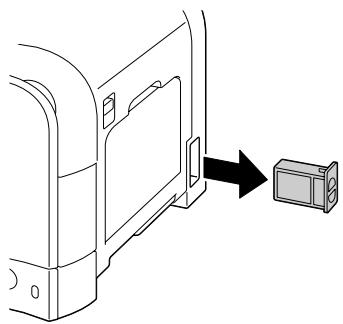
2 Slide the new ozone filter into the printer until it snaps into place.
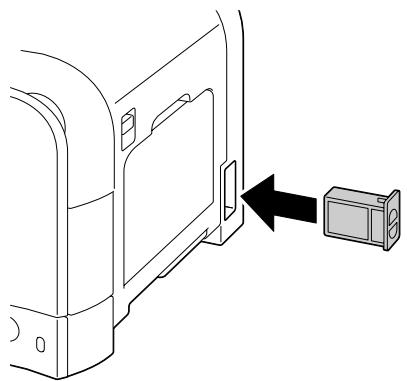
Replacing the Transfer Belt Unit
When the time to replace the transfer belt unit is reached, the message TRANS. BELT/END OF LIFE appears. Printing can continue even after this message appears; however, since the print quality is reduced, the transfer belt unit should be replaced immediately.
1 Turn off the printer and disconnect the power cord and interface cover.
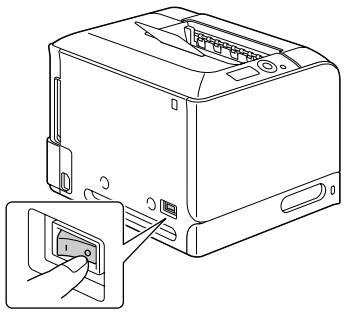
2 Open the printer's front cover.
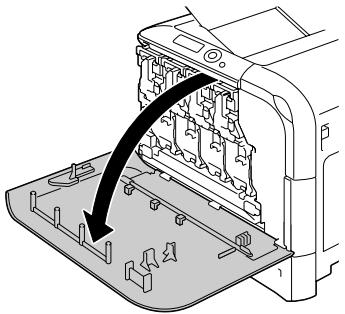
3 Remove the all imaging units and waste toner bottle.

For details on removing the imaging unit or waste toner bottle, refer to "Replacing a Imaging Unit" on page 135 or "Replacing the Waste Toner Bottle" on page 141.

Cover the removed imaging unit to protect it from direct sunlight.
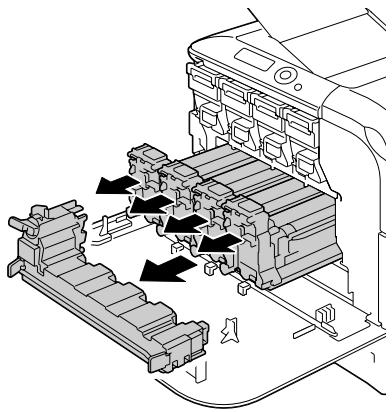
4 Using a coin, remove the two screws on the left side.

Be careful not to lose the screws.
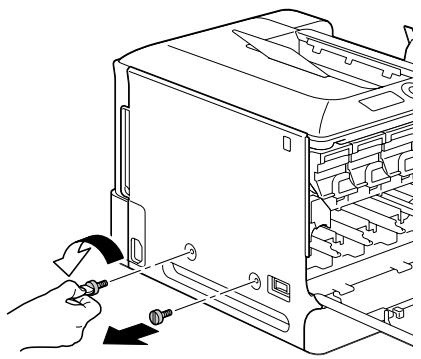
5 Remove the left side cover.
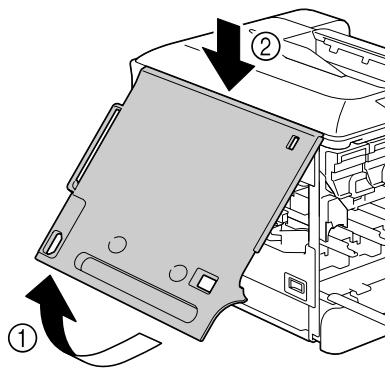
6 Pull the lever, and then open the right side cover.

Before opening the right side cover, fold up Tray 1.
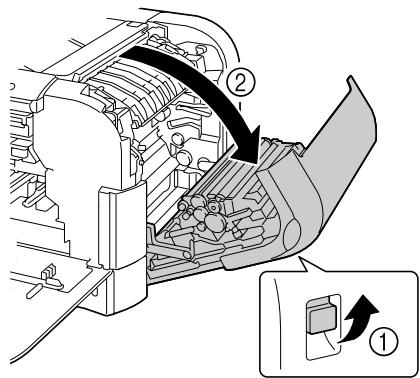
7 Use a coin to loosen the screws securing the transfer belt unit.
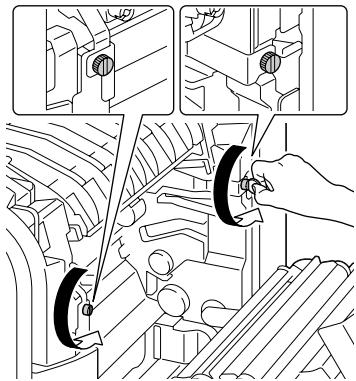
8 On the left side, pull to the right the blue shutter lever for the transfer belt unit.

Do not remove the blue lever.
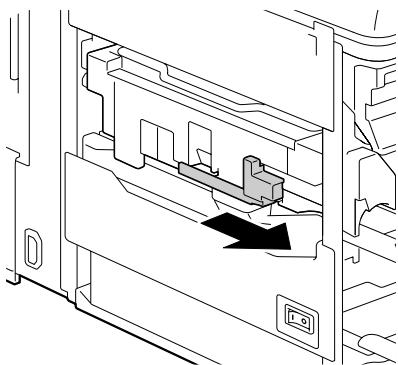
9 From the side where the left side cover was removed, hold the arm, and then carefully pull out the transfer belt unit.
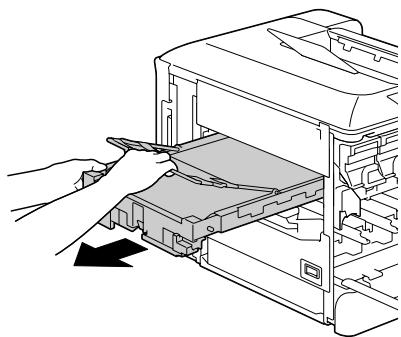
10 Prepare a new transfer belt unit.

Be careful not to touch the surface of the belt.

Do not remove the blue lever.
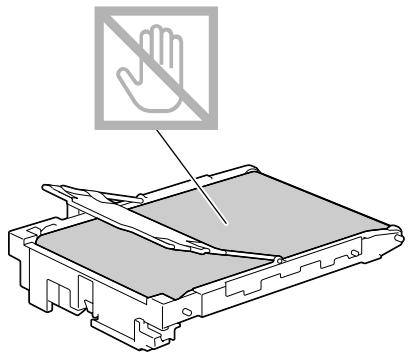
11 Remove all packing tape from the new transfer belt unit.
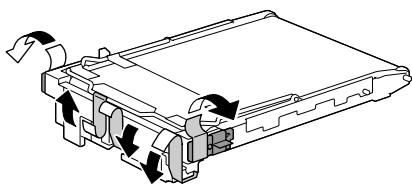
12 Remove the protective cover from the new transfer belt unit.
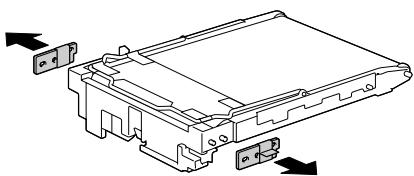
13 Insert the new transfer belt unit along the rails.
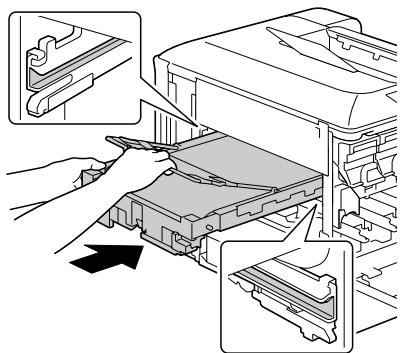
14 From the right side cover side, tighten the screws to secure the transfer belt unit and then close the right side cover.
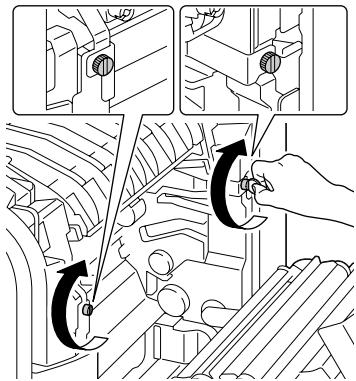
15 Close the right side cover.
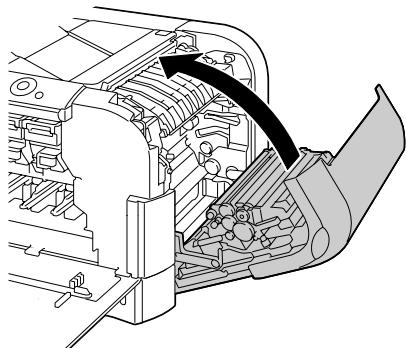
16 Attach the left-side cover.
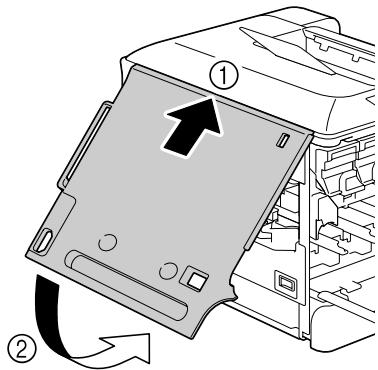
17 Tighten the two screws on the left side.
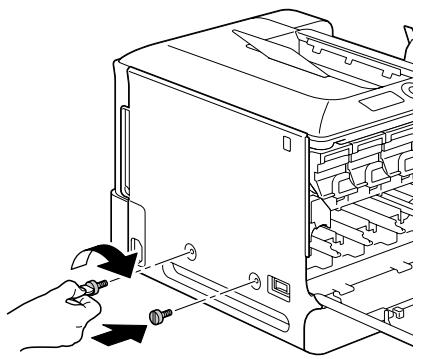
18 Install the all imaging units and waste toner bottle.

For details on installing the imaging unit or waste toner bottle, refer to "Replacing a Imaging Unit" on page 135 or "Replacing the Waste Toner Bottle" on page 141.
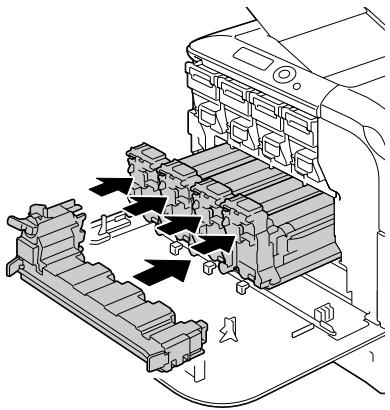
19 Close the front cover.
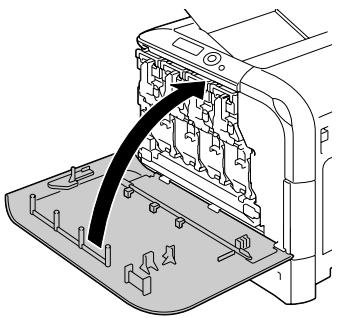
20 Reconnect the power cord, and turn on the printer.
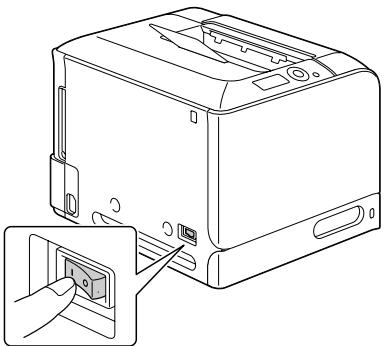
21 Reset the counter in the MAINTENANCE MENU/SUPPLIES/ REPLACE/TRANS. BELT menu.
Replacing the Backup Battery
When the backup battery is at its end of life, the printer's date and time cannot be retained. Follow the procedure described below to replace the backup battery.
Note
Only use the coin-shaped 3V lithium battery CR2032. It's very important to protect the printer controller board and any associated circuit boards from electrostatic damage. Before performing this procedure, review the antistatic caution on page 219. In addition, always handle circuit boards by the edges only.
1 Turn off the printer and disconnect the power cord and interface cables.
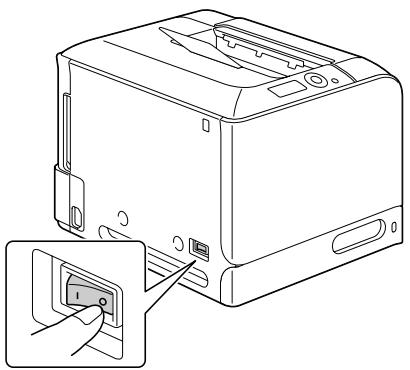
2 Using a screwdriver, remove the screw. Then, slide the rear cover to the right and remove it.
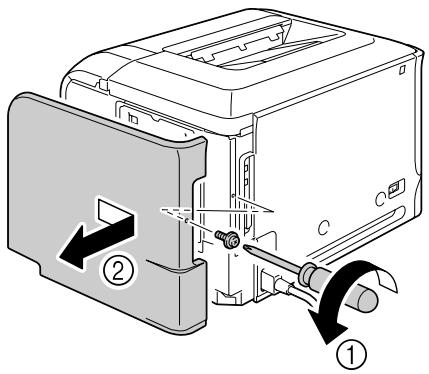
3 Using a screwdriver, loosen the seven screws. (Do not remove them from the printer.)
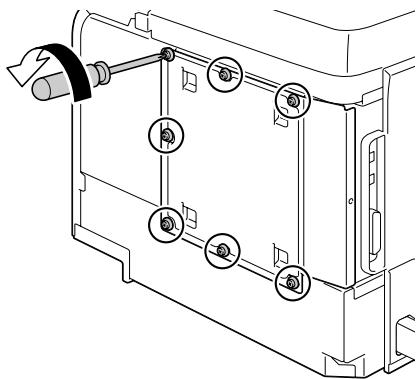
4 Slide the panel slightly to the right and lift it off the printer.
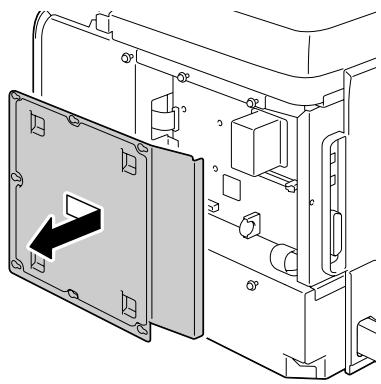
5 Remove the hook, and then remove the backup battery.
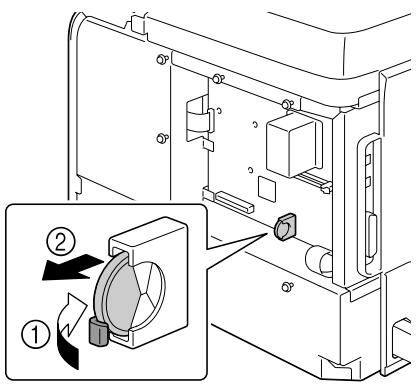
6 Insert a new backup battery.

When inserting the new backup battery, be sure that the + side faces toward the left.

Risk of explosion if battery is replaced by an incorrect type. Dispose of used batteries according to your local regulations. Do not burn the backup battery.
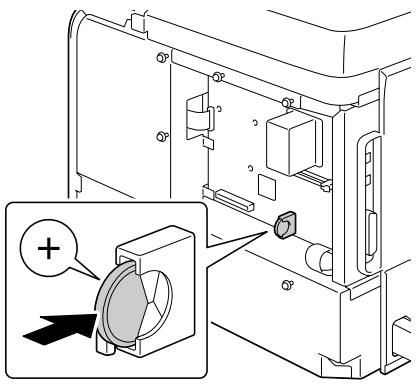
7 Reinstall the panel and tighten the seven screws.
8 Attach the rear cover.
9 Reconnect all interface cables.
10 Reconnect the power cord, and turn on the printer.
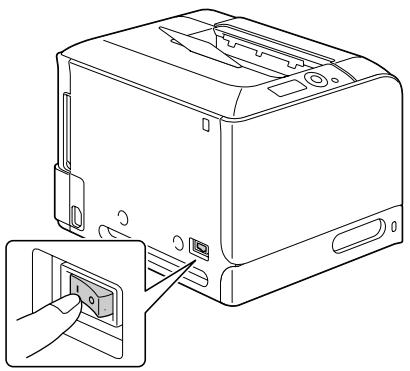
11 Use DATE on the SYS DEFAULT MENU/CLOCK menu to set the date, and use TIME on the SYS DEFAULT MENU/CLOCK menu to set the time.
Replacing the Fuser Unit
When the time to replace the fuser unit is reached, the message FUSER UNIT/END OF LIFE appears. Printing can continue even after this message appears; however, since the print quality is reduced, the fuser unit should be replaced immediately
1 Turn off the printer.
Note
There are extremely hot parts within the machine. Before replacing the fuser unit, wait about 20 minutes after turning off the machine, and then check that the fusing section has reached room temperature, otherwise, you may get burnt.
2 Pull the lever, and then open the right side cover.

Before opening the right side cover, fold up Tray 1.
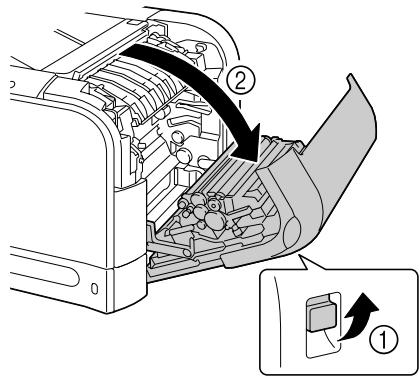
3 Use a coin to loosen the two screws securing the fuser unit.
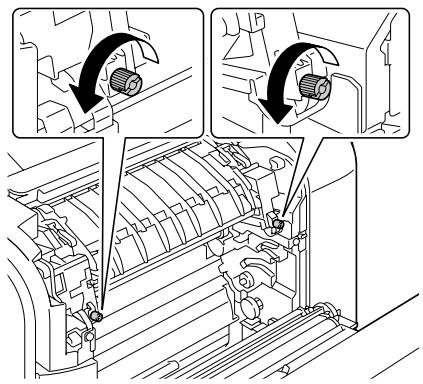
4 Remove the fuser unit.
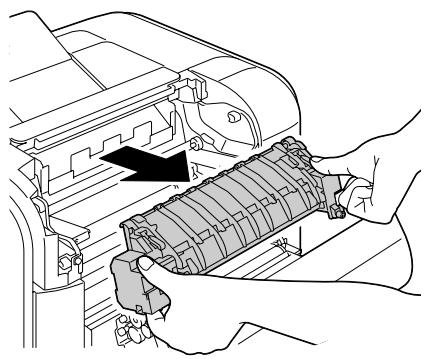
5 Prepare a new fuser unit.

Be careful not to touch the surface of the fuser roller.
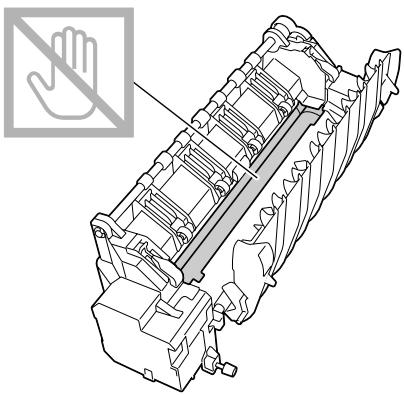
6 Insert the fuser unit.
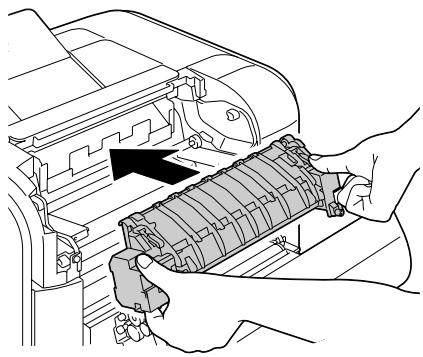
7 Tighten the two screws to secure the fuser unit.
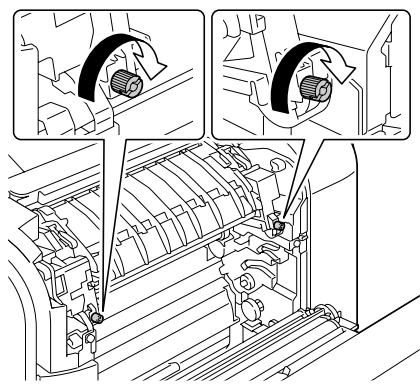
8 Close the right side cover.
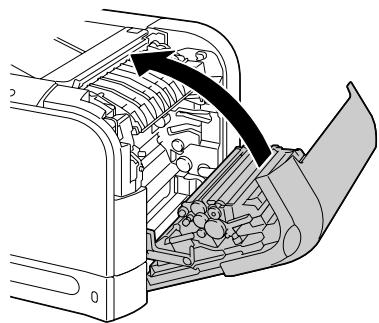
9 Reset the counter in the MAINTENANCE MENU/SUPPLIES/ REPLACE/FUSER UNIT menu.
Maintaining the Printer
9
Maintaining the Printer

CAUTION
Read all caution and warning labels carefully, making sure to follow any instructions contained in them. These labels are located on the inside of the printer's covers and the interior of the printer body.
Handle the printer with care to preserve its life. Abuse handling may cause damage and void your warranty. If dust and paper scraps remain on the inside or outside of the printer, printer performance and print quality will suffer, so the printer should be cleaned periodically. Keep the following guidelines in mind.

WARNING!
Turn off the printer, unplug the power cord, and disconnect all interface cables before cleaning. Do not spill water or detergent into the printer; otherwise the printer will be damaged and an electric shock may occur.

CAUTION
The fuser unit is hot. When the right side cover is opened, the fuser unit temperature drops gradually (one hour wait time).

■ Be careful when cleaning the inside of the printer or removing media misfeeds, as the fuser unit and other internal parts may be very hot.
Do not place anything on top of the printer.
Use a soft cloth to clean the printer.
- Never spray cleaning solutions directly on the printer's surface; the spray could penetrate through the air vents of the printer and damage the internal circuits.
- Avoid using abrasive or corrosive solutions or solutions that contain solvents (such as alcohol and benzene) to clean the printer.
Always test any cleaning solution (such as mild detergent) on a small inconspicuous area of your printer to check the solution's performance.
- Never use sharp or rough implements, such as wire or plastic cleaning pads.
Always close the printer's covers gently. Never subject the printer to vibration.
- Do not cover the printer immediately after using it. Turn it off and wait until it cools down.
Make sure two people are available to lift the printer when moving it.
- Do not leave the printer's covers open for any length of time, especially in well-lit places; light may damage the toner cartridges.
Do not open the printer during printing. - Do not tap media stacks on the printer.
Do not lubricate or disassemble the printer.
Do not tilt the printer. - Do not touch the electrical contacts, gears, or laser devices. Doing so may damage the printer and cause the print quality to deteriorate.
- Keep media in the output tray at a minimum level. If the media is stocked too high, your printer may experience media misfeeds and excessive media curl.
Keep the printer level to avoid toner spillage.
- When lifting the printer, fold up Tray 1, and then lift the printer as shown in the illustration at the right.
If the optional lower feeder unit is installed, move it and the printer separately. Do not grasp the grip of Tray 3, or the right side cover; otherwise, the lower feeder unit may be damaged.
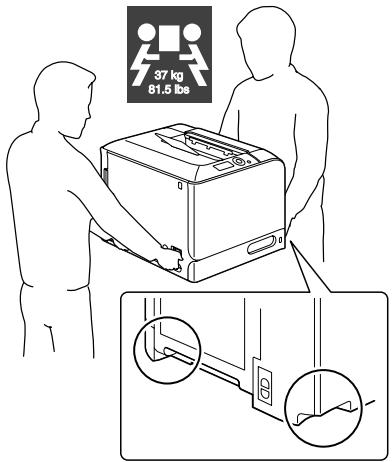
If you get toner on your skin, wash it off with cool water and a mild soap.

CAUTION
If you get toner in your eyes, wash it out immediately with cool water and consult a doctor.
Make sure any parts removed during cleaning are replaced before you plug in the printer.

CAUTION
Be sure to turn off the printer and unplug the power cord before cleaning.
Exterior
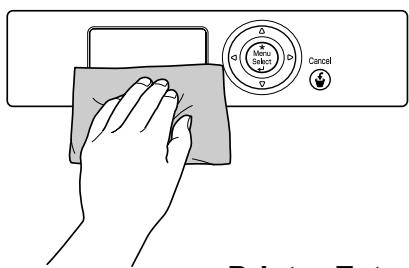
Control Panel
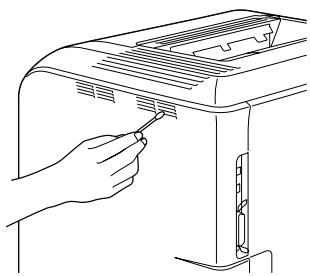
Ventilation Grill
Printer Exterior
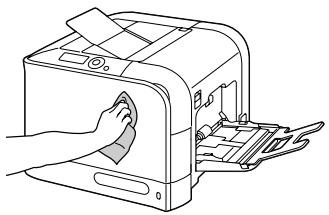
Media Rollers
The accumulation of paper dust and other debris on the media rollers can cause media-feeding problems.
Cleaning the Media Feed Rollers (Manual Feed Tray)
1 Open Tray 1.
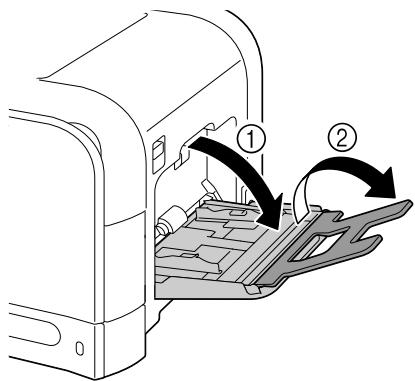
2 Press down on the center of the paper-lifting plate until the left and right locking tabs (white) lock into place.
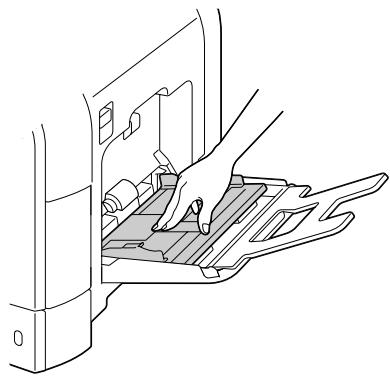
3 Clean the media feed rollers by wiping them with a soft, dry cloth.
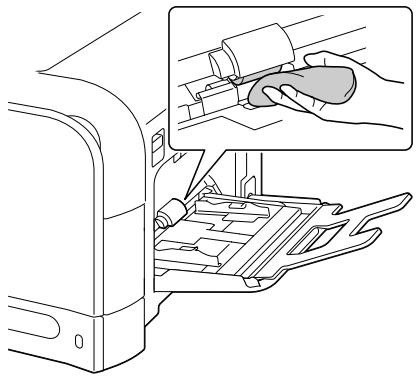
4 Close the tray.
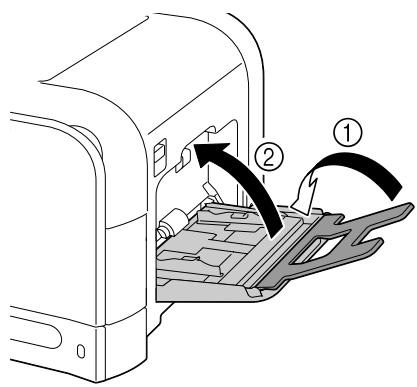
Cleaning the Media Feed Rollers (Tray 2/3)
1 Pull out the tray.
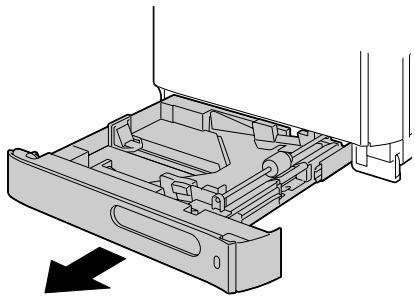
2 Clean the media feed rollers by wiping them with a soft, dry cloth.
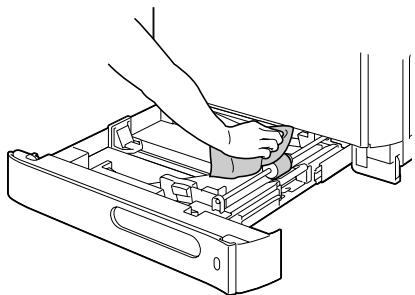
3 Close the tray.
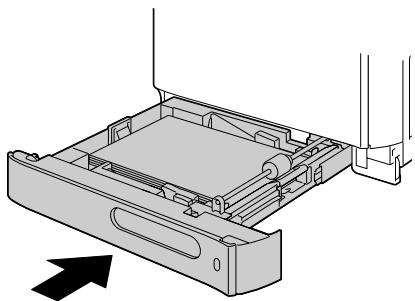
Cleaning the Media Transfer Rollers for Tray 3
1 Open the right side cover of Tray 3.

Before opening the right side cover of Tray 3, fold up Tray 1.
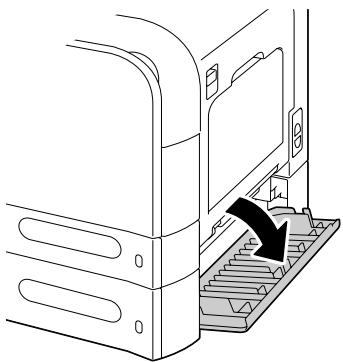
2 Clean the media transfer rollers by wiping them with a soft, dry cloth.
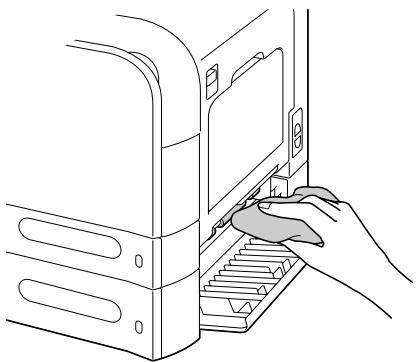
3 Close the right side cover of Tray 3.
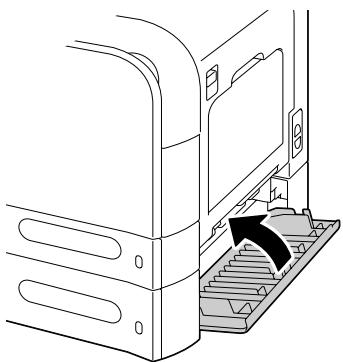
Cleaning the Laser Lens
This printer is constructed with four laser lenses. Clean all lenses as described below. The laser lens cleaning tool should be attached to the inside of the front cover.
1 Open the printer's front cover and remove the cleaning tool from the machine's front cover.
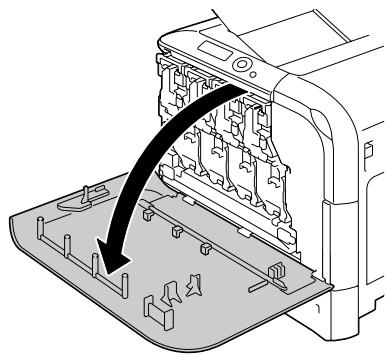
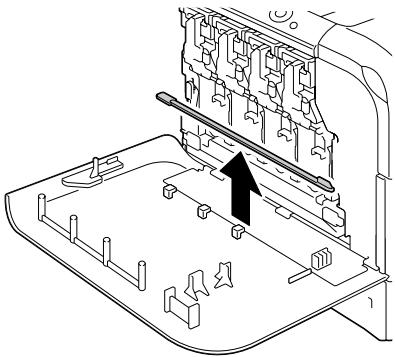
2 Insert the laser lens cleaning tool into the laser lens cleaning opening, pull it out, and then repeat this back and forth movement 2 or 3 times.
3 Clean between each of the laser lenses in the same way.

The laser lens cleaning tool is included with the printer. Safely store the laser lens cleaning tool so that it will not be lost.
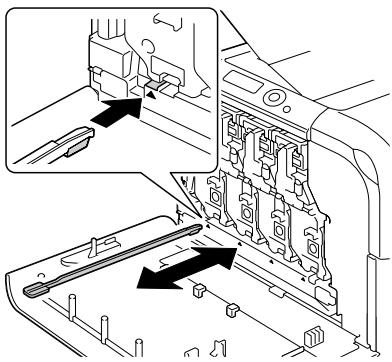
4 Return the laser lens cleaning tool to its holder on the inside of the front cover.
5 Close the front cover.
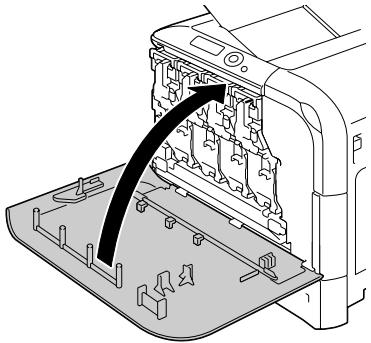
Troubleshooting
10
Introduction
This chapter provides information to aid you in resolving printer problems you may encounter, or at least guide you to the proper sources for help.
| Printing the configuration page | Page 172 |
| Preventing media misfeeds | Page 173 |
| Understanding the media path | Page 174 |
| Clearing media misfeeds | Page 175 |
| Solving problems with media misfeeds | Page 190 |
| Solving other problems | Page 193 |
| Solving problems with printing quality | Page 199 |
| Status, error, and service messages | Page 205 |
Printing a Configuration Page
Print a configuration page to verify the printer is printing correctly, or to check the printer configuration.
| Press Key (once) | Until Display Reads |
| READY | |
| * Menu Select ← | PRINT MENU If an optional hard disk kit is installed, the PROOF/PRINT MENU appears at the top of the menu. Press the ∇ key to select the PRINT MENU. |
| * Menu Select ← | CONFIGURATION PG |
| * Menu Select ← | |
| * Menu Select ← | The configuration page prints and the printer goes back to READY. |
Preventing Media Misfeeds
| Make sure that... |
| Media matches the printer specifications. |
| Media is flat, especially on the leading edge. |
| The printer is on a hard, flat, level surface. |
| You store media in a dry location away from moisture and humidity. |
| You remove transparencies from the output tray immediately after printing to avoid static buildup. |
| You always adjust the media guides in the tray after inserting the media (a guide that is not properly adjusted can cause poor print quality, media mis-feeds, and printer damage). |
| You load the media printing-side up in the tray (many manufacturers place an arrow on the end of the wrapper to indicate the printing side). |
| Avoid... |
| Media that is folded, wrinkled, or excessively curled. |
| Double feeding (remove the media and fan the sheets—they may be sticking together). |
| Fanning transparencies since this causes static. |
| Loading more than one type/size/weight of media in a tray at the same time. |
| Overfilling the trays. |
| Allowing the output tray to overfill (the output tray has a 200-sheet capacity—misfeeding may occur if you allow more than 200 sheets of media to accumulate at one time). |
| Allowing the output tray to fill with more than a few transparencies. |
Understanding the Media Path
Understanding the printer's media path will help you locate media misfeeds
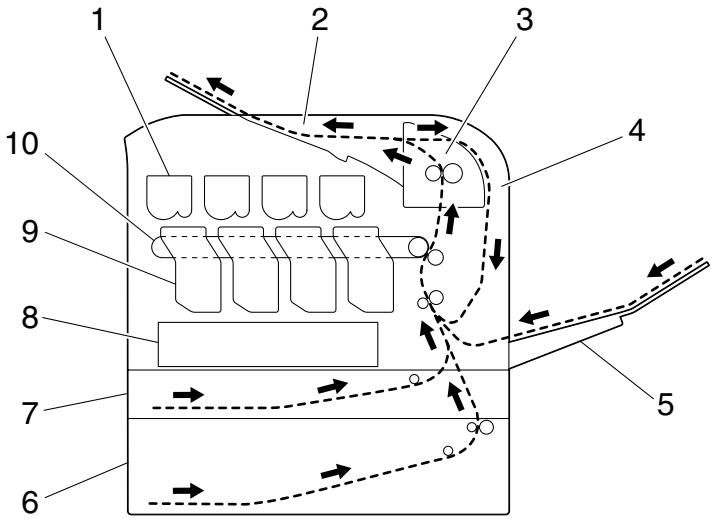
1 Toner cartridge
2 Output tray
3 Fuser unit
4 Duplex
5 Tray 1 (Manual feed tray)
6 Tray 3 (optional lower feeder unit)
7 Tray 2
8 Laser
9 Imaging unit
10 Transfer belt unit
Clearing Media Misfeeds
To avoid damage, always remove misfed media gently, without tearing it. Any piece of media left in the printer, whether large or small, can obstruct the media path and cause further misfeeds. Do not reload media that has misfed.
Note
The image is not fixed on the media before the fusing process. If you touch the printed surface, the toner may stick to your hands, so be careful not to touch the printed face when removing the misfed media. Make sure not to spill any toner inside the printer.

CAUTION
Unfused toner can dirty your hands, clothes, or anything else it gets on. If you accidentally get toner on your clothes, lightly dust them off as best as you can. If some toner remains on your clothes, use cool, not hot water, to rinse the toner off. If toner gets on your skin, wash it off with cool water and a mild soap.

CAUTION
If you get toner in your eyes, wash it out immediately with cool water and consult a doctor.
If, after clearing the media misfeed, the misfeed message in the control panel window persists, open and close the printer's covers. This should clear the misfeed message.
Media Misfeed Messages and Clearing Procedures
| Media Misfeed Message | Page Reference |
| PAPER JAM TRAY 2 | Page 177 |
| PAPER JAM TRAY 3 | Page 181 |
| PAPER JAM DUPLEX 1 | Page 183 |
| PAPER JAM DUPLEX 2 | Page 183 |
| PAPER JAM FUSER/EXIT | Page 184 |
| PAPER JAM TRAY 1 | Page 188 |
| PAPER JAM SECOND TRANS | Page 188 |
| PAPER JAM VERTICAL TRANS | Page 181, Page 188 |

If the message PAPER JAM/VERTICAL TRANS appears, check for media misfeeds in the transfer roller section of the right side covers for Tray 3.
Clearing a Media Misfeed in Tray 2
1 Pull the lever, and then open the right side cover.

Before opening the right side cover, fold up Tray 1.
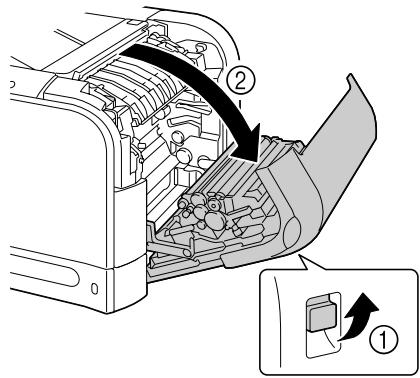
2 Carefully pull out the misfed media.
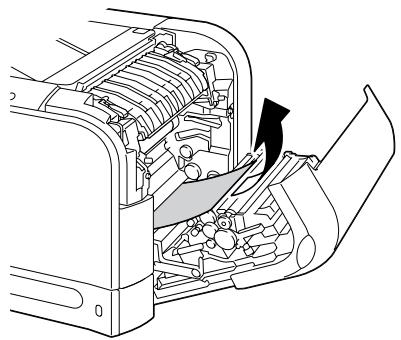
The area around the fuser unit is extremely hot.
Touching anything other than the indicated levers may result in burns. If you get burned, immediately cool the skin under cold water, and then seek professional medical attention.
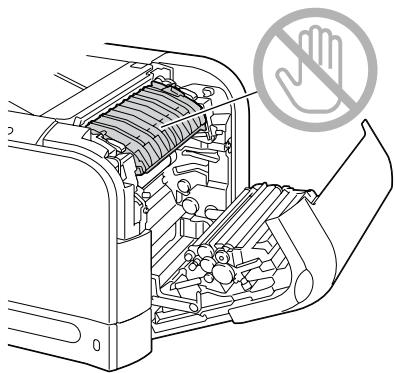
Note
Decreased print quality may result if the surface of the image transfer belt or the transfer roller is touched.
Be careful not to touch the surface of the image transfer belt or transfer roller.
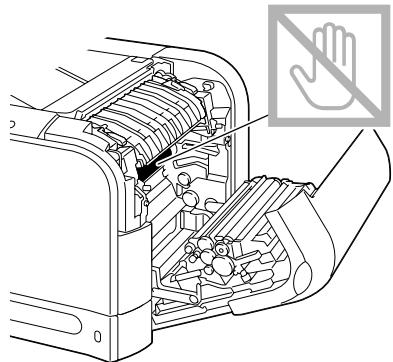
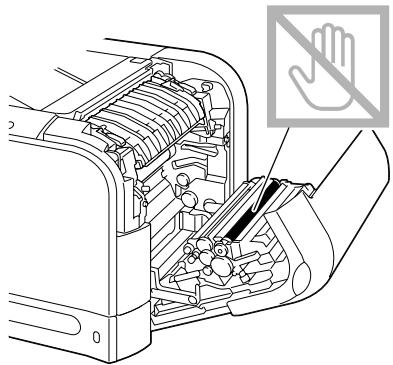
3 Close the right side cover.
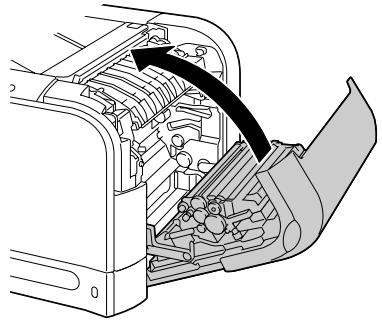
4 Pull out Tray 2, and then remove all media from the tray.
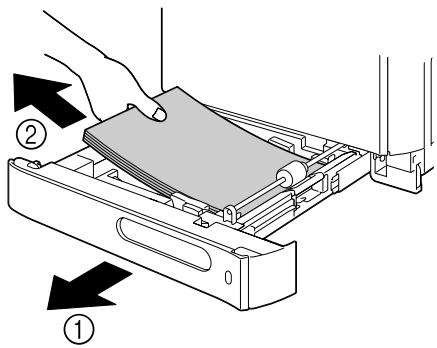
5 Fan the media you removed and then align it well.
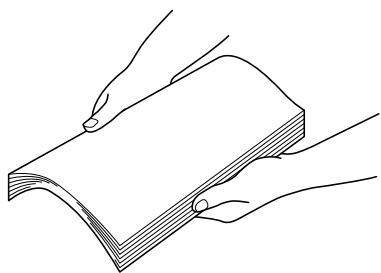
6 Load the media face up in Tray 2.

Make sure that the media is flat.

Do not load paper above the mark.
7 Close Tray 2.
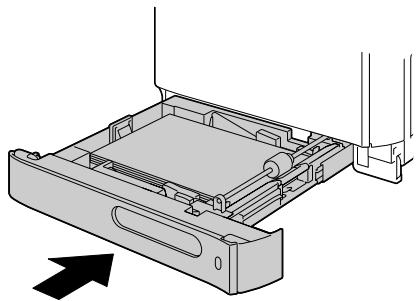
Clearing a Media Misfeed in Tray 3
1 Open the right side cover of Tray 3.

Before opening the right side cover of Tray 3, fold up Tray 1.
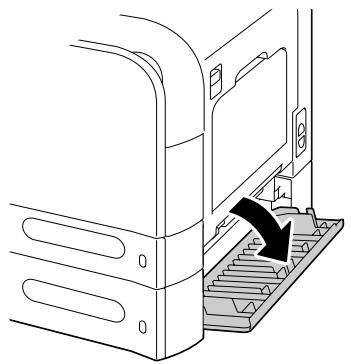
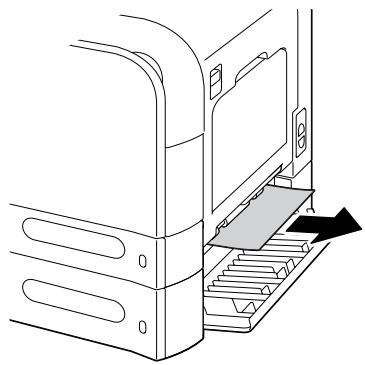
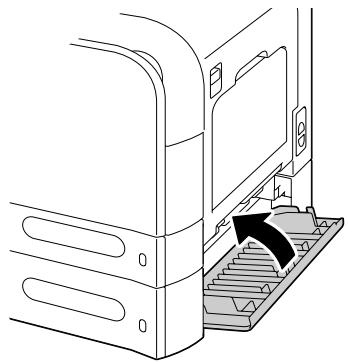
2 Carefully pull out the misfed media.
3 Close the right side cover of Tray 3.
4 Pull out Tray 3, and then remove all paper from the tray.
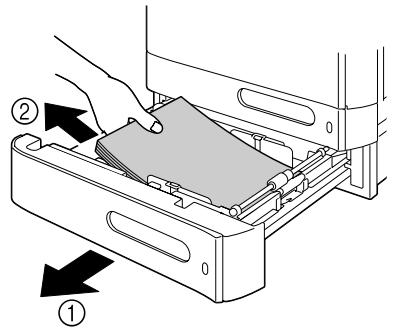
5 Fan the paper you removed and then align it well.
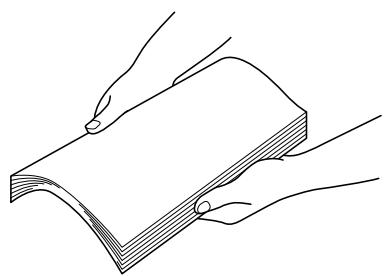
6 Load the paper face up in Tray 3.

Make sure that the paper is flat.

Do not load paper above the mark.

Slide the media guides against the edges of the paper.
7 Close Tray 3.
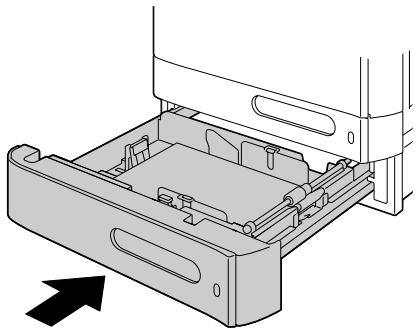
Clearing a Media Misfeed from the Duplex
1 Pull the lever, and then open the right side cover.

Before opening the right side cover, fold up Tray 1.
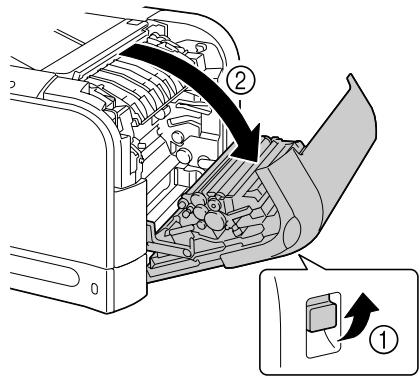
2 Carefully pull out the misfed media.
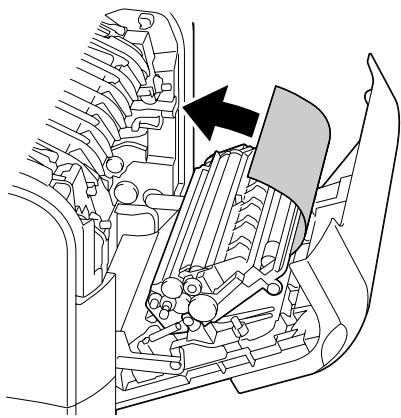
3 Close the right side cover.
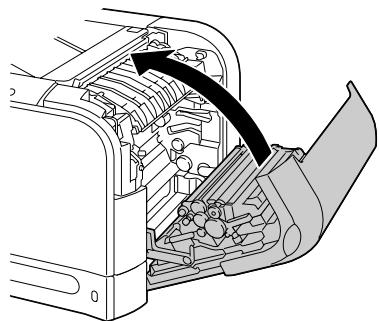
Clearing a Media Misfeed from the Fuser Unit
1 Pull the lever, and then open the right side cover.

Before opening the right side cover, fold up Tray 1.
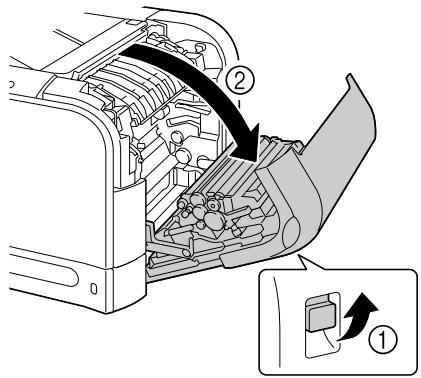
2 Push up the levers of the fuser unit cover, and then open the cover.
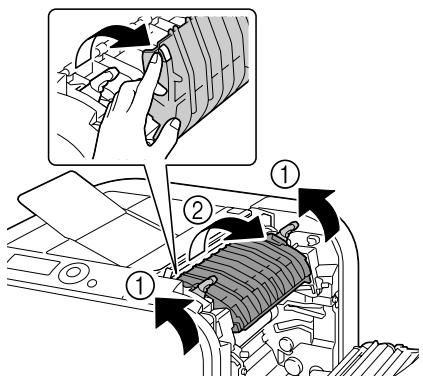
3 Carefully pull out the misfed media.
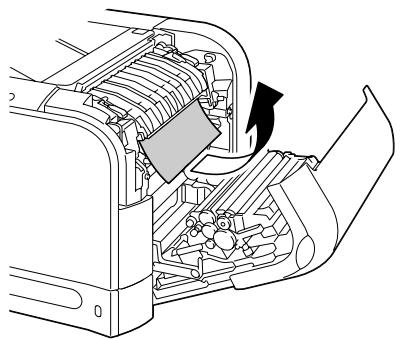

If the misfed media cannot be removed by pulling it down, pull it from the top of the fuser unit.
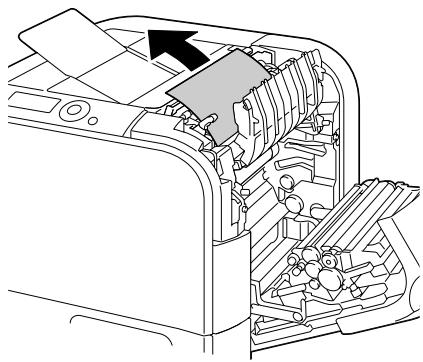

If the paper becomes crinkled and jammed in the fuser unit, open the fuser unit cover, and then remove the paper.
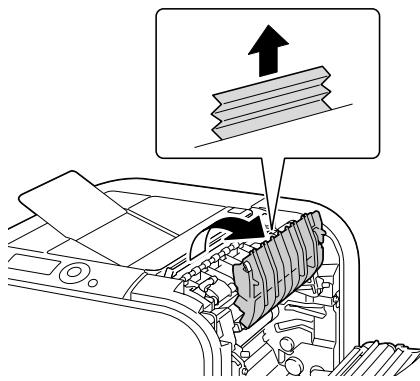

CAUTION
The area around the fuser unit is extremely hot. Touching anything other than the indicated levers may result in burns. If you get burned, immediately cool the skin under cold water, and then seek professional medical attention.
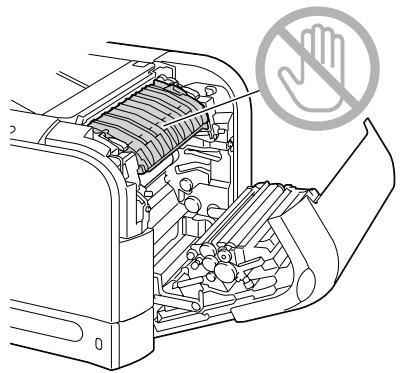
Note
Decreased print quality may result if the surface of the image transfer belt or the transfer roller is touched. Be careful not to touch the surface of the image transfer belt or transfer roller.
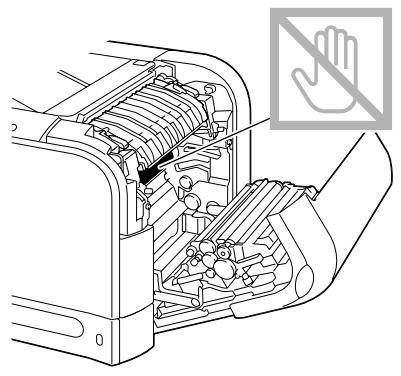
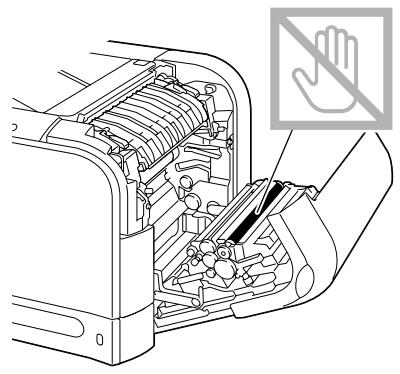
4 Push down the levers.
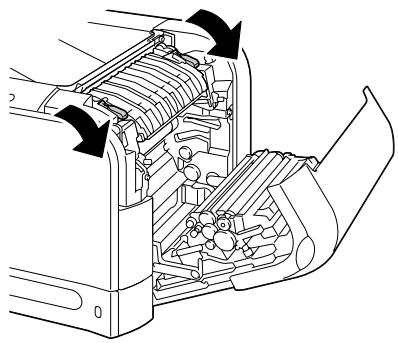
5 Close the right side cover.
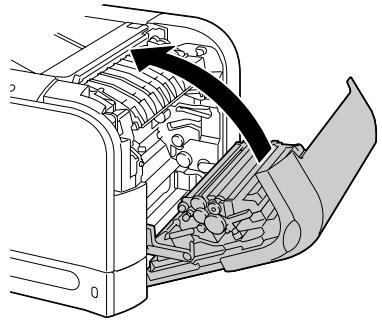
Clearing a Media Misfeed from Tray 1 (Manual Feed Tray) and Transfer Roller
1 Pull the lever, and then open the right side cover.

Before opening the right side cover, fold up Tray 1.
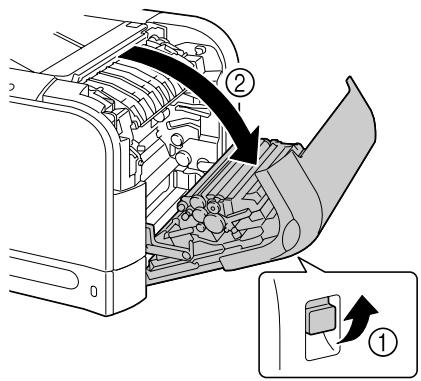
2 Carefully pull out the misfed media.
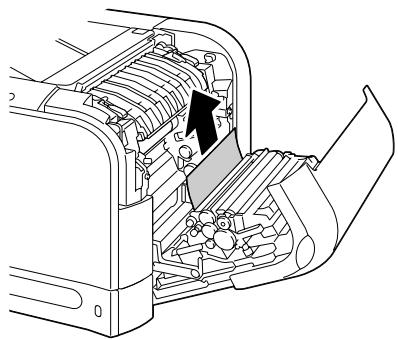

CAUTION
The area around the fuser unit is extremely hot. Touching anything other than the indicated levers may result in burns. If you get burned, immediately cool the skin under cold water, and then seek professional medical attention.
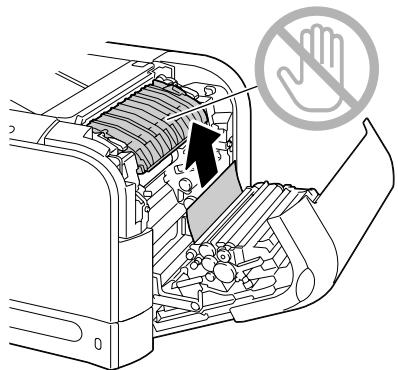
Note
Decreased print quality may result if the surface of the image transfer belt or the transfer roller is touched.
Be careful not to touch the surface of the image transfer belt or transfer roller.
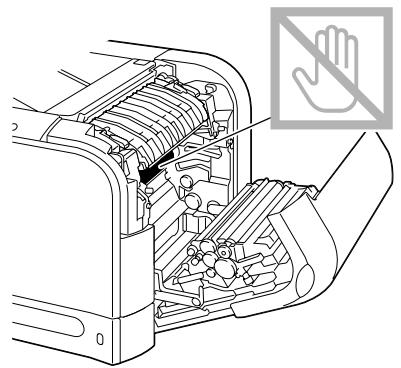
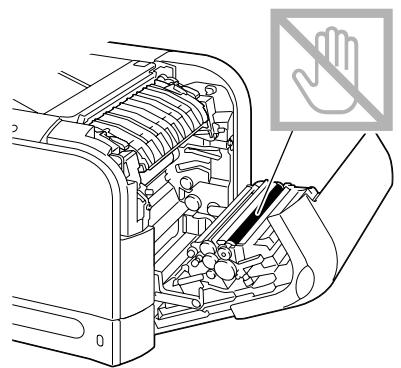
3 Close the right side cover.
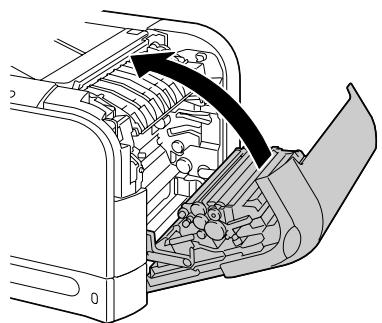
Solving Problems with Media Misfeeds

Frequent misfeeds in any area indicate that area should be checked, repaired, or cleaned. Repeated misfeeds may also happen if you're using unsupported print media.
| Symptom | Cause | Solution |
| Several sheets go through the printer together. | The front edges of the media are not even. | Remove the media and even up the front edges, then reload it. |
| The media is moist from humidity. | Remove the moist media and replace it with new, dry media. | |
| Too much static electricity is present. | Do not fan transparencies. | |
| Media mis-feed message stays on. | Right side cover needs to be opened and closed again to reset the printer. | Open and close the right side cover of the printer again. |
| Some media remains misfed in the printer. | Recheck the media path and make sure that you have removed all of the misfed media. | |
| Duplex mis-feeds. | Unsupported media (wrong size, thickness, type, etc.) is being used. | Use KONICA MINOLTA-approved media. See “Media Specifications” on page 100. |
| Only plain paper, 60–90 g/m2(16–24 lb) can be autoduplexed. See “Media Specifications” on page 100.. | ||
| Make sure that you have not mixed media types in Tray 1. | ||
| Do not duplex (double-sided) envelopes, labels, thick stock, glossy, or transparencies. | ||
| Media is still being misfed. | Recheck the media path inside the duplex option and make sure that you have removed all of the misfed media. | |
| Media is misfeeding. | The media is not correctly positioned in the tray. | Remove the misfed media and reposition the media properly in the tray. |
| The number of sheets in the tray exceeds the maximum allowed. | Remove the excess media and reload the correct number of sheets in the tray. | |
| The media guides are not correctly adjusted to the media size. | Adjust the media guides in the tray to match the size of the media. | |
| Warped or wrinkled media is loaded in the tray. | Remove the media, smooth it out, and reload it. If it still misfeeds, do not use that media. | |
| The media is moist from humidity. | Remove the moist media and replace it with new, dry media. | |
| Envelopes, labels, postcards, thick stock, glossy, or transparencies are loaded in Tray 2, 3. | Special media must be loaded in Tray 1 only. | |
| Custom-sized media is loaded in Tray 3. | Custom-sized media can be loaded in Tray 1 or 2. See “Media Specifications” on page 100. | |
| The recommended transparency or label sheet is facing the wrong way in Tray 1. | Load the transparencies or label sheets according to the manufacturer's instructions. | |
| Envelopes are facing the wrong way in Tray 1. | Load the envelopes in Tray 1 so the flaps are facing up. | |
| Media is misfeeding. | Transparencies have collected static electricity in the tray. | Remove the transparencies and load them in the tray one sheet at a time. Do not fan transparencies before loading them. |
| Unsupported media (wrong size, thickness, type, etc.) is being used. | Use KONICA MINOLTA-approved media. See “Media Specifications” on page 100. | |
| The media roller is dirty. | Clean the media supply roller. For more details, refer to “Media Rollers” on page 165. |
Solving Other Problems
| Symptom | Cause | Solution |
| Printer power is not on. | The power cord is not correctly plugged into the outlet. | Turn off the printer, confirm that the power cord is correctly plugged into the outlet, and then turn on the printer. |
| Something is wrong with the outlet connected to the printer. | Plug another electrical appliance into the outlet and see whether it operates properly. | |
| The power switch is not correctly turned on (I position). | Turn the power switch off (O position), then turn it back to the on (I position). | |
| The printer is connected to an outlet with a voltage or frequency that does not match the printer specifications. | Use a power source with the specifications listed in appendix A, “Technical Specifications.” | |
| Data was sent to the printer, but it doesn’t print. | An error message is displayed in the message window. | Handle according to the message displayed. |
| A job may be cancelled if user authentication or account track settings are specified. | Click the User Authentication/Account Track button in the printer driver, and then type in the necessary information before printing. | |
| The control panel displays TONER LOW much sooner than expected. | One of the cartridges may be defective. | Remove the toner cartridges and check them for damage. If one is damaged, replace it. |
| You printed with heavy toner coverage. | See the specifications in Appendix A. | |
| You can’t print the configuration page. | The tray is empty. | Check that at least Tray 1 is loaded with media, in place, and secure. |
| The printer’s covers aren’t closed securely. | Make sure the covers are closed securely. Close all covers gently to avoid jarring the printer. Make sure the waste toner bottle and toner cartridges are installed correctly. | |
| There is a media misfeed. | Clear the media misfeed. | |
| Images cannot be printed from the digital camera. | The digital camera transfer mode is not set to PictBridge. | Set the digital camera transfer mode to PictBridge. |
| Printer only supports a PictBridge compliant digital camera. | ||
| CAMERA DIRECT for the printer is set to DISABLE. | Change the setting for INTERFACE MENU/CAMERA DIRECT to ENABLE. | |
| A public user is not specified for user authentication. | Contact the printer administrator. | |
| Printing from a USB memory device is not possible. | The file format (file extension) is not one that can be printed. | Only files with the format (extension) for JPEG, TIFF, XPS or PDF can be printed. |
| MEMORY DIRECT for the printer is set to DISABLE. | Change the setting for INTERFACE MENU/MEMORY DIRECT to ENABLE. | |
| A public user is not specified for user authentication. | Contact the printer administrator. | |
| Printing takes too much time. | The printer is set to a slow printing mode (for example, thick stock or transparency). | It takes more time to print on special media. When using regular paper, make sure that the media type is set properly in the driver. |
| The printer is set to Energy Saver mode. | It takes time for printing to start in Energy Saver mode. If you do not want to use this mode, disable it. (SYS DEFAULT MENU/ENERGY Saver menu) | |
| The job is very complex. | Wait. No action needed. | |
| The printer memory is insufficient. | Add more memory. | |
| A toner cartridge for a different region or an unapproved genuine toner cartridge is installed (INCOR-RECT TONER X is displayed in the message window). | Install a correct KONICA MINOLTA toner cartridge approved for your specific printer. | |
| Blank pages come out during printing. | One or more of the toner cartridges are defective or empty. | Check the toner cartridges. The image will not print if one or more cartridges are empty. |
| The wrong media is being used. | Check that the media type set in the driver matches the media loaded in the printer. | |
| Not all pages print. | The printer has the wrong kind of cable, or the printer is not configured for the correct cable and port. | Check your cable. |
| The Cancel key was pressed. | Make sure no one pressed the Cancel key while your job was printing. | |
| The tray is empty. | Check that the trays are loaded with media, in place, and secure. | |
| A document is printed with an overlay file which has been created by an unsuitable driver. | Print the overlay file using a suitable driver. | |
| Printer resets or turns off frequently. | The power cord is not correctly plugged into the outlet. | Turn off the printer, confirm that the power cord is correctly plugged into the outlet, and then turn on the printer. |
| A system error occurred. | Contact Technical Support with the error information. | |
| You are experiencing duplex (double-sided) problems. | Media or settings are not correct. | Make sure that you are using correct media. ■ See “Media Specifications” on page 100. ■ Do not duplex (double-sided) envelopes, labels, postcards, thick stock, glossy, or transparencies. ■ Make sure that you have not mixed media types in Tray 1. |
| Make sure that your document has more than one page. | ||
| In the Windows printer driver (Layout/Print Type), choose “Double-Sided.” | ||
| For N-up on duplexed pages, choose Collate only in the Windows driver's Basic Tab. Do not set collation in the application. | ||
| With N-up on multiple copies, the output is incorrect. | Both the driver and the application have been set for collation. | For N-up on multiple copies, choose Collate only in the Windows driver's Basic Tab. Do not set collation in the application. |
| You hear unusual noises. | The printer is not level. | Place the printer on a flat, hard, level surface. |
| The tray is not installed correctly. | Remove the tray that you are printing from and reinsert it completely into the printer. | |
| There is a foreign object stuck inside the printer. | Turn off the printer and remove the object. If you cannot remove it, contact Technical Support. | |
| The web-based utility cannot be accessed. | The PageScope Web Connection Adminis-trator's password is incorrect. | The PageScope Web Connection Administrator password has a 6-character minimum and a 16-character maximum. For details of the Page-Scope Web Connection administrator password, refer to the Reference Guide on the Utilities and Documentation CD-ROM. |
| Media is wrinkled. | The media is moist from humidity or having water spilled on it. | Remove the moist media and replace it with new, dry media. |
| The transfer roller or fuser unit is defective. | Check them for damage. If necessary, contact Technical Support with the error information. | |
| Unsupported media (wrong size, thickness, type, etc.) is being used. | Use KONICA MINOLTA-approved media. See "Media Specifications" on page 100. | |
| The date and time is not correctly maintained on the printer. | The backup battery has reached the end of its life. | Replace the backup battery. For details, see "Replacing the Backup Battery" on page 154. |
| The pages that were fed out were not uniformly loaded. | There are large curls in the paper. | Remove the paper from the paper tray, turn it over, and then load it again. |
| There are gaps between the media guides of the paper tray and the sides of the paper. | Slide the media guides of the paper tray against the sides of the paper so that there are no gaps. |
Solving Problems with Printing Quality
| Symptom | Cause | Solution |
| Nothing is printed, or there are blank spots on the printed page. | One or more of the imaging units may be defective. | Remove the imaging units and check it for damage. If it is damaged, replace it. |
| The media is moist from humidity. | Adjust the humidity for media storage. Remove the moist media and replace it with new, dry media. | |
| The media set in the printer driver mismatches the media loaded in the printer. | Load the correct media in the printer. | |
| The power source does not match the printer specifications. | Use a power source with the proper specifications. | |
| Several sheets are being fed at the same time. | Remove the media from the tray and check it for static electricity. Fan plain paper or other media (but not transparencies), and replace it in the tray. | |
| Media is not set properly in the tray(s). | Remove the media, tap it to straighten it out, return it to the tray, and realign the media guides. | |
| Entire sheet is printed in black or color. | One or more of the imaging units may be defective. | Remove the imaging units and check it for damage. If it is damaged, replace it. |
| Image is too light; there is low image density. | Laser lens is dirty. | Clean the laser lens. |
| The media is moist from humidity. | Remove the moist media and replace it with new, dry media. | |
| There is not much toner left in the cartridge. | Replace the toner cartridge. | |
| One or more of the imaging units may be defective. | Remove the imaging units and check them for damage. If one is damaged, replace it. | |
| The media type is set incorrectly. | When printing envelopes, labels, post-cards, thick stock, glossy, or transparencies, specify the appropriate media type in the printer driver. | |
| Image is too dark. | One or more of the imaging units may be defective. | Remove the imaging units and check them for damage. If one is damaged, replace it. |
| Image is blurred; background is lightly stained; there is insufficient gloss of the printed image. | One or more of the imaging units may be defective. | Remove the imaging units and check them for damage. If one is damaged, replace it. |
| The print or color density is uneven. | One or more of the toner cartridges may be defective or low. | Remove the toner cartridges and check them for damage. If one is damaged, replace it. |
| The printer is not level. | Place the printer on a flat, hard, level surface. | |
| Irregular print or mottled image appears. | The media is moist from humidity. | Adjust the humidity in the media storage area. Remove the moist media and replace it with new, dry media. |
| Unsupported media (wrong size, thickness, type, etc.) is being used. | Use KONICA MINOLTA-approved media. See “Media Specifications” on page 100. | |
| One or more of the imaging units may be defective. | Remove the imaging units and check it for damage. If it is damaged, replace it. | |
| There is insufficient fusing or the image comes off when rubbed. | The media is moist from humidity. | Remove the moist media and replace it with new, dry media. |
| Unsupported media (wrong size, thickness, type, etc.) is being used. | Use KONICA MINOLTA-approved media. See “Media Specifications” on page 100. | |
| Media type is set incorrectly. | When printing envelopes, labels, post-cards, thick stock, glossy, or transparencies, specify the appropriate media type in the printer driver. | |
| There are toner smudges or residual images. | One or more of the imaging units may be defective or installed incorrectly. | Remove the imaging units and check them for damage. If one is damaged, replace it. |
| There are toner smudges on the back side of the page (whether or not it has been duplexed). | The media path is dirty with toner. | Print several blank sheets and the excess toner should disappear. |
| One or more of the imaging units may be defective. | Remove the imaging units and check it for damage. If it is damaged, replace it. | |
| Abnormal areas (white, black, or color) appear in a regular pattern. | The laser lens is dirty. | Clean the laser lens. |
| A imaging unit may be defective. | Remove the imaging unit with the color causing the abnormal image. Replace it with a new imaging unit. | |
| Image defects. | The laser lens is dirty. | Clean the laser lens. |
| A toner cartridge may be leaking. | Remove the toner cartridges and check them for damage. If one is damaged, replace it. | |
| A imaging unit may be defective. | Remove the imaging unit with the color causing the abnormal image. Replace it with a new imaging unit. | |
| Lateral lines or bands appear on image. | The printer is not level. | Place the printer on a flat, hard, level surface. |
| The media path is dirty with toner. | Print several sheets and the excess toner should disappear. | |
| One or more of the imaging units may be defective. | Remove the imaging units and check them for damage. If one is damaged, replace it. | |
| Colors look drastically wrong. | One or more of the imaging units may be defective. | Remove the imaging units and verify that the toner is distributed evenly on each cartridge roller, and reinstall the imaging units. |
| One or more of the toner cartridges may be low or empty. | Check the control panel for an TONER LOW X or TONER OUT X message. If necessary, replace the specified toner cartridge. | |
| Colors are not registering properly; colors are mixed or have page-to-page variation. | The front cover is not properly closed. | Make sure that the printer's front cover is closed. |
| One or more of the imaging units may be defective. | Remove the imaging units and check them for damage. If one is damaged, replace it. | |
| The media is moist from humidity. | Remove the moist media and replace it with new, dry media. | |
| The color has a poor reproduction or has poor color density. | One or more of the imaging units may be defective. | Remove the imaging units and check them for damage. If one is damaged, replace it. |
| Printer Printer Printer Printer |
If the problem is not resolved, even after all of the above have been performed, contact Technical Support with the error information.
Status, Error, and Service Messages
Status, error, and service messages are displayed in the control panel message window. They provide information about your printer and help you locate many problems. When the condition associated with a displayed message has changed, the message is cleared from the window.
Standard Status Messages
| This message... | means... | do this... |
| CALIBRATING | After replacing a toner cartridge or a imaging unit, or after rebooting your printer after environmental changes, your printer automatically pauses to do an Auto-Image Density Control (AIDC) cycle. This process is provided to make reliable printer operation with optimum output quality possible. | No action needed. |
| CANCELLING JOB | The job is being cancelled. | |
| COPYING | The printer is printing with the collating function. | |
| ENERGY Saver | The printer is in Energy Saver mode to reduce power consumption during periods of inactivity. When a print job is received, the printer returns to normal power within 30 seconds. | |
| FIRMWARE UPDATE | The firmware is being updated. | |
| INITIALIZING | The printer is being initialized. | |
| PRINTING | The printer is printing. | |
| PROCESSING | The printer is processing data. | |
| READY | The printer is on and ready to receive data. | |
| REBOOTING | The printer is being restarted. | No action needed. |
| WARMING UP | The printer is warming up. | |
| OFFLINE | The printer is offline. | To print on a network, change the TELNET setting so it is online. |
Error Messages (Warning: A)

"I-UNIT" in a message refers to the imaging unit.
| This message... | means... | do this... |
| FUSER UNIT END OF LIFE | The fuser unit has reached the end of its life. | Replace the fuser unit and reset the counter in the MAINTENACE MENU/ SUPPLIES/ REPLACE/FUSER UNIT menu. |
| HDD NEAR FULL | The hard disk is full. | Delete print jobs saved on the hard disk. |
| INCORRECT HDD | Since the hard disk kit was formatted with a different machine, the hard disk kit could not be used. | Replace the hard disk kit with one compatible with this machine, or select HDD FORMAT from SYS DEFAULT MENU and format the hard disk. |
| INCORRECT MEMORY CARD | Since the CompactFlash card was formatted with a different machine, the CompactFlash card could not be used. | Replace the CompactFlash card with one compatible with this machine, or select CARD FORMAT from SYS DEFAULT MENU and format the CompactFlash card. |
| INCORRECT I-UNIT X | The x imaging unit is an unapproved type. | Install a KONICA MINOLTA imaging unit of the appropriate type. See page 135. |
| INCORRECT TONER X | The x toner cartridge is an unapproved type. | Install a KONICA MINOLTA toner cartridge of the appropri-ate type. See page 129. |
| MEMORY CARD NEAR FULL | The CompactFlash card is nearly full. | Delete resources (fonts, forms, etc.) which saved on the CompactFlash card by using Download Manager or PSWC. |
| NON SUPPORT CARD | Since incompatible CompactFlash card was inserted into the memory slot, the CompactFlash card could not be used. | Use CompactFlash card compatible with this printer. |
| PAPER EMPTY TRAY X | Tray X (Tray 1, 2 or 3) is empty. (Appears when SYS DEFAULT MENU/ ENABLE WARNING/PAPER EMPTY/TRAY X is set to ON.) | Load media into the specified tray. |
| Tray X (Tray 2 or 3) is not correctly installed. (Appears when SYS DEFAULT MENU/ ENABLE WARNING/PAPER EMPTY/TRAY X is set to ON.) | Correctly install the specified tray. | |
| I-UNIT END X | The x Imaging unit has reached the end of its life. | Replace the Imaging unit. |
| I-UNIT LOW X | The x imaging unit is low and should be replaced within 4,500 pages at 5% coverage of letter/A4 pages.(Appears when SYS DEFAULT MENU/ ENABLE WARNING/I-UNIT LOW is set to ON.) | Prepare the specified color imaging unit. |
| I-UNIT LIFE X | The x imaging unit has reached the end of its life. | Replace the imaging unit. Printing continues until the message "I-UNIT END" appears. |
| TONER OUT X | The x toner cartridge is empty. | Replace the toner cartridge. |
| TONER LOW X | The x toner cartridge is low and should be replaced within 1,200 pages at 5% coverage of letter/A4 pages.(Appears when SYS DEFAULT MENU/ ENABLE WARNING/TONER LOW is set to ON.) | Prepare the specified color toner cartridge. |
| TRANS. BELT END OF LIFE | The transfer belt unit has reached the end of its life. | Replace the transfer belt unit and reset the counter in the MAINTE-NANCE MENU/SUP-PLIES/REPLACE/TRANS. BELT menu. |
| TRANS.ROLLER END OF LIFE | The transfer roller has reached the end of its life. | Replace the transfer roller and reset the counter in the MAINTE-NANCE MENU/SUP-PLIES/REPLACE/TRANS. ROLLER menu. |
| UNABLE TO COLLATE JOB | The hard disk is full. Print jobs over 10,000 pages cannot be col-lated. | Print one copy of the file at a time. |
| WASTE TONER NEAR FULL | The waste toner bot-tle is nearly full. | Prepare a new waste toner bottle. |
| HUBS NOT SUPPORTED | A USB hub is con- nected. | Do not connect a USB hub. |
| DEVICE NOT SUPPORTED | An incompatible device is connected. | Do not connect an incompatible device. |
| COVER OPEN FRONT COVER | The printer's front cover is open. | Close the front cover. |
| COVER OPEN SIDE COVER | The printer's right side cover is open. | Close the right side cover. |
| COVER OPEN TRAY3 COVER | The right side cover of Tray 3 is open. | Close the right side cover of the tray. |
| HOLD JOB ERROR UNABLE TO STORE JOB | The specified print job saved on the hard disk is sent while the hard disk is not installed. | Print jobs can be saved only if a hard disk is installed. If desired, install a hard disk. |
| HOLD JOB ERROR "OPTIONAL" PRESS CANCEL | When printing a stored job, the printer configuration was changed since the job was stored. | Change the printer configuration to that when the job was stored. |
| MANUAL EMPTY "SIZE" "MEDIA" | Tray 1 was specified with the printer driver as Manual Feed for printing, but Tray 1 is empty. | Load the correct media into Tray 1. |
| MANUAL FEED "SIZE" "MEDIA" | The Paper Source in the printer driver is set to Tray 1 (Manual Feed), but there is already media in the tray when printing begins. | Press the △ key to print, or remove and reload the media in Tray 1. |
| MEMORY FULL PRESS CANCEL | The printer has received more data than can be processed with its internal memory. | Press the Cancel key to cancel the print job. Decrease the amount of data to be printed (for example, by decreasing the resolution), and then try printing again. If that doesn't solve the problem, install an optional memory module. |
| OUTPUT FULL REMOVE PAPER | The output tray is full of media. | Remove all media from the output tray. |
| PAPER EMPTY “SIZE” “MEDIA” | The specified tray is empty. (Appears when PAPER MENU/PAPER SOURCE/TRAY CHAINING ON is set.) | Load the correct media into the specified tray. |
| PAPER ERROR “SIZE” “MEDIA” | The media size/type set in the printer driver is different from the size/type of media loaded (Appears when PAPER MENU/PAPER SOURCE/TRAY CHAINING ON is set.) | Load the correct media size and type. |
| PAPER JAM DUPLEX1 | Media has misfed in the duplex. | Press the ∇ key to dis- play the help screen. Follow the instructions in the help screen to remove the misfed media. |
| PAPER JAM DUPLEX2 | Media has misfed in the duplex. | |
| PAPER JAM FUSER/EXIT | Media has misfed leaving the fuser area. | |
| PAPER JAM SECOND TRANS | Media has misfed in the transfer roller area. This type of misfeed means that the media did not make it to the media exit area. | |
| PAPER JAM TRAY1 | Media has misfed in Tray 1. | |
| PAPER JAM TRAYX | Media has misfed while being pulled from the specified tray (Tray 2 or 3). | |
| PAPER JAM VERTICAL TRANS | Media has misfed in the vertical transfer area. | |
| I-UNIT END REPLACE X | The x Imaging unit has completely reached the end of its life. | Replace the Imaging unit. |
| I-UNIT MISSING CHECK X | The x imaging unit is not installed, or an unapproved imaging unit is installed. | Install a correct KONICA MINOLTA imaging unit. |
| TONER OUT REPLACE X | The x toner cartridge is completely empty. | Replace the toner cartridge. |
| TONER MISSING CHECK X | The x toner cartridge is not installed, or an unapproved toner cartridge is installed. | Install a correct KONICA MINOLTA toner cartridge. |
| TRAY X EMPTY "SIZE" "MEDIA" | The x (Tray 1, 2 or 3) was specified with the printer driver for printing, but Tray x is empty. This message appears when the PAPER MENU/PAPER SOURCE/TRAY CHAINING menu is set to OFF. | Load the correct media into the specified tray. |
| TRAYX PAPER ERR "SIZE" "MEDIA" | The media size/type set in the printer driver is different from the size/type of media loaded. This message appears when the PAPER MENU/PAPER SOURCE/TRAY CHAINING menu is set to OFF. | Load the correct media size and type. |
| TRAYX SIZE ERR ADD "SIZE" | The media size set in the printer driver is different from the size of media loaded. | Load the correct media size into the specified tray. |
| TRAYX TYPE ERR ADD “MEDIA” | The media type set in the printer driver is different from the type of media loaded. | Load the correct media type into the specified tray. |
| WASTE TONER FULL REPLACE BOTTLE | The waste toner bottle is full. | Install a new waste toner bottle. |
| CONFIGURATION ERR | The printer configura- tion was changed when the printer power was on. | Reboot the printer |
| INCORRECT TONER X | The X toner cartridge is an unapproved type. | Install a KONICAMI- NOLTA toner cartridge of the appropriate type. See page 129. |
Service Messages:
These messages indicate a more serious error that can only be corrected by a customer service engineer. If one of these messages appears, turn the printer off, then turn it on again. If the problem persists, contact your local vendor or authorized service provider.
| This service message... | means... | do this... |
| SERVICE CALL XXXX "Error" | An error has been detected with the item indicated “XXXX” in the service message.Information about errors appears at the bottom of the message window. | Reboot the printer. This often clears the service message, and printer operation can resume.If the problem persists, contact Technical Support. |
Installing Accessories
11
Note
Use of accessories not manufactured or supported by KONICA MINOLTA will void your warranty.

This chapter provides information about the following accessories.
| Dual In-Line Memory Module (DIMM) | 256 MB, 512 MB DIMM (DDR2-667 SO-DIMM, 166 MHz, 200pins, No ECC, Unbuffered, CL=3) Density : 512 Mbits Organization : 64 Mwords x 8 bits |
| Lower Feeder Unit (Tray 3) | 500-sheet tray included |
| Hard Disk Kit | 40 GB Hard Disk |
| CF Adapter | Adapter for CompactFlash card |
| CompactFlash | 256 MB, 512 MB, 1 GB, 2 GB, 4 GB |
Note
The hard disk kit and CF adapter cannot be installed to be used at the same time.
Installing accessories always requires that the printer and accessories are turned off and unplugged during installation.
Antistatic Protection
Note
It's very important to protect the printer controller board from electrostatic damage while performing any task involving the controller board.
Turn off all power switches first. If an antistatic wrist strap is provided in your printer option kit, attach one end of it to your wrist and the other end to the bare metal chassis on the back of your printer. Never attach the wrist strap to any piece of equipment with an electrical current present. Plastic, rubber, wood, painted metal surfaces, and telephones are not acceptable grounding points.
If you don't have an antistatic wrist strap, discharge your body's static electric charge by touching a grounded surface before you handle any printer boards or components. Also avoid walking around after grounding yourself.
Dual In-Line Memory Module (DIMM)

You may need additional memory (DIMM) for complex graphics and for duplex (double-sided) printing.
Dual in-line memory module (or DIMM) is compact circuit board with surface-mount memory chips.
There is 256 MB of onboard memory and one available memory expansion slot. the memory can be expanded to a maximum of 768 MB (256 MB + 512 MB).
Installing a DIMM
Note
It's very important to protect the printer controller board and any associated circuit boards from electrostatic damage. Before performing this procedure, review the antistatic caution on page 219. In addition, always handle circuit boards by the edges only.
1 Turn off the printer and disconnect the power cord and interface cables.
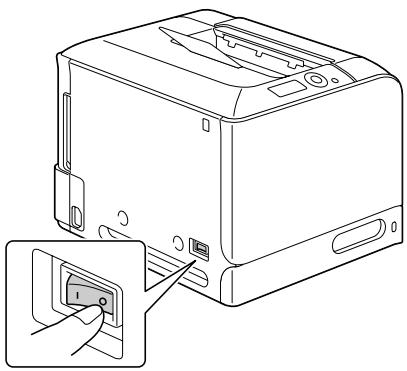
2 Using a screwdriver, remove the screw. Then, slide the rear cover to the right and remove it.
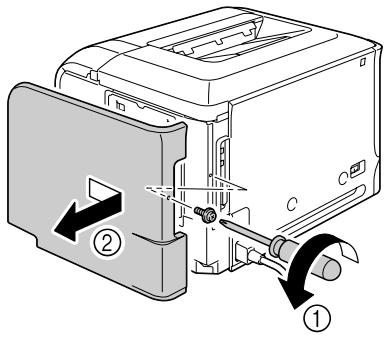
3 Using a screwdriver, loosen the seven screws. (Do not remove them from the printer.)
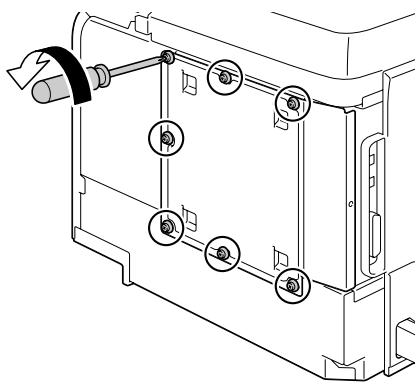
4 Slide the panel slightly to the right and lift it off the printer.
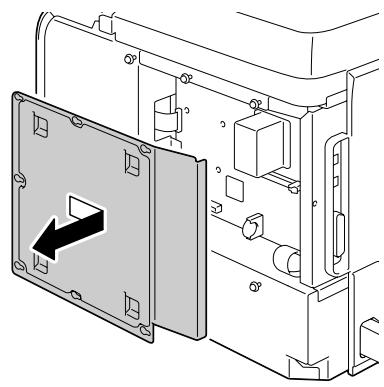
5 Insert the new DIMM straight into the DIMM connector until the latches snap into the locked position.
Observe the keyed side of the DIMM to align it with the connector. If you cannot snap the DIMM into place, do not force it. Reposition it, making sure that the DIMM is seated completely in the connector.
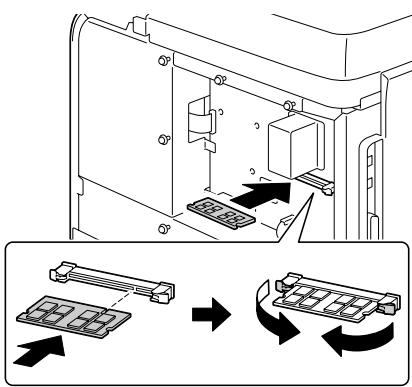
6 Reinstall the panel and tighten the seven screws.
7 Attach the rear cover.
8 Reconnect all interface cables.
9 Reconnect the power cord, and turn on the printer.
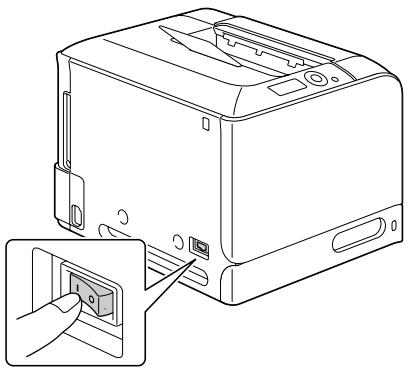
10 Declare the additional Printer Memory in the Windows printer driver (Properties/Configure tab).
11 Print a configuration page (PRINT MENU/CONFIGURATION PG) and verify that the total amount of the RAM installed in your printer is listed.
Hard Disk Kit
If you install a hard disk kit, the followings can be performed:
Collate printing
Job printing/saving
- Fonts/forms download
- User Authentication/Account Track
- Direct printing

A hard disk kit and a CF adapter cannot be installed simultaneously.
Installing the Hard Disk kit
Note
It's very important to protect the printer controller board and any associated circuit boards from electrostatic damage. Before performing this procedure, review the antistatic caution on page 219. In addition, always handle circuit boards by the edges only.
1 Turn off the printer and disconnect the power cord and interface cables.
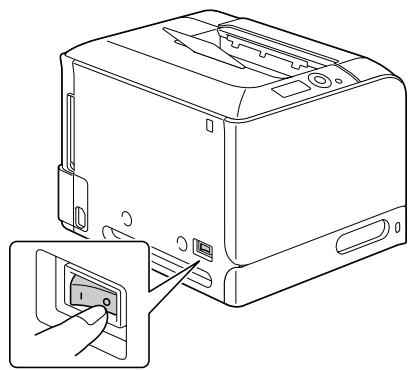
2 Using a screwdriver, remove the screw. Then, slide the rear cover to the right and remove it.
3 Using a screwdriver, loosen the seven screws. (Do not remove them from the printer.)
4 Slide the panel slightly to the right and lift it off the printer.
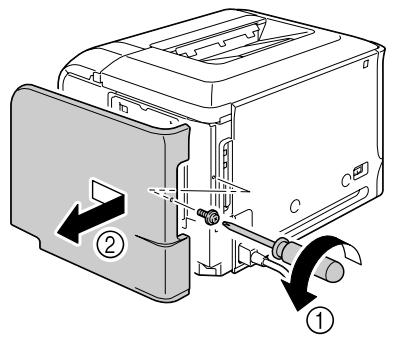
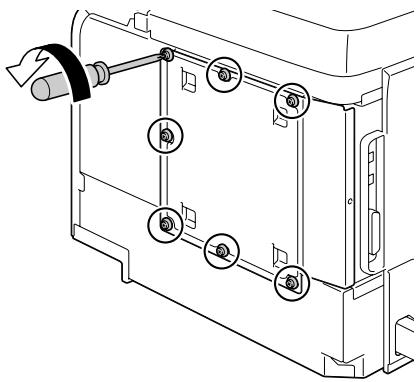
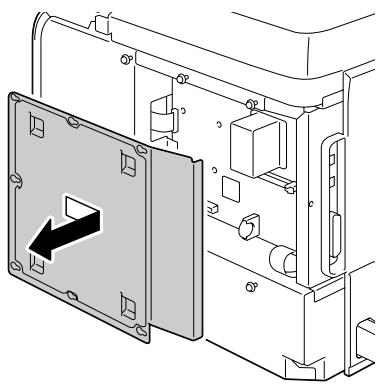
5 Plug the cable on the hard disk kit into the connector on the controller board.
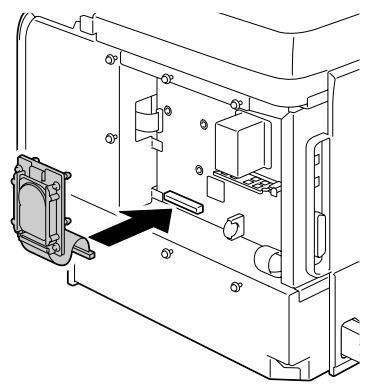
6 Insert the three mounting pins on the hard disk kit into the holes in the controller board to mount the hard disk kit onto the controller board.
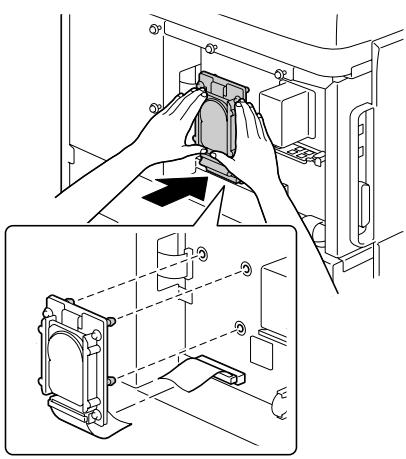
7 Reinstall the panel and tighten the seven screws.
8 Attach the rear cover.
9 Reconnect all interface cables.
10 Reconnect the power cord, and turn on the printer.
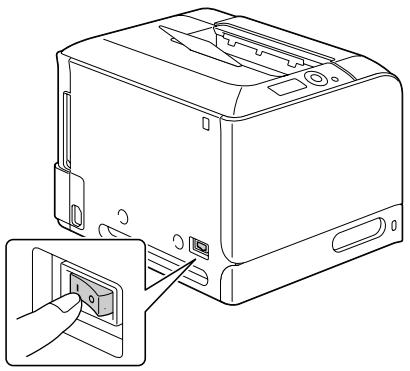
11 Declare the Hard Disk in the Windows printer driver (Properties/Configure tab).
CompactFlash
If you install a CompactFlash card, the followings can be performed:
Collate printing
- Fonts forms download
-UserAuthentication/Account Track
- Direct printing (including the use of PageScope Direct Print)

Only CompactFlash cards with a capacity of 256 MB, 512 MB, 1 GB, 2 GB or 4 GB can be used.

The job printing/saving function is not available with a CompactFlash card. These functions require that an optional hard disk kit be installed.

A hard disk kit and a CF adapter cannot be installed simultaneously.
Installing the CF adapter and CompactFlash card
Note
If the installed CompactFlash card is used with a device other than this printer, such as a computer or digital camera, the card is automatically formatted and all of its data is deleted.
Note
It is very important to protect the printer controller board and any associated circuit boards from electrostatic damage. Before performing this procedure, review the antistatic caution on page 219. In addition, always handle circuit boards by their edges only.
1 Turn off the printer and disconnect the power cord and interface cables.
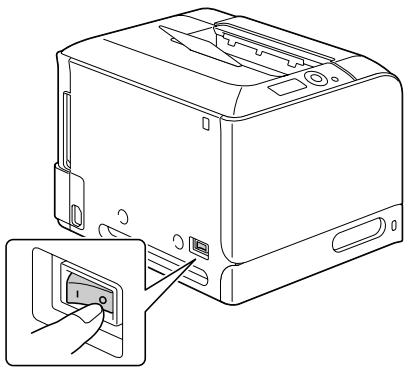
2 Using a screwdriver, remove the screw. Then, slide the rear cover to the right and remove it.
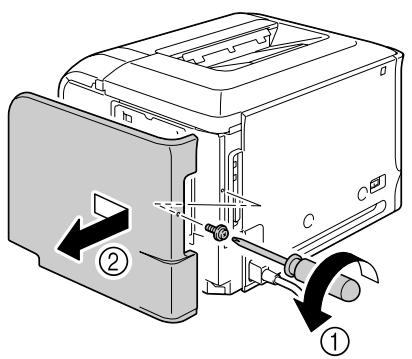
3 Using a screwdriver, loosen the seven screws. (Do not remove them from the printer.)
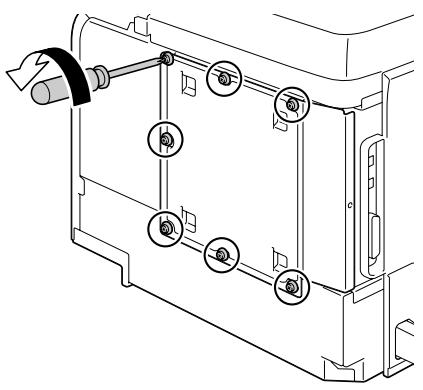
4 Slide the panel slightly to the right and lift it off the printer.
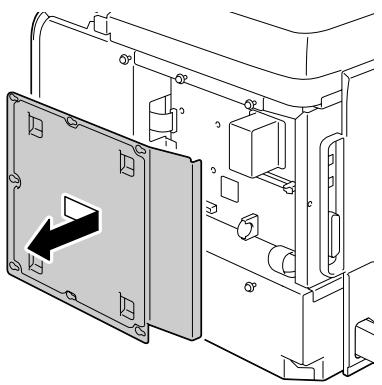
5 Plug the cable on the CF adapter into the connector on the controller board.
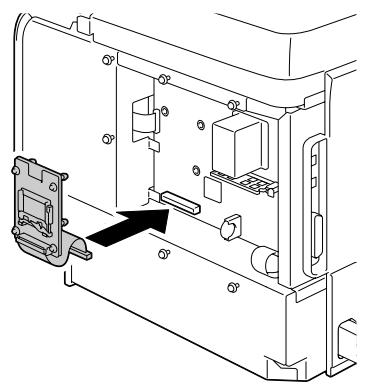
6 Insert the three mounting pins on the CF adapter into the holes in the controller board to mount the CF adapter onto the controller board.
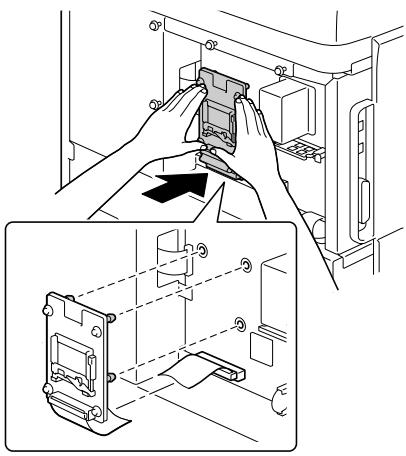
7 Fully insert the CompactFlash card into the appropriate slot. When the CompactFlash card is correctly inserted, the button on the top side of the slot (circled in the illustration) slightly pops out.

Before removing the CompactFlash card, press in this button.
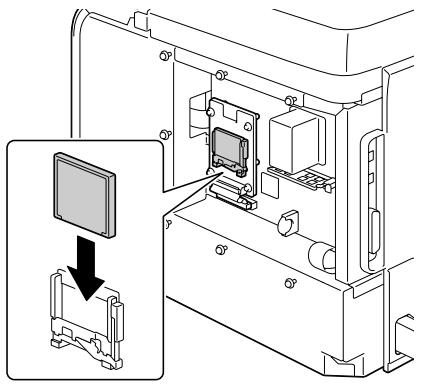
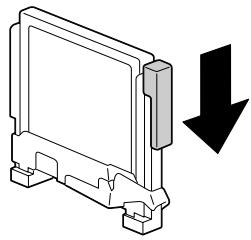
8 Reinstall the panel and tighten the seven screws.
9 Attach the rear cover.
10 Reconnect all interface cables.
11 Reconnect the power cord, and turn on the printer.
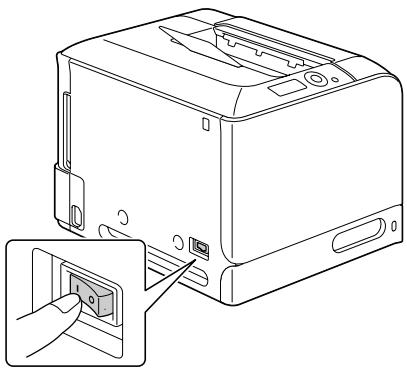
12 Declare the Memory card in the Windows printer driver (Properties/Configure tab).
Lower Feeder Unit
You can install up to one optional lower feeder unit (Tray 3). The lower feeder unit increases your printer's media feed capacity by 500 sheets.
Kit Contents
Lower feeder unit with a tray (500-sheet capacity)
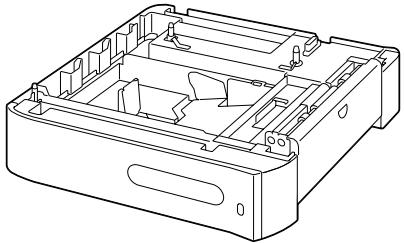
Note
Since consumables are installed in the printer, be sure to keep the printer level when moving it in order to prevent accidental spills.
1 Turn off the printer and disconnect the power cord and interface cables.
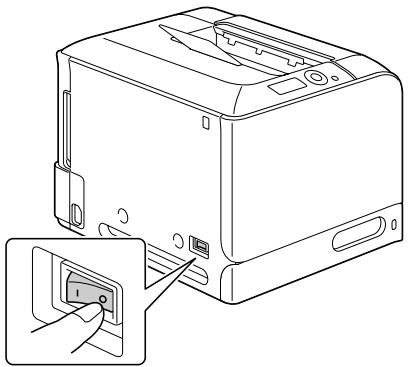
2 Prepare the lower feeder unit.

Be sure to place the lower feeder unit on a level surface.
3 Open the right side cover of the lower feeder unit.
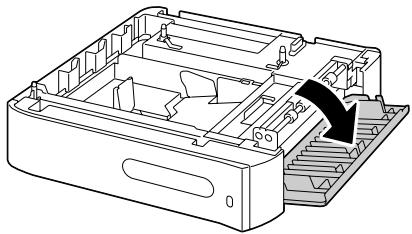

The right side cover of the lower feeder must be opened before the feeder can be installed onto the printer.
4 With another person's help, place the printer on top of the lower feeder unit, making sure that the positioning pins on the lower feeder unit correctly fit into the holes on the bottom of the printer.
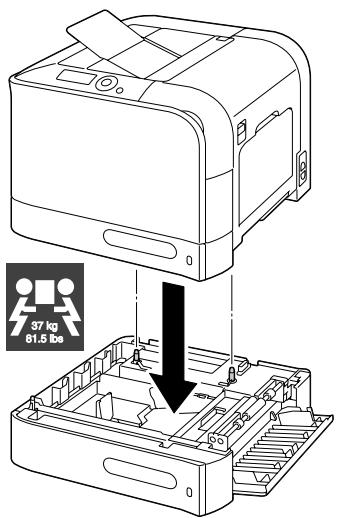

WARNING!
This printer weighs approximately 37kg (81.5lb) when it is fully loaded with consumables. The printer must be lifted by two people.
5 Close the right side cover of the lower feeder unit.
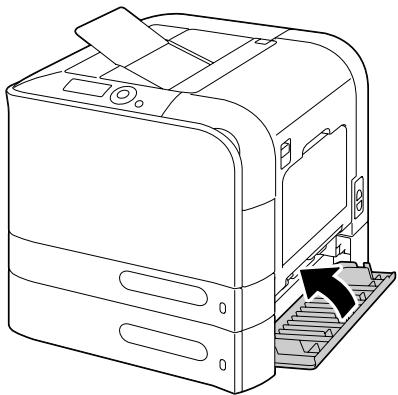
6 Reconnect all interface cables.
7 Reconnect the power cord, and turn on the printer.
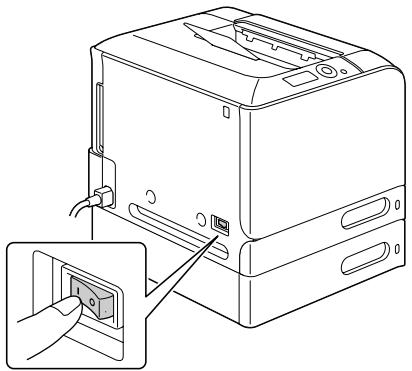
8 Declare Paper Source Unit 3 in the Windows printer driver (Properties/ Configure tab).
Appendix
A
Technical Specifications
Printer
| Type | Desktop Tandem Full Color A4 laser beam printer |
| Print system | Electro photographic Printing System |
| Exposure system | 4 laser diode and 1 polygon mirror |
| Developing system | Mono-component SMT |
| Resolution | 600 dpi × 600 dpi × 4 bits |
| First print | Simplex Monochrome/Full color: 14.5 seconds for A4 or Letter (plain paper) Duplex (double-sided) Monochrome/Full color: 25 seconds for A4 or Letter (plain paper) |
| Print speed | Simplex Monochrome/Full color : 24/24 page per minutes for A4 or Letter (plain paper) 25/25 page per minutes for A4 or Letter (plain paper) Duplex (double-sided) Monochrome: 24/24 page per minutes for A4 (plain paper) 25/25 page per minutes for Letter (plain paper) |
| Media sizes | Tray 1 (Manual feed tray) Paper width: 92 to 216 mm (3.6 to 8.5") Paper length: 148 to 356 mm (5.8 to 14.0") Tray 2 Paper width: 92 to 216 mm (3.6 to 8.5") Paper length: 148 to 297 mm (5.8 to 11.7") Tray 3 (Optional) B5 (JIS) - Legal |
| Paper/Media | ·Plain paper (60 to 90 g/m2; 16 to 24 lb bond) ·Recycled (60 to 90 g/m2; 16 to 24 lb bond) ·Transparencies ·Envelopes ·Letterhead ·Label ·Thick 1 (91 to 150 g/m2) ·Thick 2 (151 to 210 g/m2) ·Postcard ·Glossy 1 (100-128 g/m2) ·Glossy 2 (129-158 g/m2) |
| Input capacity | Tray 1 (Manual feed tray) Plain/Recycled paper: 100 sheets Envelope: 10 envelopes Label/Postcard/Thick 1/Thick 2/Glossy 1/ Glossy 2/Transparency/Letterhead: 20 sheets Tray 2 Plain/Recycled paper: 250 sheets Tray 3 (Optional) Plain/Recycled paper: 500 sheets |
| Output capacity | Output tray: 200 sheets (Plain paper: 80 g/m2) |
| Operating temperature | 10 to 35°C (50 to 95°F) |
| Operating humidity | 15 to 85% |
| Warm-up time | Avg. 36 seconds |
| Power supply | 120 V, 50 to 60 Hz 220 to 240 V, 50 to 60 Hz |
| Power consumption | 120 V: 1200 W or less 230 V: 1200 W or less Energy Saver Mode: 16 W or less |
| Amperage | 120 V: 10.5 A or less 220 to 240 V: 5.5 A or less |
| Acoustic Noise | Printing: 52 dB or less Standby: 39 dB or less |
| External dimensions | Height: 385 mm (15.2") Width: 469 mm (18.5") Depth: 536 mm (21.1") |
| Weight | Printer: approximately 31 kg (68.3 lb) (without consum- ables) approximately 37 kg (81.5 lb) (with consum- ables) |
| Interface | USB 2.0 (High Speed) compliant, 10Base-T/100Base-TX/1000Base-T Ethernet, ParallelHost USB (PictBridge1.0, USB Device Printing) |
| Standard memory | 256 MB |
Consumable Life Expectancy Chart
User-Replaceable
| Item | Average Life Expectancy |
| Toner cartridge | Standard in-box Cartridge: Printed within a constant environment 8,000 pages or more (Continuous) Printed outside of a constant environment 6,400 pages or more (Continuous) Replacement Cartridge (High-Capacity): Printed within a constant environment 8,000 pages or more (Continuous) Printed outside of a constant environment 6,400 pages or more (Continuous) |
| Imaging unit | 30,000 pages (Continuous) |
| Waste toner bottle | 36,000 pages (Monochrome) (Continuous) 9,000 pages (Full color) (Continuous) |
| Transfer roller | 120,000 pages (Continuous) |
| Ozone Filter (Bundle with transfer roller) | 120,000 pages |
| Transfer belt unit | 120,000 pages (Continuous) |
| Fuser Unit | 120,000 pages (Continuous) |
| Note: A constant environment is one with a temperature between 15 °C [59 °F] and 25 °C [77 °F] and humidity between 35% and 70%. | |

The values shown for the toner cartridge and waste toner bottle indicate the number of pages for simplex printing using A4/Letter-size media with 5% coverage.
The actual life may differ (be shorter) depending on the printing conditions (coverage, paper size, etc.), differences in the printing method, such as continuous printing or intermittent printing (when print jobs of one page are often printed), or the type of paper used, for example, thick paper. In addition, the life will be affected by the temperature and humidity of the operating environment.
Service-Replaceable
| Item | Average Life Expectancy |
| Media feed roller | 300,000 pages |
Our Concern for Environmental Protection

As an ENERGY STAR® Partner, we have determined that this machine meets the ENERGY STAR Guidelines for energy efficiency.
What is an ENERGY STAR product?
An ENERGY STAR product has a special feature that allows it to automatically switch to a "low-power mode" after a period of inactivity. An ENERGY STAR product uses energy more efficiently, saves you money on utility bills and helps protect the environment.
Index
A
Accessories 218
CompactFlash 227
DIMMs 220
Hard disk Kit 223
Lower feeder unit 231
Antistatic protection 219
C
Camera direct 96
CompactFlash 227
Configuration menu 30
Consumables
Backup battery 154
Ozone filter 147
Staple 157
Toner cartridge 128
Transfer belt unit 148
Transfer roller 144
Waste toner bottle 141
Control panel 26
D
Dual in-line memory module 220
Duplexing 122
E
Electrostatic discharge 219
Envelopes 103
Error messages 206
G
Glossy Media 107
H
Hard disk Kit 223
Imageable area 108
L
Labels 104
Letterhead 105
Loading media 109
Lower feeder unit 231
M
Maintenance 162
Media Clearing misfeeds 175 Imageable area 108 Loading 109 Path 174 Preventing misfeeds 173
Media misfeed
Duplex option 183
Fuser unit 184
Transfer roller 188
Tray 1 188
Tray 2 177
Tray 3 and 4 181
Media path 174
Media storage 125
Media type
Envelopes 103
Glossy media 107
Labels 104
Letterhead 105
Plain paper 101
Postcards 105
Thick stock 103
Transparencies 1
Memory Direct 98
Message window 28
Messages 205
Misfeed problems 190
Clearing 175
Media path 174
Preventing 173
Output tray 124
Plain paper 101
Postcards 105
Preventing media misfeeds 173
Print quality 199
Printer
Parts 4
Printer driver (Postscript, PCL) 16
Advanced tab 17
Basic tab 17
Cover page tab 18
Displaying 15
Layout tab 18
Overlay tab 18
Quality tab 19
Uninstalling 14
Version tab 20
Printer driver (PPD)
Displaying 15
Uninstalling 14
S
Service messages 215
Status monitor 22
Opening 22
Using 22
Thick stock 103
Transparencies 106
Troubleshooting 171
- bizhub C20P User's Guide
- Thank You
- Trademarks
- Copyright Notice
- Notice
- SOFTWARE LICENSE AGREEMENT
- About Adobe Color Profile
- ICC Profile for TOYO INK Standard Color on Coated paper (TOYO Offset Coated 2.1)
- Agreement
- For EU member states only
- Contents
- Uninstalling the Printer Driver (for Windows) 14
- Displaying Printer Driver Settings (for Windows) 15
- Using the Postscript and PCL Printer Driver 16
- Using the Status Monitor (Windows Only) 21
- Working with the Status Monitor 22
- Recognizing Status Monitor Alerts 23
- Recovering from a Status Monitor Alert 23
- Closing the Status Monitor 23
- Printer Control Panel and Configuration Menu 25
- About the Control Panel 26
- Configuration Menu Overview 30
- Introduction
- 1
- Getting Acquainted with Your Printer
- Space Requirements
- Printer Parts
- Front View
- Rear View
- Front View with Options
- About the Software
- 2
- PostScript Drivers
- PCL Drivers
- XPS Driver
- PPD Files
- Utilities and Documentation CD-ROM
- Utilities
- System Requirements
- Selecting Driver Options/Defaults (for Windows)
- Windows Vista/XP/Server 2003/2000 (KONICA MINOLTAbizhub C20P PCL6, KONICA MINOLTAbizhub C20P PS)
- Choose the driver's properties as follows:
- Click Apply.
- Select the General tab.
- Click Printing Preferences.
- Select the default settings for your printer, such as the default media format you use, in the appropriate tabs.
- Click Apply.
- Click OK to exit from the Print preference dialog box.
- Click OK to exit from the Properties dialog box.
- Uninstalling the Printer Driver (for Windows)
- Windows Vista/XP/Server 2003/2000(KONICA MINOLTAbizhub C20P PCL6, KONICA MINOLTAbizhub C20P PS)
- Displaying Printer Driver Settings (for Windows)
- Windows Vista
- Windows XP/Server 2003
- Windows 2000
- Using the Postscript and PCL Printer Driver
- Common Buttons
- OK
- Cancel
- Apply
- Help
- Favorite Setting
- Paper View
- Printer View
- Quality View
- Default
- Advanced Tab (PostScript Printer Driver Only)
- Basic Tab
- Layout Tab
- Cover Page Tab
- Watermark/Overlay Tab
- Quality Tab
- Other Tab
- Limitations on printer driver functions installed with Point and Print
- Using the Status Monitor (Windows Only)
- 3
- Working with the Status Monitor
- Operating Environment
- Opening the Status Monitor
- Using the Status Monitor
- Status Tab
- Consumables Tab
- Recognizing Status Monitor Alerts
- Recovering from a Status Monitor Alert
- Closing the Status Monitor
- Printer Control Panel and Configuration Menu
- 4
- About the Control Panel
- Control Panel Indicators and Keys
- Message Window
- Help Screens
- Configuration Menu Overview
- Main Menu
- PROOF/PRINT MENU
- Printing/Deleting a Stored Job
- Entering the Password
- PRINT MENU
- PAPER MENU
- QUALITY MENU
- MEMORY DIRECT
- CAMERA DIRECT
- INTERFACE MENU
- SYS DEFAULT MENU
- MAINTENANCE MENU
- SERVICE MENU
- 5
- Printing Directly from a Digital Camera
- 6
- Printing From a Connected USB Memory Device
- Using Media
- 7
- Media Types
- Plain Paper (Recycled Paper)
- Use media that is
- Note
- DO NOT use media that is
- Thick Stock
- DO NOT use thick stock that is
- Envelopes
- Use envelopes that are
- DO NOT use envelopes that have
- Labels
- Use label sheets that are
- DO NOT use label sheets that
- Letterhead
- Postcards
- DO NOT use postcards that are
- Transparencies
- Use transparencies that are
- DO NOT use transparencies that
- Glossy Media
- DO NOT use glossy media stock that is
- What Is the Guaranteed Imageable (Printable) Area?
- Imageable Area—Envelopes
- Page Margins
- Loading Media
- How do I load media?
- Tray 1 (Manual Feed Tray)
- Loading Plain Paper
- Other Media
- Loading Envelopes
- Loading Label Sheets/Postcards/Thick Stock/Glossy Media and Transparency
- Tray 2
- Tray 3 (Optional Lower Feeder Unit)
- Close Tray 3.
- Duplexing
- How do I autoduplex?
- Output Tray
- Media Storage
- How do I store media?
- Replacing Consumables
- About Toner Cartridges
- CAUTION
- Replacing a Toner Cartridge
- Replacing a Imaging Unit
- Open the printer's front cover.
- Replacing the Waste Toner Bottle
- Open the left and right handles of the waste toner bottle.
- Grab the left and right handles of the waste toner bottle, and then slowly pull out the bottle.
- Remove the new waste toner bottle from its packaging. Insert the used waste toner bottle into the plastic bag included in the box, and then box it up.
- Replacing the Transfer Roller
- Replacing the Ozone Filter
- Replacing the Transfer Belt Unit
- Prepare a new transfer belt unit.
- Remove all packing tape from the new transfer belt unit.
- Remove the protective cover from the new transfer belt unit.
- Insert the new transfer belt unit along the rails.
- Replacing the Backup Battery
- Replacing the Fuser Unit
- Maintaining the Printer
- 9
- WARNING!
- Exterior
- Media Rollers
- Cleaning the Media Feed Rollers (Manual Feed Tray)
- Cleaning the Media Feed Rollers (Tray 2/3)
- Cleaning the Media Transfer Rollers for Tray 3
- Cleaning the Laser Lens
- Troubleshooting
- 10
- Printing a Configuration Page
- Preventing Media Misfeeds
- Understanding the Media Path
- Clearing Media Misfeeds
- Media Misfeed Messages and Clearing Procedures
- Clearing a Media Misfeed in Tray 2
- Close the right side cover.
- Clearing a Media Misfeed in Tray 3
- Clearing a Media Misfeed from the Duplex
- Clearing a Media Misfeed from the Fuser Unit
- Clearing a Media Misfeed from Tray 1 (Manual Feed Tray) and Transfer Roller
- Solving Problems with Media Misfeeds
- Solving Other Problems
- Solving Problems with Printing Quality
- Status, Error, and Service Messages
- Error Messages (Warning: A)
- Service Messages:
- Installing Accessories
- 11
- Antistatic Protection
- Dual In-Line Memory Module (DIMM)
- Installing a DIMM
- Hard Disk Kit
- Installing the Hard Disk kit
- CompactFlash
- Installing the CF adapter and CompactFlash card
- Lower Feeder Unit
- Kit Contents
- Appendix
- A
- Technical Specifications
- Printer
- Consumable Life Expectancy Chart
- Our Concern for Environmental Protection
- What is an ENERGY STAR product?
- Index
- C
- D
- E
- G
- H
Marque : KONICA MINOLTA
Modèle : BIZHUB C20P
Catégorie : Imprimante couleur